36 37
PhonebookPhonebook
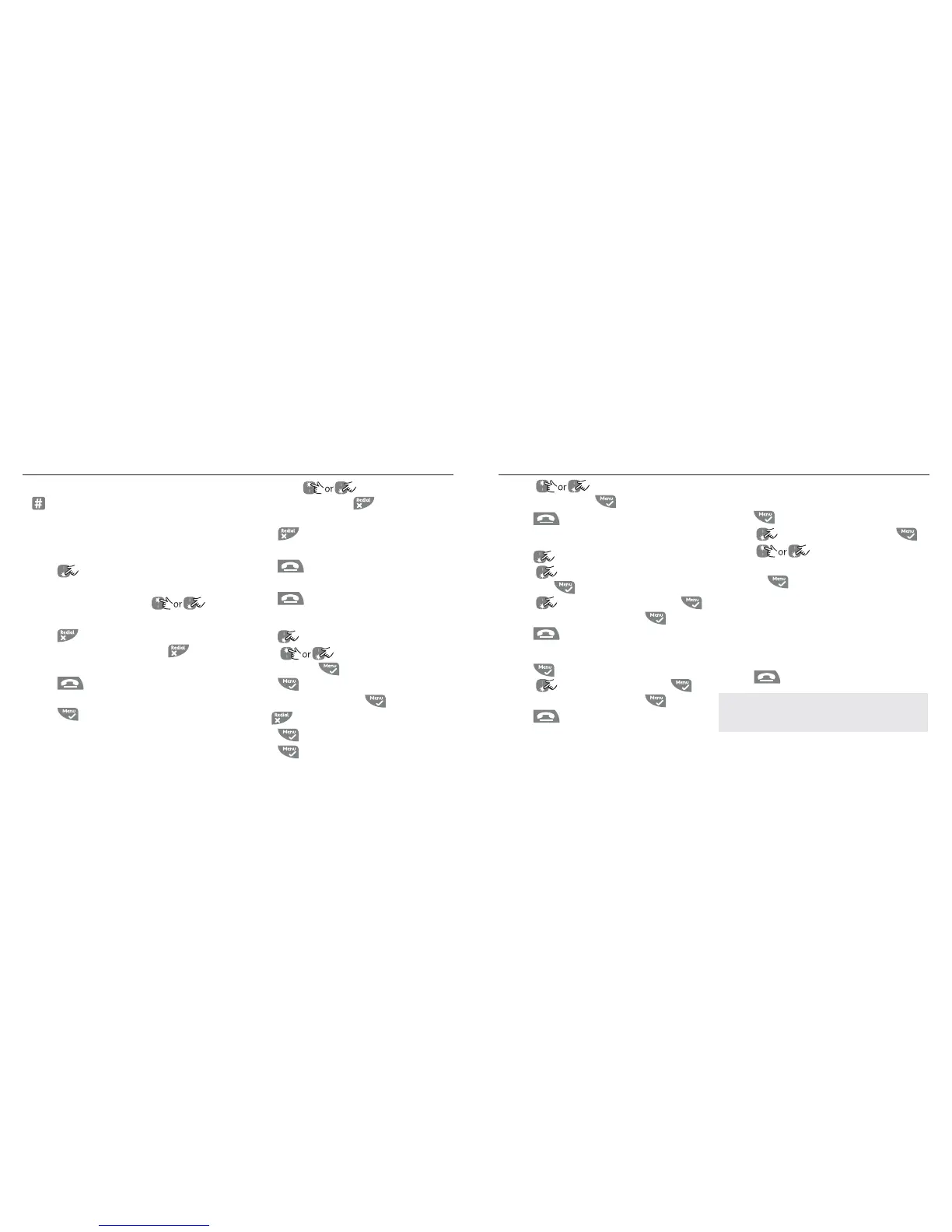
1. When storing a number, press and hold
until the display shows
P
. You can then
continue storing the phone number.
To view an entry
In standby:
1. Press
.
2. Enter the first letter of the name to search
alphabetically then scroll to
the exact entry. The name is displayed.
3. Press to display the number. If there
are more than 12 digits, press again to
see the rest of the number.
4. Press to return to standby.
During a call:
1. Press twice to open the phonebook
menu.
2. Enter the first letter of the name you want
then scroll
if necessary to
the exact name. Press to display the
number. If there are more than 12 digits,
press again to see the rest of the
number.
3. Press
to cancel the phonebook
display.
4. Press again to end the call.
To edit an entry
1. Press .
2. Scroll to the entry you want to
edit and press .
EDIT ENTRY
is displayed.
Press again.
3. Edit the name and press to confirm.
Use to delete characters.
4. Press and edit the number.
5. Press to confirm.
6. Scroll
to select
NO GROUP, GROUP
A, B
or
C
and press to confirm.
7. Press
to return to standby.
To delete an entry
1. Press .
2. Scroll to the entry you want to delete
and press .
3. Scroll to
DELETE ENTRY
and press .
4. Display shows
CONFIRM?
. Press .
5. Press to return to standby.
To delete all entries
1. Press twice.
2. Scroll to
DELETE ALL
and press .
3. Display shows
CONFIRM?
. Press .
4. Press to return to standby.
To copy the phonebook to another
handset
1. Press twice.
2. Scroll
to
PB TRANSFER
and press .
3. Scroll
to the number of the
handset you want the phonebook copied
to. Press
.
4. When the message “
TRANS. FROM HANDSET
X
” appears on the destination handset,
press
OK
on the handset to start the copy
process.
5. When “
DONE!
” appears on both handsets
press to return to standby.
NOTE If an entry with the same name and number is
already stored in the receiving handset, it will not be
copied across.



 To Next Page