76
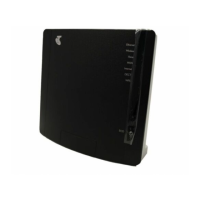
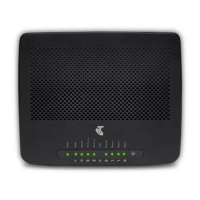
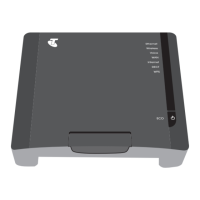
One of the first things to do is to look at the T-Gateway lights,
which will provide you further information on what may prevent
you from accessing your gateway interface.
TROUBLESHOOTING: CAN’T ACCESS MY GATEWAY
WEB INTERFACE
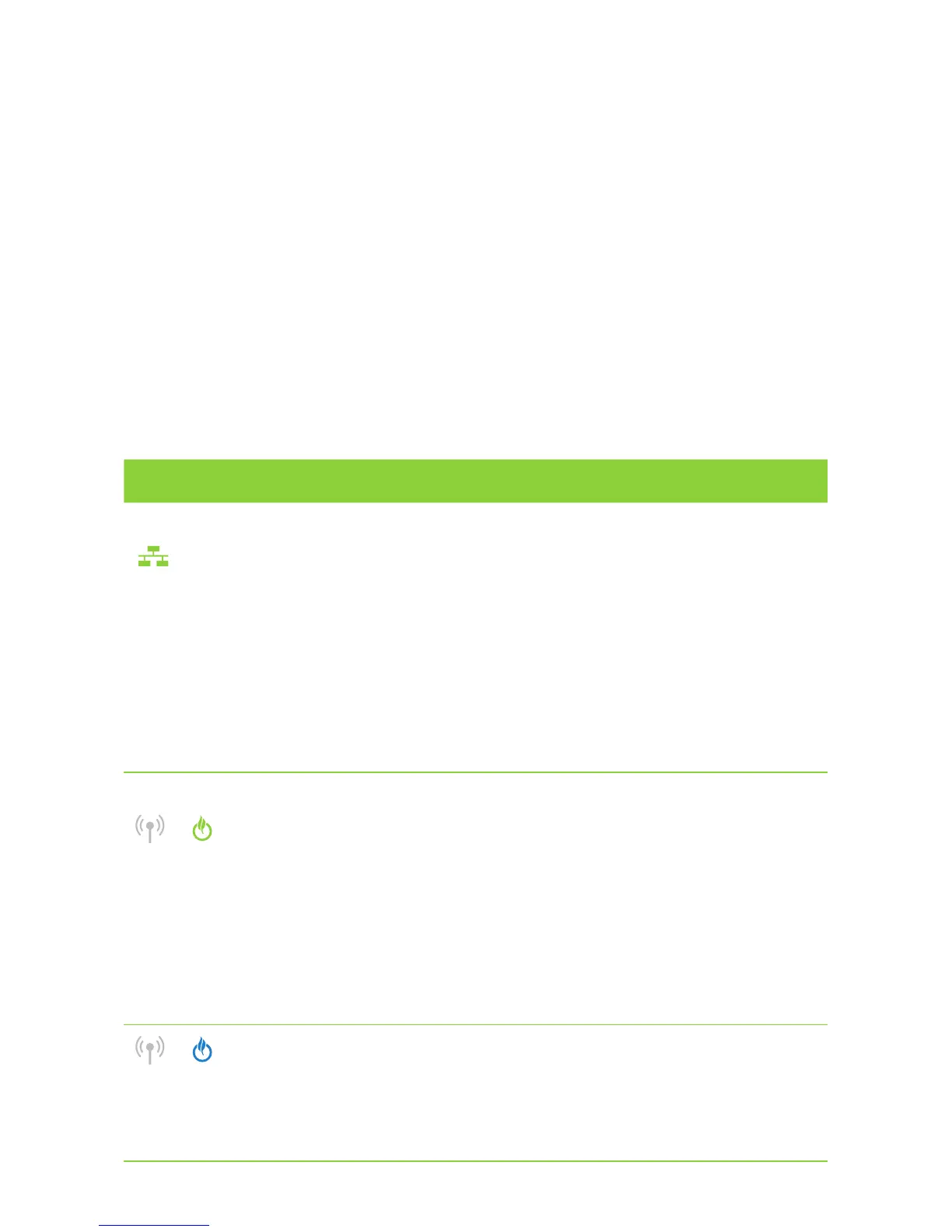
T-GATEWAY LIGHT STATUS WHAT IT MEANS WHAT TO DO
If connected via a ‘Ethernet –Wired’ connection
Ethernet light is off
The Ethernet port
on the T-Gateway
or your device is not
working properly
• Ensure your Ethernet cable that it is properly
connected to the gateway or your device.
• Try connecting the Ethernet cable on another
Ethernet port on the gateway.
• Check your connection with a different
Ethernet cable.
• Restart your gateway by turning it on & off,
using the Power button on the back.
• Reset your gateway to ‘Factory Default’
settings, by pressing the ‘Reset’ pin, using a
pen or toothpick, on the back of the gateway.
If connected via a ‘Wi-Fi’ connection
Wi-Fi light is off,
but Status
light is solid green
There is no device
connected on Wi-Fi
to the T-Gateway
• Check that you used the correct Wi-Fi
details from the supplied Wi-Fi key card.
• Check that you have turned on the
Wi-Fi radio on your device.
• Restart your T-Gateway by turning it on & off,
using the Power button on the back.
• Reset your gateway to ‘Factory Default’
settings, by pressing the ‘Reset’ pin,
using a pen or toothpick, on the back
of the gateway.
Wi-Fi light is off,
and Status light is
solid blue
The Wi-Fi access
point is disabled
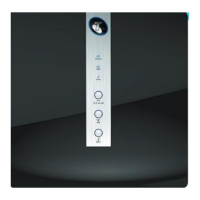
• Press the ECO/Status button on the front
to turn your Wi-Fi access point on.
• Reset your T-Gateway to ‘Factory Default’
settings, by pressing the ‘Reset’ pin,
using a pen or toothpick, on the back of
the T-Gateway.


 To Next Page