
 Need help?
Do you have a question about the Tentacle TRACK E and is the answer not in the manual?
Enables operation, synchronization, and parameter setting for TRACK E devices.
Ensures Setup App communication with TRACK E devices via Bluetooth.
Guides on powering on the TRACK E device and its initial status indication.
Details jam-syncing TRACK E with external timecode sources via cable.
Starts and stops recording for all TRACK E devices simultaneously.
Starts and stops recording for a single TRACK E device.
Operates recording functions directly on TRACK E using the user switch.
Explains the 'Devices have to be synchronized' warning message and its implications.
Allows selection between loudspeaker or earpiece audio monitoring modes.
Requires pressing STOP for 2 seconds before audio recording stops.
Removes all connected devices from the monitoring list.
Details settings for device icon, status, timecode, battery, and recording format.
Covers playback controls, file skipping, speed adjustment, and detailed file info.
Changes device name and selects recording formats like 32-bit float or 24-bit.
Adjusts headphone volume, LED brightness, and LED while recording.
Details powering the TRACK E device on and off using the user switch.
Explains initiating and terminating recordings using the user switch.
Describes the 3.5mm mini jack microphone input with screw lock and 5V plug-in power.
Discusses adapters for connecting various microphones and compatibility.
Details the included 16GB microSD card, its capacity, and formatting via the app.
Provides notes on battery charging process and temperature limitations.
Explains USB-C port as a card reader for fast data transfer.
Pre-update checks: backup data, battery status, and software conflicts.
Step-by-step instructions for performing the firmware update on the TRACK E.
Details tracks, sampling rate, bit-depth, file formats, recording time, and storage.
Info on mic input, plug-in power, headphone output, USB connection, and modes.
Technical metrics: frequency response, gain range, dynamic range, and THD+N.
Specs for Bluetooth, remote control, and synchronization methods.
Defines proper usage, safety precautions, temperature limits, and handling advice.
Covers product disposal, FCC, and Industry Canada compliance statements.
Contact details for technical support, downloads, and company information.
Details warranty period, coverage, exclusions, and claim procedures.
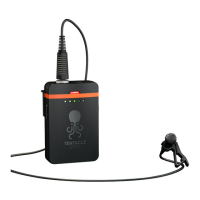
The Tentacle TRACK E is a timecode audio recorder designed for professional use, offering robust functionality for synchronized audio recording. It integrates seamlessly with other Tentacle devices and can be controlled via a dedicated mobile app for iOS and Android.
The TRACK E primarily functions as a timecode-enabled audio recorder, capturing high-quality audio while maintaining precise timecode synchronization. It can record a single track of audio and is compatible with various microphones, including lavalier, electret shotgun, and dynamic microphones. The device supports different recording formats, including 32-bit float WAV and 24-bit WAV, catering to various production needs. The 32-bit float format is particularly useful as it eliminates the need for gain adjustment, allowing for a wide dynamic range without clipping. The device can also act as a timecode generator, enabling jam-syncing with external timecode sources via its microphone input.
Getting Started and Setup: To begin, users need to download the Tentacle Setup App for iOS or Android. Bluetooth must be enabled on the mobile device, and the TRACK E should be switched on. The device powers on with a blue animation of the level LED, then the status LED pulsates white for standby. New TRACK E devices are added to the app by tapping "+ Add Device" and holding the device close to the phone to ensure secure access.
Timecode Synchronization: Synchronization is a core feature, easily managed through the Setup App. Users tap the "SYNC" button, select the desired frame rate (e.g., 23.98, 24, 25, 29.97, 29.97DF, 30), and can set a custom timecode or use the predefined Time of Day. Pressing "START" synchronizes all connected Tentacle devices within seconds. The microphone input can also be used for jam-syncing with external timecode sources via cable, provided no other actions (like wireless sync or recording) are active.
Recording: Recording can be initiated and stopped either via the Setup App or directly on the TRACK E device using the user switch.
Device Monitoring and Management: The Setup App provides a comprehensive device list, displaying crucial information at a glance, including level meter, recording file format, recording time, frame rate, timecode, battery status, Bluetooth range, device icon, and name. If a TRACK E goes out of Bluetooth range, its status and timecode are maintained for up to 10 minutes. Devices can be removed from the list by swiping left (iOS) or long-pressing (Android). The app also provides warnings, such as "Devices have to be synchronized" if timecode inaccuracies exceed half a frame.
Audio Monitoring: Audio monitoring is available via the Setup App. By long-pressing the speaker button, users can choose between earpiece monitoring (holding the smartphone to the ear) or loudspeaker monitoring. Bluetooth headphones can also be used, though this may introduce device-dependent time lag. The app displays a level meter in dB, current audio clip recording time, remaining recording time on the microSD card, and a waveform visualization (orange during recording).
Recording Settings: Within the app, users can adjust recording gain (important for 48kHz / 24-bit format), activate or deactivate a low-cut filter (to reduce noise below 80Hz), and manage mic plug-in power. The mic plug-in power is 5V by default, suitable for electret lavalier microphones, and can be turned off for dynamic microphones to extend battery life.
Playback: The playback section of the app allows users to listen to recorded files. Connecting headphones to the TRACK E's 3.5mm output or using the smartphone's audio monitoring feature is required. Playback controls include skipping between files and adjusting playback speed up to 128x. The app displays file information such as name, channel count (Mono), sample rate (48 kHz), recording bit depth, clip length, and timecode.
General Settings: Users can customize the device name, which creates a new folder on the microSD card. Recording formats can be selected (32-bit float or 24-bit WAV). Headphone volume can be adjusted, though the US version deactivates headphone output during recording. LED brightness can be controlled, and the level LED can be deactivated during recording. The user switch assignment can be changed from "Start / Stop Recording" to "Not used" or "Start / Stop Playback."
MicroSD Card Management: The TRACK E comes with a 16GB microSD card, located on the left side of the device. It supports microSDHC cards up to 32GB (recommended class 10). The card can record up to 30 hours in 24-bit format or 23 hours in 32-bit float format. Formatting the microSD card is easily done through the Setup App's settings. It's recommended to leave the microSD card inside the TRACK E and use the device as a hard drive for data transfer.
Rechargeable Battery: The device features a built-in, rechargeable, and replaceable Lithium-Polymer battery. Charging occurs via USB-C, with the charging status indicated by an LED next to the port. A full charge takes approximately 2 hours and provides up to 10 hours of operation. When the battery drops below 10%, the level LED flashes yellow. The device switches off at 3% battery status. Battery replacement kits are available from Tentacle Sync, and replacement is recommended after 2-4 years of use as performance declines. Charging is automatically stopped if temperatures are below 0°C or above +40°C to preserve battery life, indicated by a red charging LED.
USB-C Port and Card Reader Functionality: The USB-C port serves multiple purposes: charging, data transfer, and firmware updates. When the TRACK E is switched off and connected to a computer via USB-C, it acts as a card reader, allowing direct drag-and-drop file transfer without removing the microSD card. The connection is confirmed by a short flash of the status LED and the appearance of a hard drive icon on the desktop. Proper ejection from the computer is required before disconnecting.
Firmware Update: Firmware updates are performed wirelessly via Bluetooth using the Tentacle Setup App (iOS/Android) or via USB cable using a dedicated firmware updater app on a computer. Updates improve wireless audio monitoring, write performance, and battery running time. Before updating, users should back up their microSD card, ensure sufficient battery on both the TRACK E and the updating computer, and close any other Tentacle software. The update process involves connecting the TRACK E to the computer, waiting for detection, pressing "Start Firmware Update," and observing the purple blinking status and level LEDs. If an update fails, contacting support is advised for device restoration.
 General
| Connector | 3.5 mm TRS |
|---|---|
| Connectivity | Bluetooth |
| Weight | 30 g |
| Sample Rate | 48 kHz |
| Timecode Formats | LTC |
| Battery Type | Lithium Polymer |
| Charging Time | 2 hours |
| Power Supply | USB-C |

 To Next Page