Using recording features
22
3.8 About the screen layout
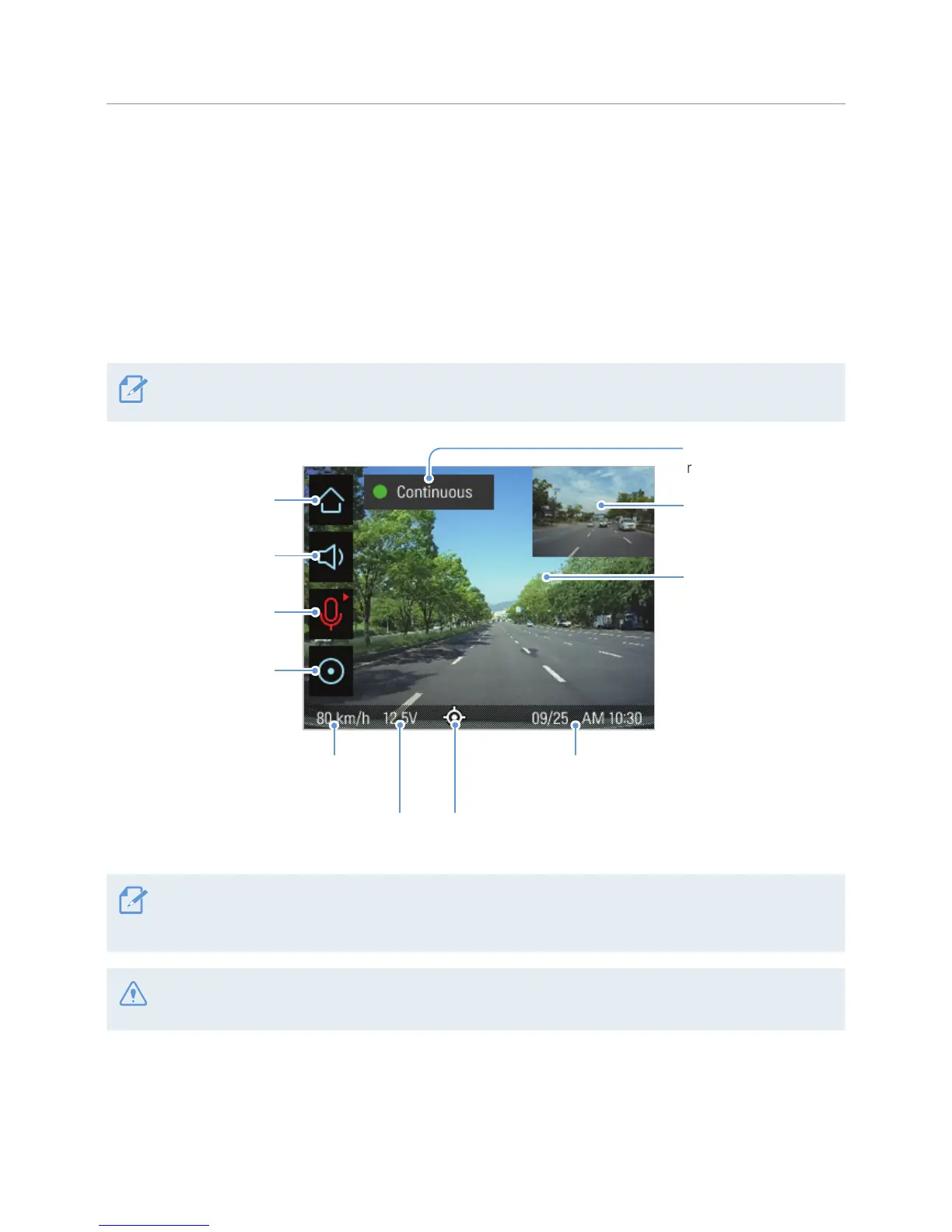
The followings are layout descriptions of the Live view and Home screens.
3.8.1 Live view screen
On the Live view screen, you can view the currently recorded video and operate the product by tapping on
the LCD display. When you turn on electrical accessories and start the engine, the Live view screen will be
displayed.
To turn off the display while maintaining the continuous recording, briefly press the power button. To turn on
the display again, briefly press the power button or gently touch the display.
Move to the Home screen.
Displays the video
that the rear camera
(optional) is recording.
Displays the video
that the front camera
is recording. Tap the
screen to hide or display
the Menu buttons.
Displays the current date and time.
Displays the current
recording status.
Turn on or off the voice
guidance.
Activate or deactivate the
voice recording feature.
Start manual recording.
Displays the current driving speed when
the external GPS module (optional).
Displays the current vehicle voltage. Displays the GPS icon when the external
GPS module (optional) is installed.
You can open the touch accuracy resetting window by tapping the Live view screen 10 times. Reset the
touchscreen accuracy through the touch accuracy resetting window. For more information, refer to "5.4.3
Resetting the touchscreen (Calibrate Touchscreen)".
Wait until the product is completely booted up after turning it on, and then begin operating the vehicle. The
video recording does not begin until the product is completely turned on (booted up).



 To Next Page