32
11.5. Hearing Impaired
Press the s / w button to select Hearing Impaired, then press the Enter/OK button to select or turn On/O? On
or O.
11.6. PVR Recording function
By default the SW of the Thomson TVs is without PVR (recording) function. You can download and install the PVR
function of your choice on the following link https://tv.mythomson.com/en/Products/Accessories-Downloads/.
Additional fees may apply.
Instant recording
Do you want to record the content you are currently watching? Simply click on the REC button on your remote
control and the recording will start immediately. Note: The recording will only stop if you manually stop it or turn
OFF your TV. To manually stop the recording, click again on the REC button and click on Stop.
Timer recording
You have two options on how to schedule a recording ahead of time. You can either set the start and end time
manually or you select a specic movie or show you want to record.
Set start and end time:
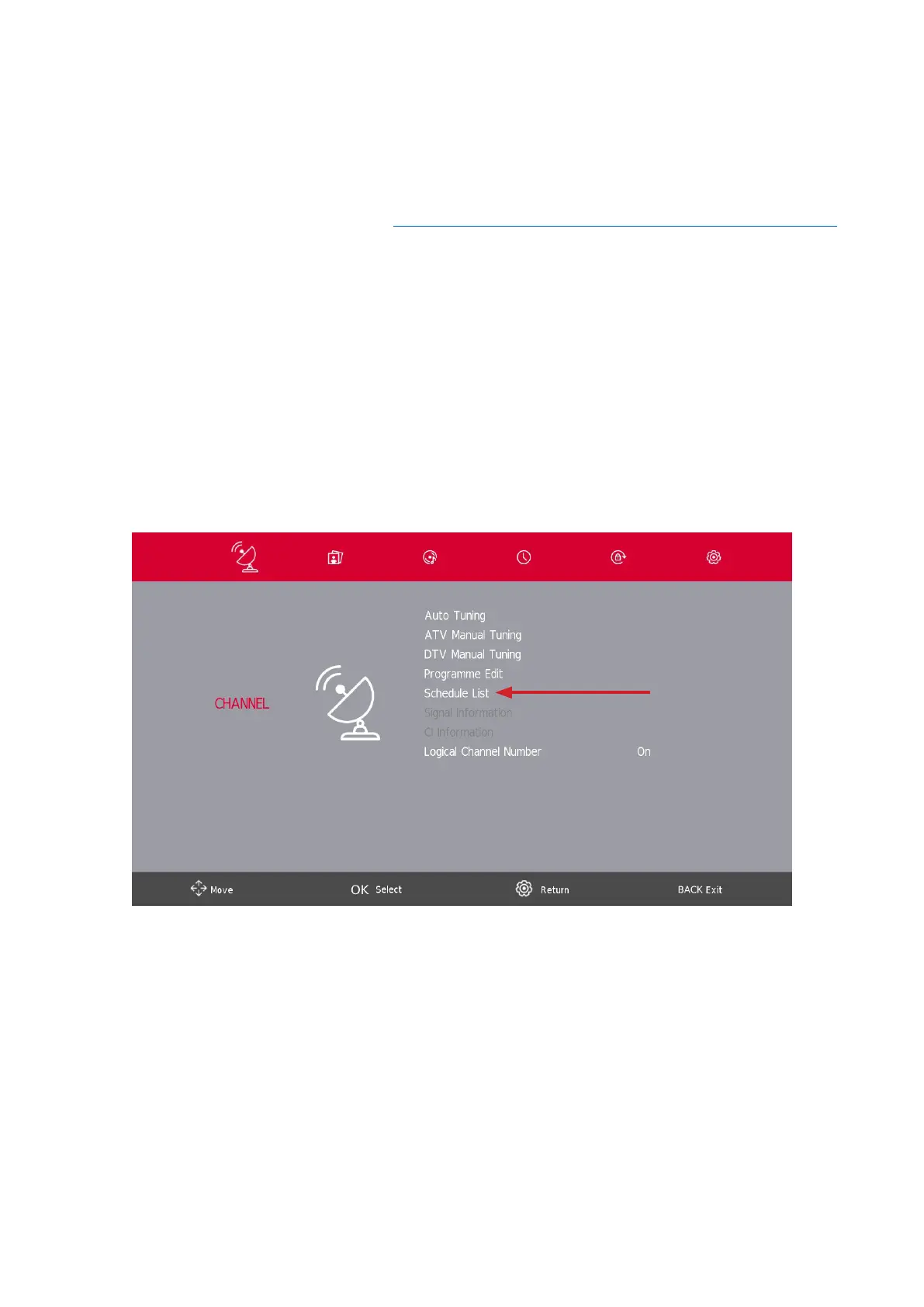
After you have successfully installed the recording software, the feature “Schedule List” will be available in the
Channel menu.
By clicking on Schedule List you can manually select the channel, the start and the end time of your recording.
Additionally, you can select how often this recording should happen (once, daily or weekly).
• R = record once
• D = record daily
• W = record weekly
• A = record automatically





 To Next Page