2 SpeedTouch™ Internet Connectivity
E-SIT-CTC-20030306-0003 v3.0
37
2.2.2 Internet Sessions via the SpeedTouch™ Web
Pages (all OSs)
Starting a PPP session To open a Routed PPP connection to the Internet:
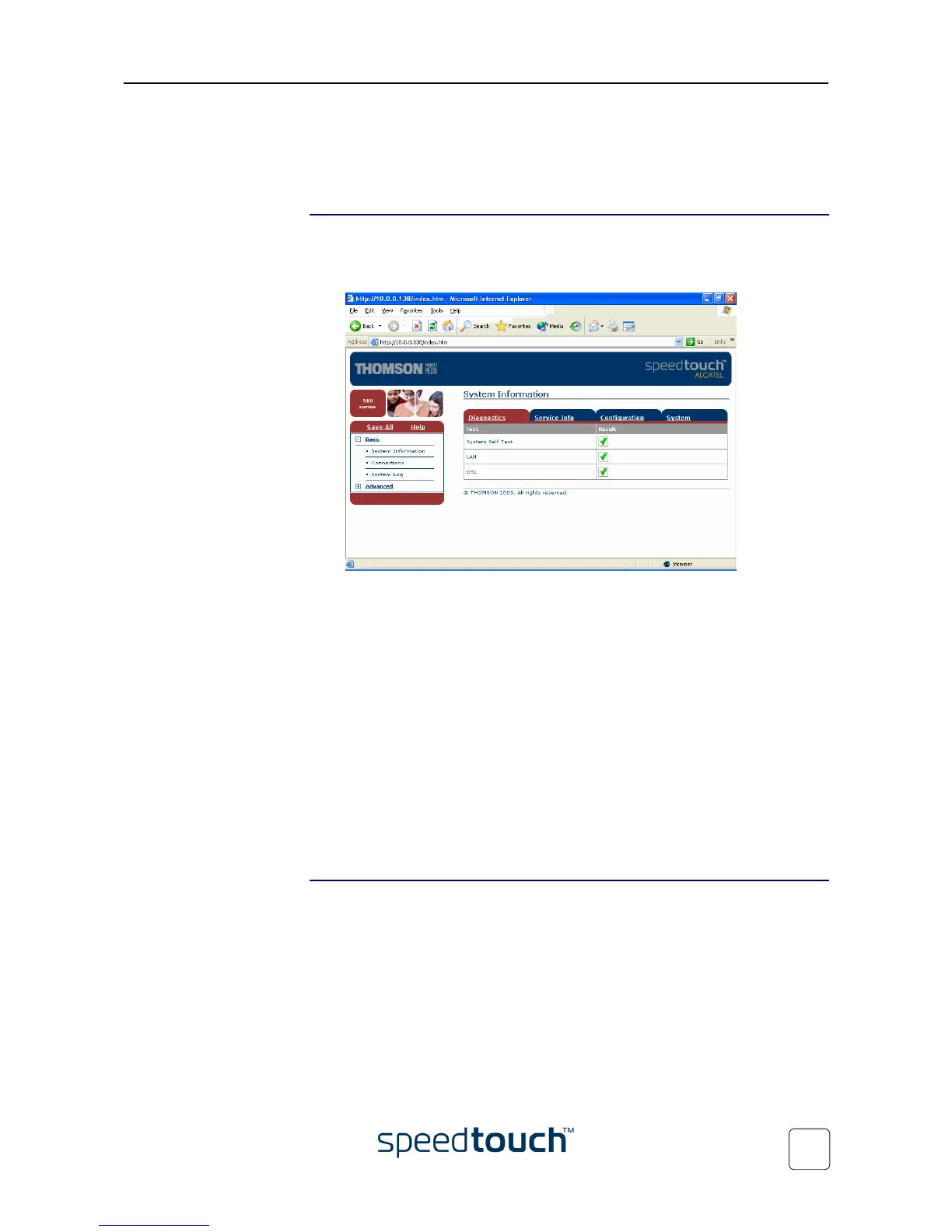
1 Open a web browser on your computer and browse to the SpeedTouch™ web
pages:
2 If needed, expand the Basic Topics, and click Connections to open the Connec-
tions web page.
3 In the Connections table all configured Routed PPP entries are shown.
In the Interface column click the entry you want to start a session with. As a
result the entry will be highlighted.
4 Make sure the connection is disconnected.
5 If not provided yet, enter your user name and password in the appropriate fields. If
you want the SpeedTouch™ to remember your credentials, select the Save this
password check box.
6 Click Connect.
While the SpeedTouch™ tries to start the session 'trying' appears in the State col-
umn of the entry. Once the session is started successfully the field displays 'up'.
From then on you are online and you can start your application or browse the
Internet.
Terminating an opened
PPP session
To close an active Routed PPP connection:
1 Ensure that you have access to the SpeedTouch™ web pages.
2 Browse to the SpeedTouch™ Connections page and select the connection entry
you want to terminate the session for.
3 Click Disconnect. The entry's session state will change to 'Down', i.e. it becomes
idle.





 To Next Page