4 SpeedTouch™ System Software Upgrade
E-SIT-CTC-20030306-0003 v3.0
64
4.1 The SpeedTouch™ Upgrade Wizard
Using the Upgrade
Wizard
The procedure described in this section are valid only in case you run an MS Windows
Operating System or Mac OS X 10.1/10.2.
During the upgrade procedure all configuration settings are backed up by the wizard
and restored after upgrading the system software. Therefore, you do not need to back
up the SpeedTouch™ configuration yourself.
Before you start Make sure that you have a valid SpeedTouch™ system software file available on a local
disk or CD-ROM.
System software
upgrade procedure
Following procedure describes how to use the SpeedTouch™ Upgrade wizard from a
PC running a MS Windows OS. For computers running Mac OS10 the behavior of the
wizard is identical.
Proceed as follows:
1 Insert the SpeedTouch™ Setup CD-ROM in your computer's CD-ROM drive.
• MS Windows OSs
The SpeedTouch™ CD Browser will start automatically:
If the SpeedTouch™ CD Browser window does not appear automatically,
open a 'Run' window via Start > Run from the Start menu and enter the
following path: D:\Menu.exe, where D stands for the drive letter of your
CD-ROM drive.
The wizard prompts you to select a language. Select the language of your
choice and click OK.
To start the SpeedTouch™ Upgrade wizard, click Diagnostics & Mainte-
nance and then click Upgrade My SpeedTouch™.
• Mac OS10.1/10.2
Open the CD-ROM and click UpgradeST to install the upgrade program.
After installation, go to applications:SpeedTouch on the OS X partition and
double-click UpgradeST.
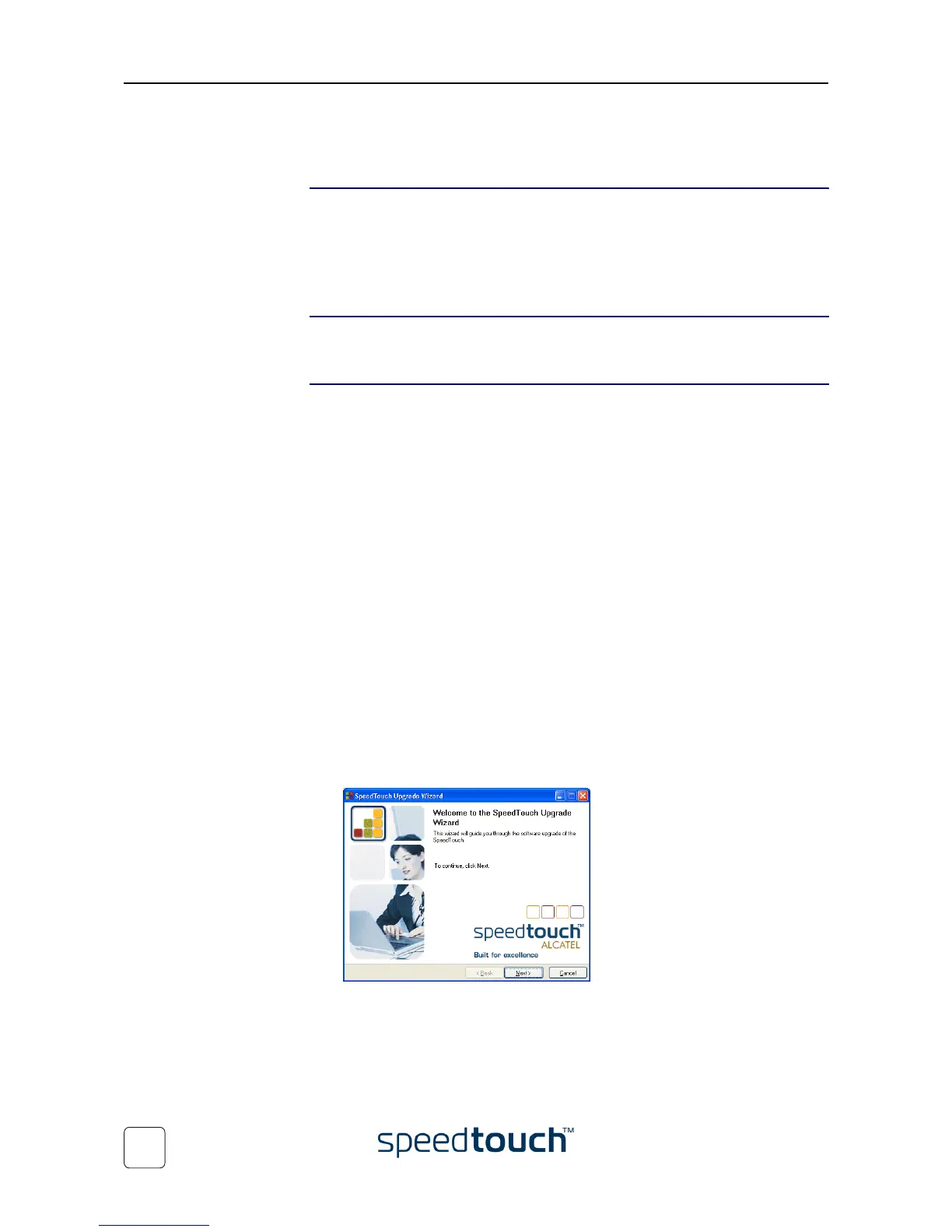
2 The Welcome to the SpeedTouch™ Upgrade Wizard window appears:
Click Next to proceed.





 To Next Page