4 SpeedTouch™ System Software Upgrade
E-SIT-CTC-20030306-0003 v3.0
66
Note If the Setup wizard does not find any SpeedTouch™ on the network an
error window pops up. In this case check:
• Whether the SpeedTouch™ is turned on and fully initialized.
• Whether your computer is correctly connected to the Speed-
Touch™.
• Whether no dedicated firewall device or router is placed
between your PC and the SpeedTouch™ and whether no
personal firewall software is running on your PC (in case of
Ethernet connectivity).
• Whether the SpeedTouch™ USB drivers are correctly and fully
installed (in case of USB connectivity).
To repeat the search for the SpeedTouch™, click Back and proceed with step 4 of this
procedure.
6 Once the SpeedTouch™ Setup wizard has detected your SpeedTouch™ device
you can proceed with the upgrade procedure.
If more than one SpeedTouch™ device is listed, select the appropriate one.
Then, click Next to proceed.
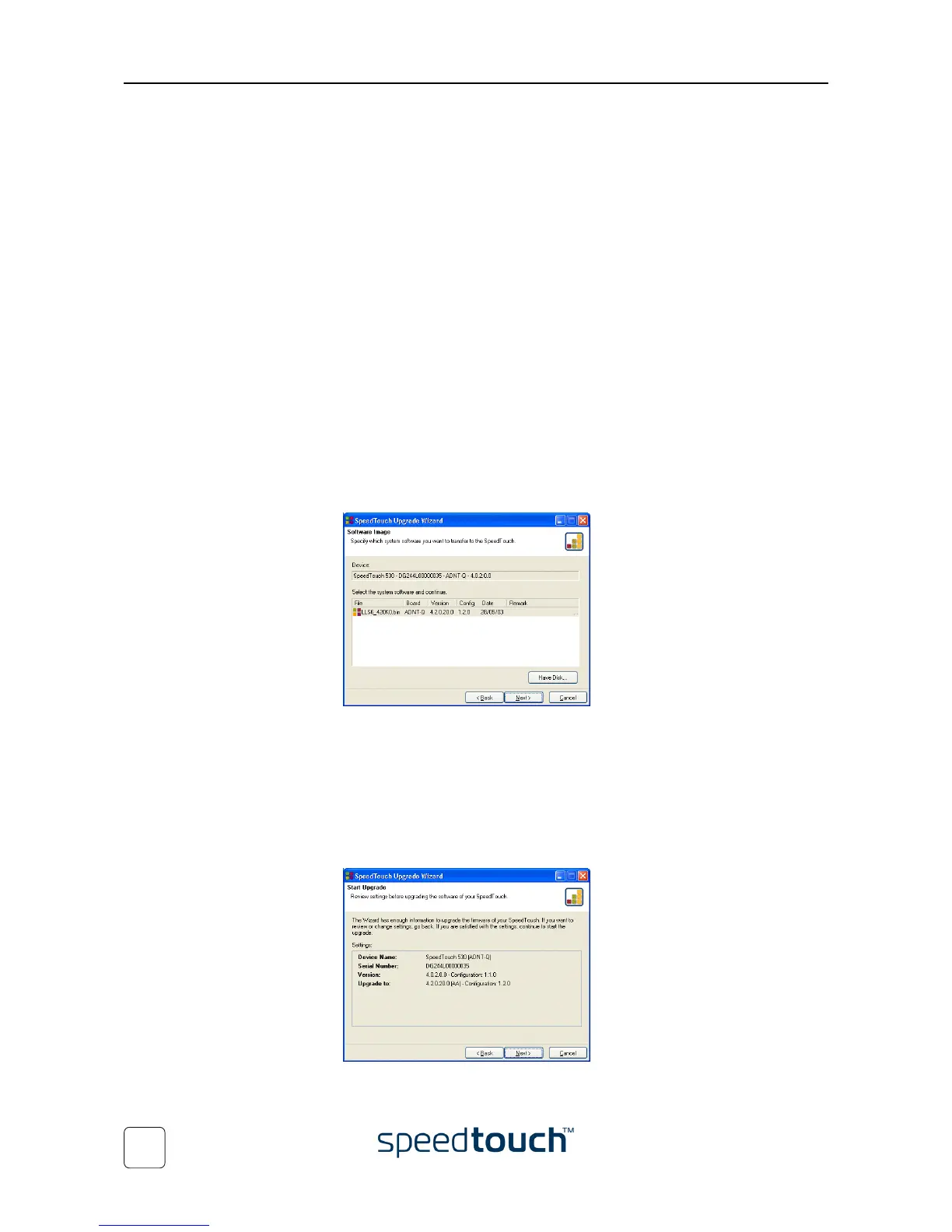
7 The following window shows current the firmware version active on the Speed-
Touch™ as well as one or more firmware versions available on the CD-ROM.
Select the appropriate firmware version and click Next to continue.
Note If the Service Provider has included a separate disk with dedicated upgrade
system software, click Have Disk to navigate to the location of the appro-
priate file.
8 In case of a system software downgrade you must specifically acknowledge your
decision before being able to proceed.
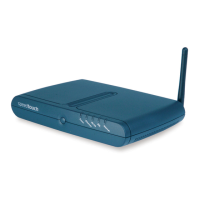
9 The following window allows you to overview your selection:
Click Next to continue.





 To Next Page