Robotics RB5 Development Kit Hardware User Manual
Copyright© 2020 Thundercomm Technology Co., Ltd. All rights reserved.
6
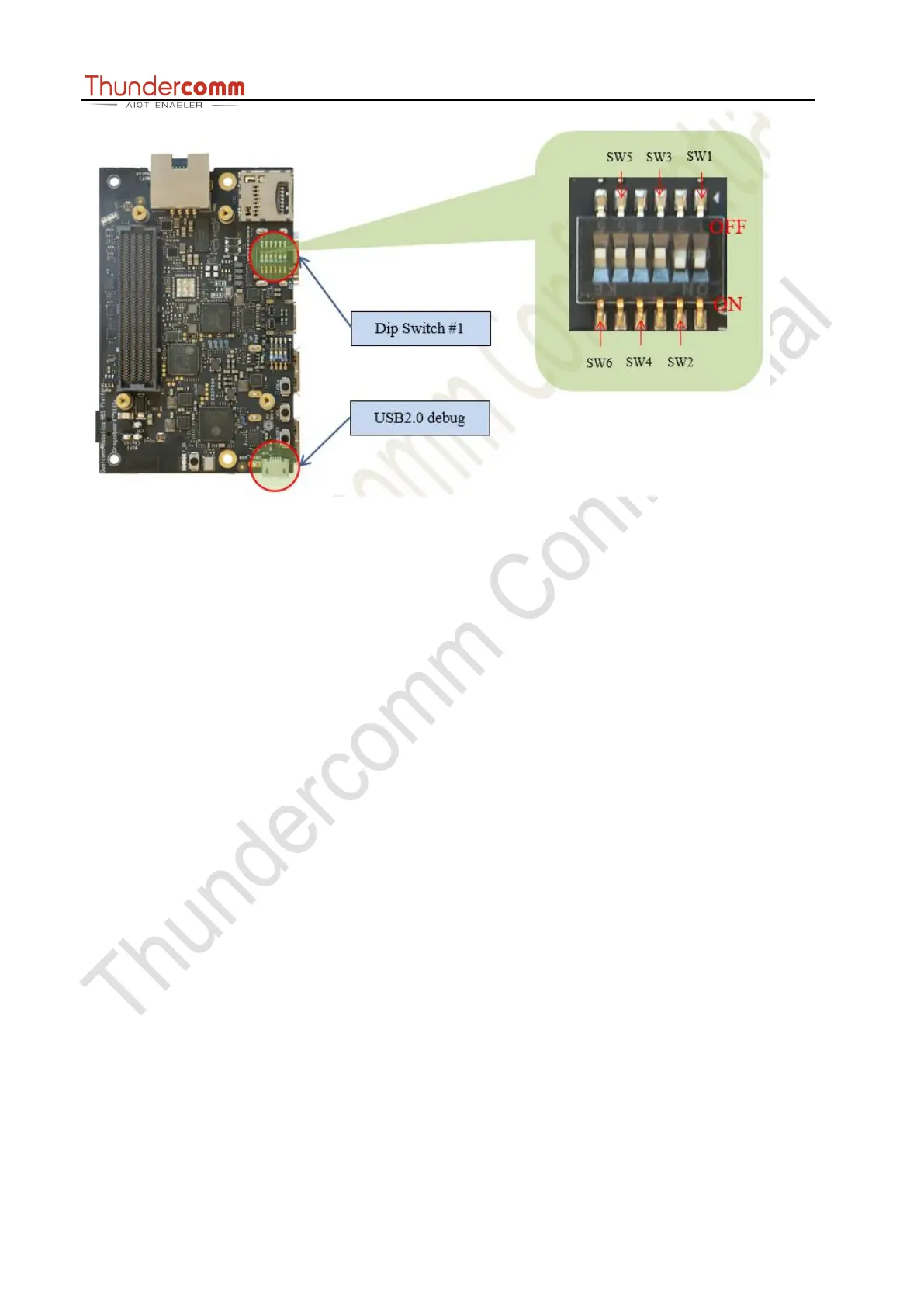
4. Connect the USB cable Micro-B plug to the USB2.0 debug port (see section 1.2.2, #21),
and connect the other end to an available USB port on the host PC.
NOTE: Set the Bps/Par/Bits to 115200 8N1
5. Connect the power supply to power connector (see section 1.2.1, #15).
6. Plug the power supply into a power outlet.
7. Press, and hold the power button on the device, and then release it. The green power-
up LED should illuminate in a second.
8. The board will start the booting process. Login credentials will display on the host PC:
qrb5165-rb5 login: root
Password: oelinux123
3 Qualcomm® Robotics RB5 Development Kit
3.1 System Block diagram
Block diagram part #1


 To Next Page