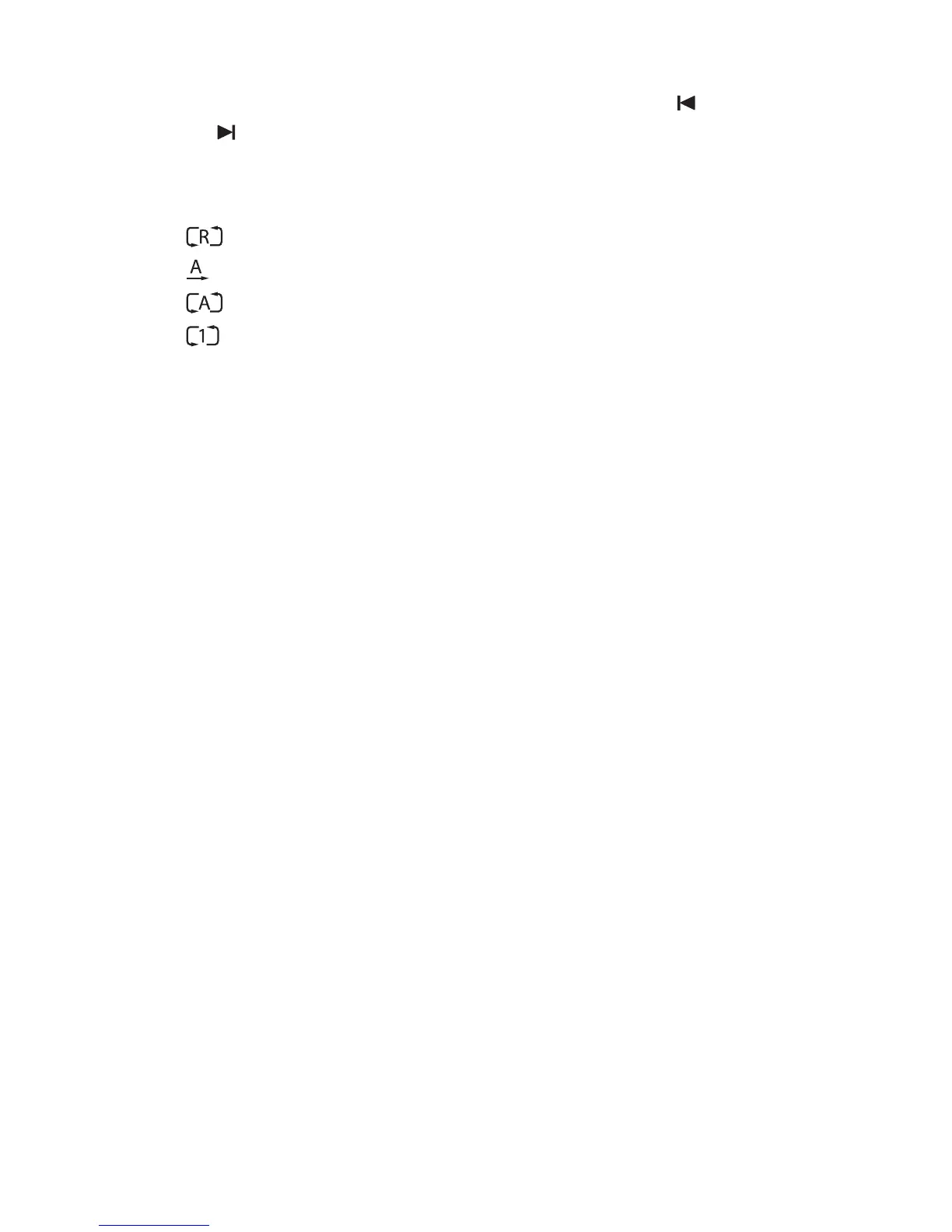
Skip to the previous or next song: Press the previous button or the next
button .
Shuffle or repeat playback: Press the red button. Repeatedly pressing the red
button changes the play mode.
• : Songs are randomly played.
• : Songs are played only once.
• : All songs are repeated.
• : The current song is only repeated.
Add songs to the current playlist: Press the green button. Select more songs
using the red or green button, and then press the yellow button.
Remove a song from the current playlist: Place the focus on a song entry and
press the yellow button.
6.6 Playing Media les from Other Devices
This receiver can play media files from computers or other DLNA-enabled
devices, such as TVs and tablets, connected to the receiver via a network. For
example, when a computer and the receiver is connected to the same network,
the receiver accesses the computer to play the computer’s media files, or vice
versa.
Accessing Other Devices
Open the apps screen and select T Air. The file list screen appears with the list of
detected devices. Select a device and then select a file to play it.
For details on how to play videos, see Playing Recordings and Videos on page
42, for music, see Playing Music on page 43, and for viewing photos, see Viewing
Photos on page 43.
44 P M F



 To Next Page