20 FC-500 Handheld Field Controller Owner’s Manual
Turning the Screen O Automatically
You can set up the display backlight to turn off after set
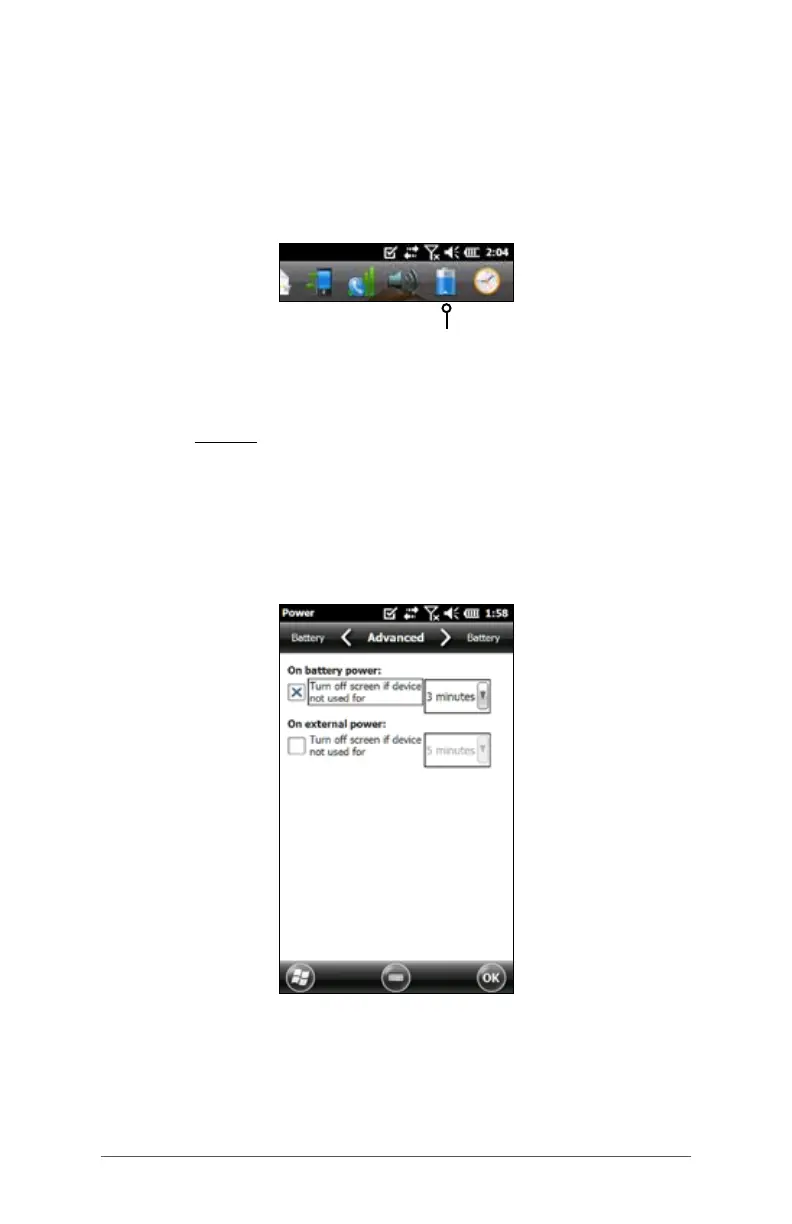
intervals. Tap on the top title bar from any screen, and
select the battery icon from the list of applications that
appears.
Alternately, go to the Backlight control panel, Start >
Settings > System > Backlight. Near the bottom of the screen
it says “Adjust Power Settings to conserve power.” Select the
hyperlink power (see the previous screen shot).
The Power control panel appears. Select Advanced from
the horizontal scrolling menu near the top of the screen.
For battery and external power select how long the screen
stays on when it is not in use. Shorter times save battery
power.
Disabling and Enabling the Touchscreen
You can disable the touchscreen. This is useful when you
are running an application and you want to see the screen
while avoiding accidental touchscreen activation. The
touchscreen can also be disabled for cleaning purposes.


 To Next Page