2. Scan to e-Filing
Scanning Guide — How to Perform Scan to e-Filing 25
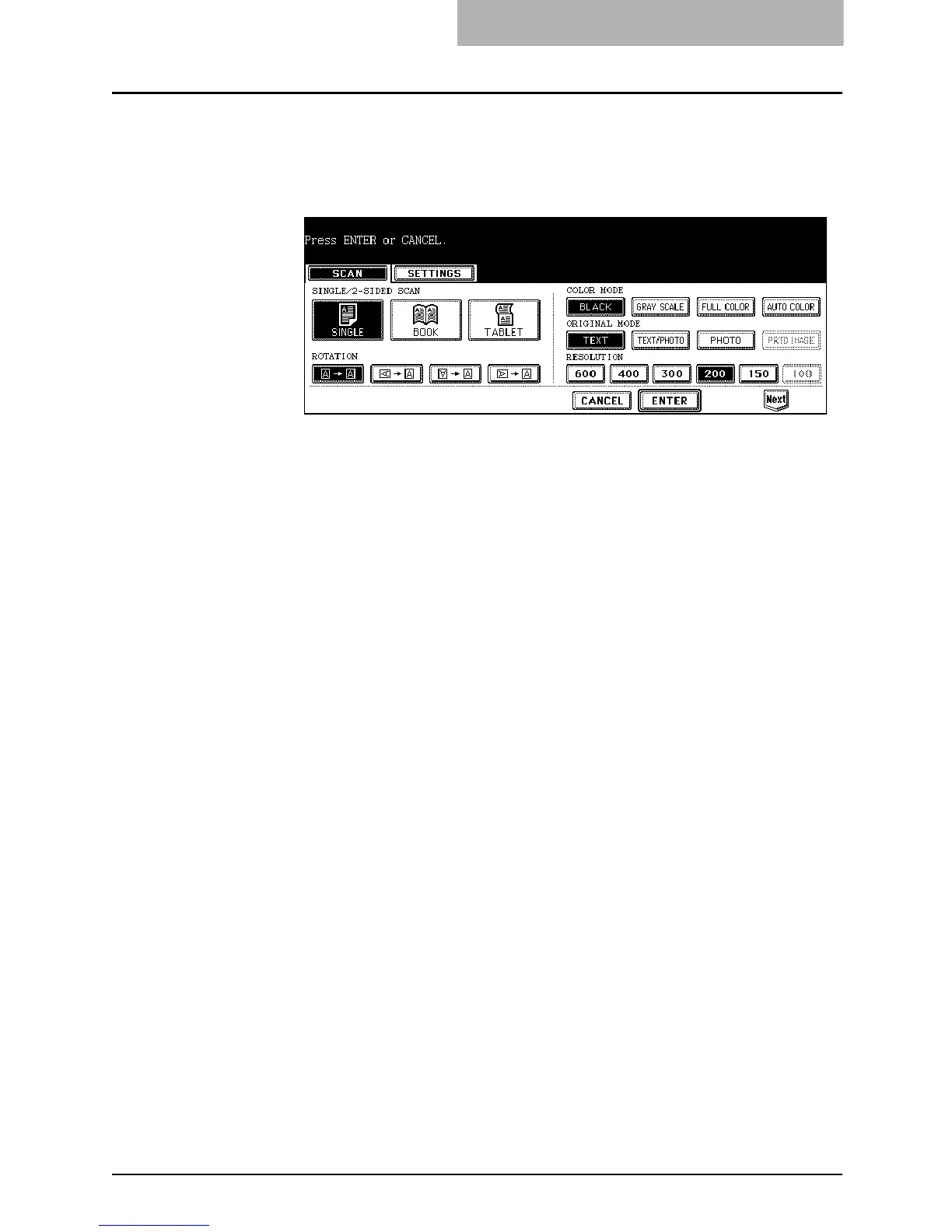
9. Press the [EDIT] button to set the scanning conditions.
• The screen to set the scan conditions is displayed.
10. Specify the following items as you require, and press the
[Next] button.
z SINGLE/2-SIDED SCAN
[SINGLE] — Press this when scanning only the front page of originals.
[BOOK] — Press this when scanning both side of originals in the same
direction.
[TABLET] — Press this when scanning front page in the general direction, and
scanning back page rotated 180 degree.
z ROTATION
[0 degree] — Press this not to rotate the scanned image.
[90 degree right] — Press this to rotate the scanned image 90 degree on the
right.
[180 degree] — Press this to rotate the scanned image 180 degree.
[90 degree left] — Press this to rotate the scanned image 90 degrees on the
left.
z COLOR MODE
Select the button of the color mode for scanning.
z ORIGINAL MODE
[TEXT] — Press this when scanning the originals that contain texts.
[TEXT/PHOTO] — Press this when scanning originals that contain texts and
photos.
[PHOTO] — Press this when scanning originals that contain photos printed on
photographic paper.
[PRTD IMAGE] — Press this when scanning originals as printed images. This
can be set only when [FULL COLOR] or [AUTO COLOR] is selected in the
“COLOR MODE” option.
NOTE: The “ORIGINAL MODE” option cannot be set when [GRAY SCALE] is selected in the
“COLOR MODE” option.



 To Next Page
 Loading...







