- 111 -
Appendix A: FAQ
1. How do I configure the router to access Internet by ADSL users?
1) First, configure the ADSL Modem configured in RFC1483 bridge model.
2) Connect the Ethernet cable from your ADSL Modem to the Internet port on the router.
The telephone cord plugs into the Line port of the ADSL Modem.
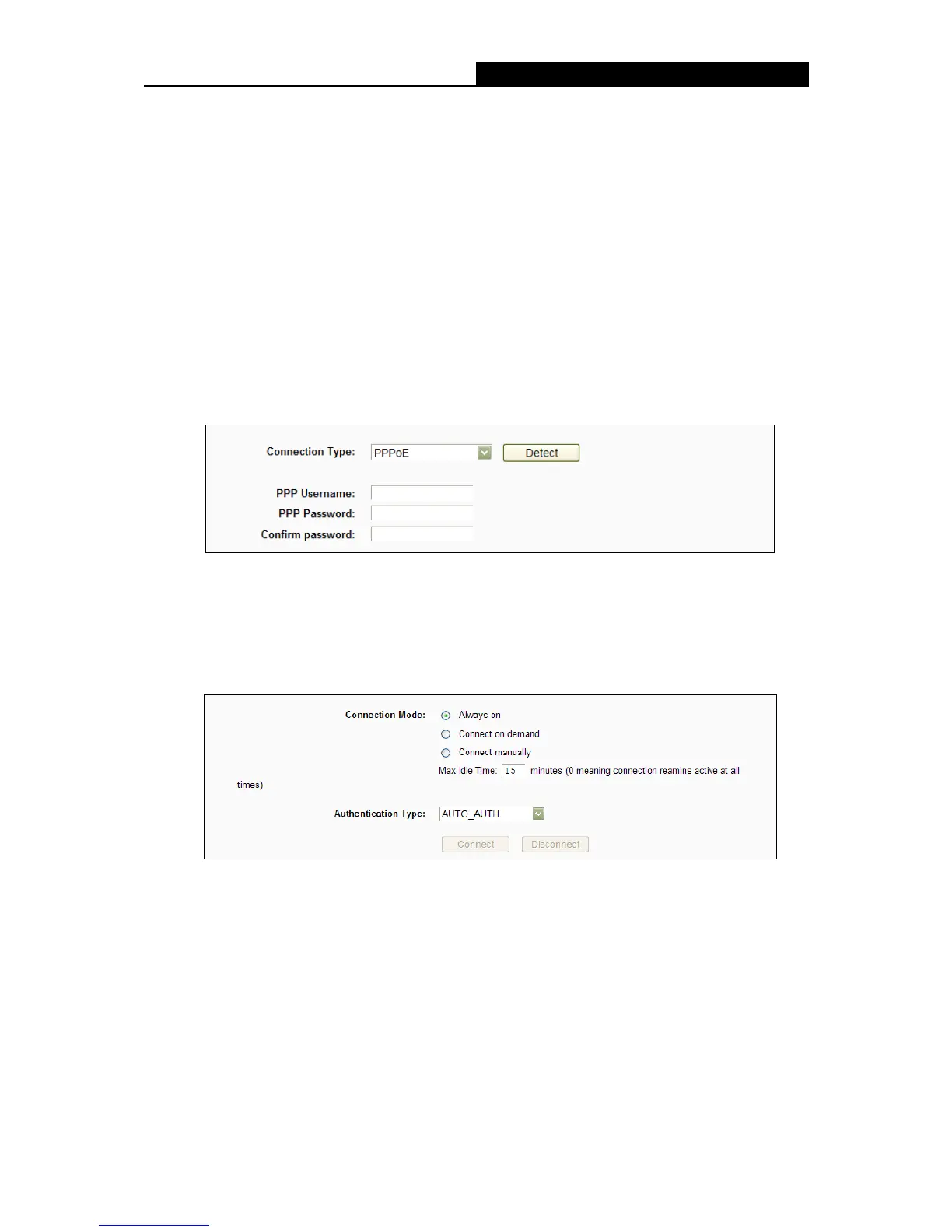
3) Login to the router, click the “Network” menu on the left of your browser, and click "WAN"
submenu. On the WAN page, select “PPPoE” for WAN Connection Type. Type user
name in the “User Name” field and password in the “Password” field, type password in
the “Confirm Password” field again, finish by clicking “Connect”.
4) If your ADSL lease is in “pay-according-time” mode, select “Connect on demand” or
“Connect manually” for Internet connection mode. Type an appropriate number for “Max
Idle Time” to avoid wasting paid time. Otherwise, you can select “Always on” for Internet
connection mode.
Note:
1. Sometimes the connection cannot be disconnected although you specify a time to Max
Idle Time, since some applications is visiting the Internet continually in the background.
2. If you are a Cable user, please configure the router following the above steps.
2. How do I configure the router to access Internet by Ethernet users?
1) Login to the router, click the “Network” menu on the left of your browser, and click "WAN"
submenu. On the WAN page, select “Dynamic IP” for "WAN Connection Type", finish by
clicking “Save”.








 To Next Page