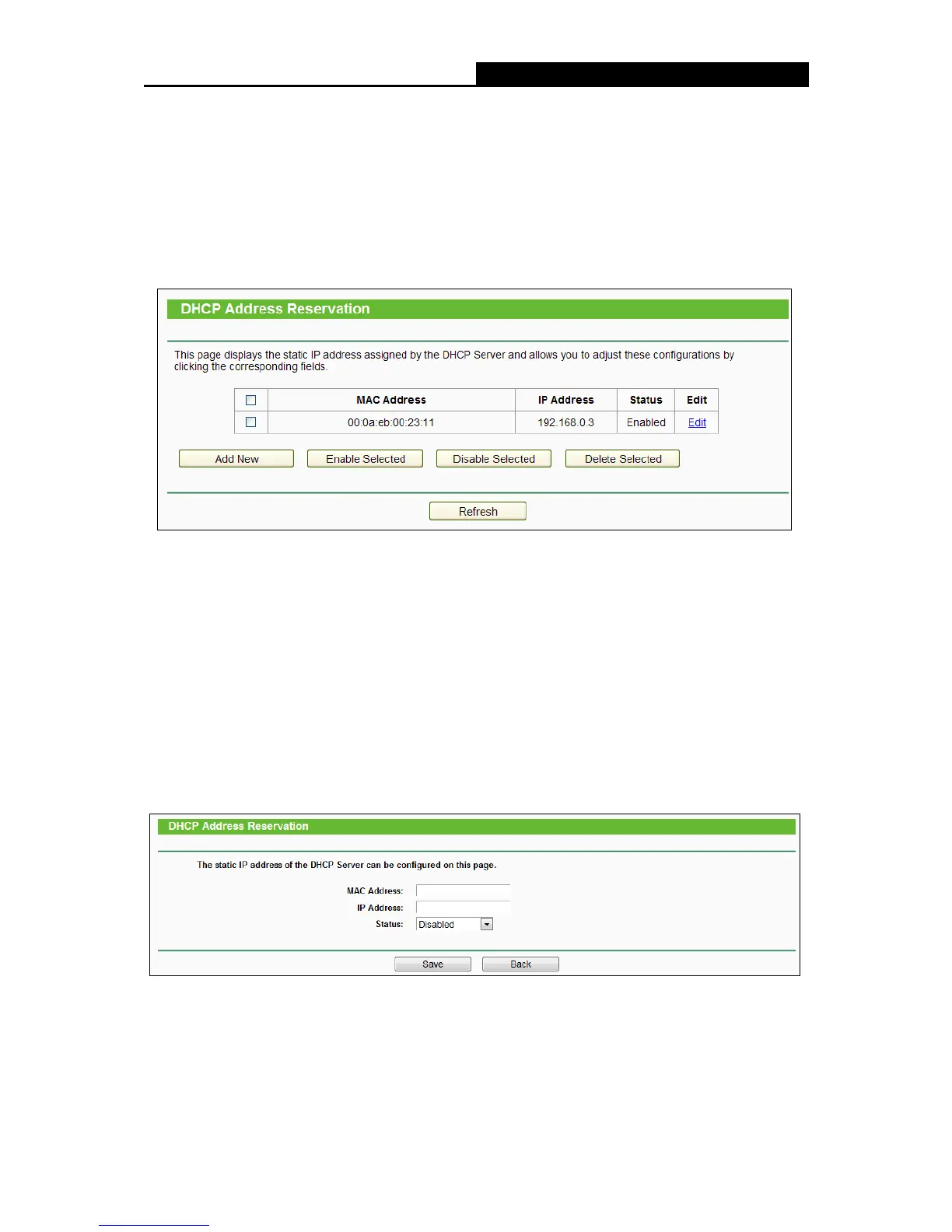
Address Reservation”, you can view and add a reserved address for
clients via the next screen (shown in the following figure). When you specify a reserved IP
address for a PC on the LAN, that PC will always receive the same IP address each time when it
accesses the DHCP server. Reserved IP addresses should be assigned to the servers that
require permanent IP settings.
MAC Address - The MAC address of the PC for which you want to reserve an IP address.
IP Address - The IP address reserved for the PC by the router.
Status - The status of this entry, either Enabled or Disabled.
To Reserve an IP address:
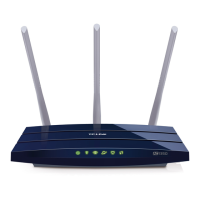
1. Click the Add New button. Then the following figure will pop up.
2. Enter the MAC address (in XX:XX:XX:XX:XX:XX format.) and IP address (in dotted-decimal
notation) of the computer for which you want to reserve an IP address.
3. Click the Save button.
To modify or delete an existing entry:
1. Click the Edit in the entry you want to modify. If you want to delete the entry, click the Delete.
2. Modify the information.
3. Click the Save button.








 To Next Page