- 39 -
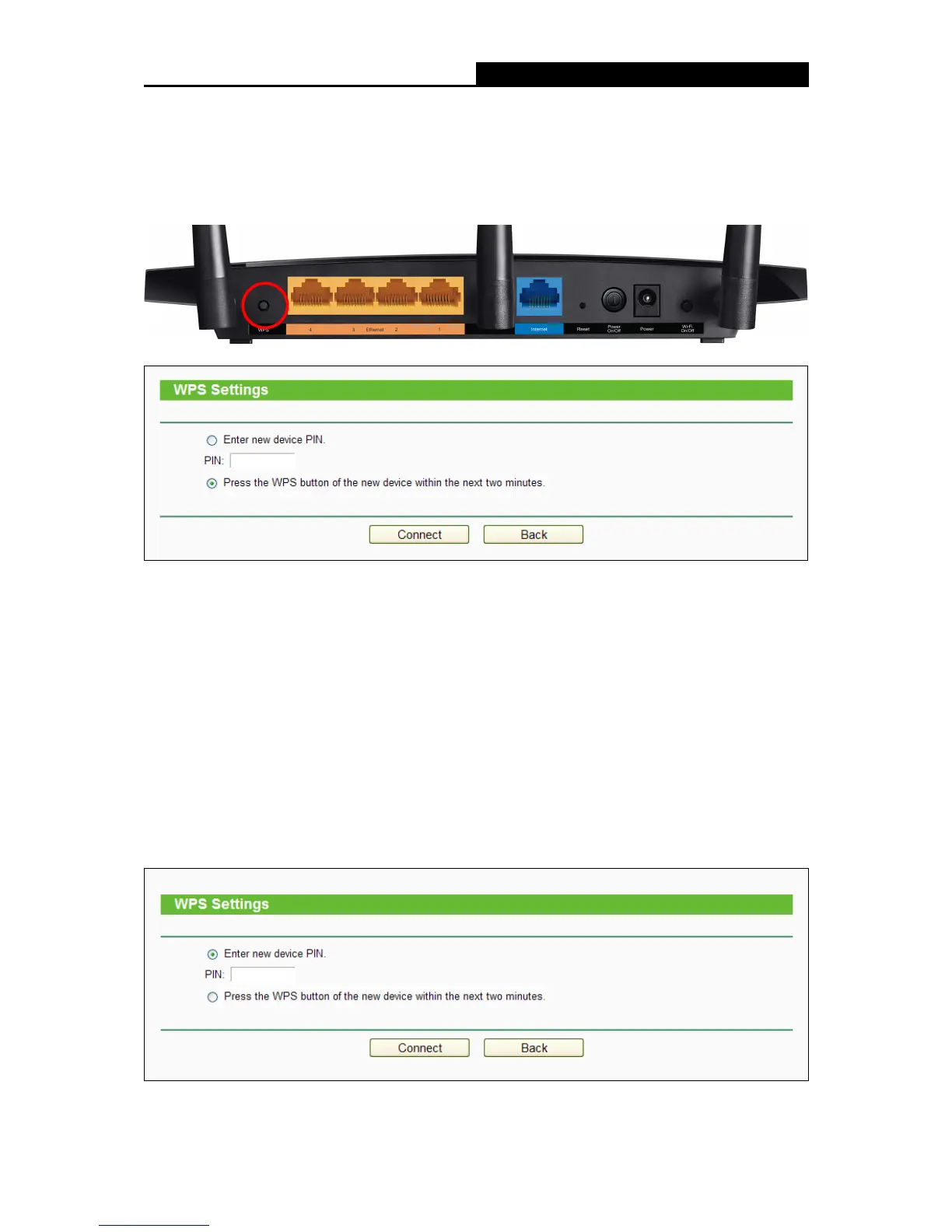
Step 1: Press the WPS button on the back panel of the router, as shown in the following figure.
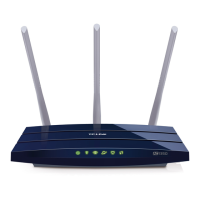
You can also keep the default WPS status as Enabled and click the Add device button
in the figure above. Then choose “Press the button of the new device in two minutes”
and click Connect the following figure.、
Step 2: Press and hold the WPS button of the client device.
Step 3: The Wi-Fi Protected Setup LED flashes for two minutes during the Wi-Fi Protected Setup
process.
Step 4: When the WPS LED is on, the client device has successfully connected to the router.
II. Enter the client device’s PIN on the router
Use this method if your client device does not have the WPS button, but has a Wi-Fi Protected
Setup PIN number.
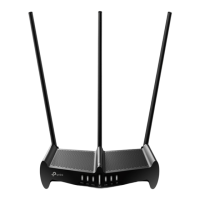
Step 1: Keep the default WPS status as Enabled and click the Add device button, then the
following figure will appear.








 To Next Page