- 86 -
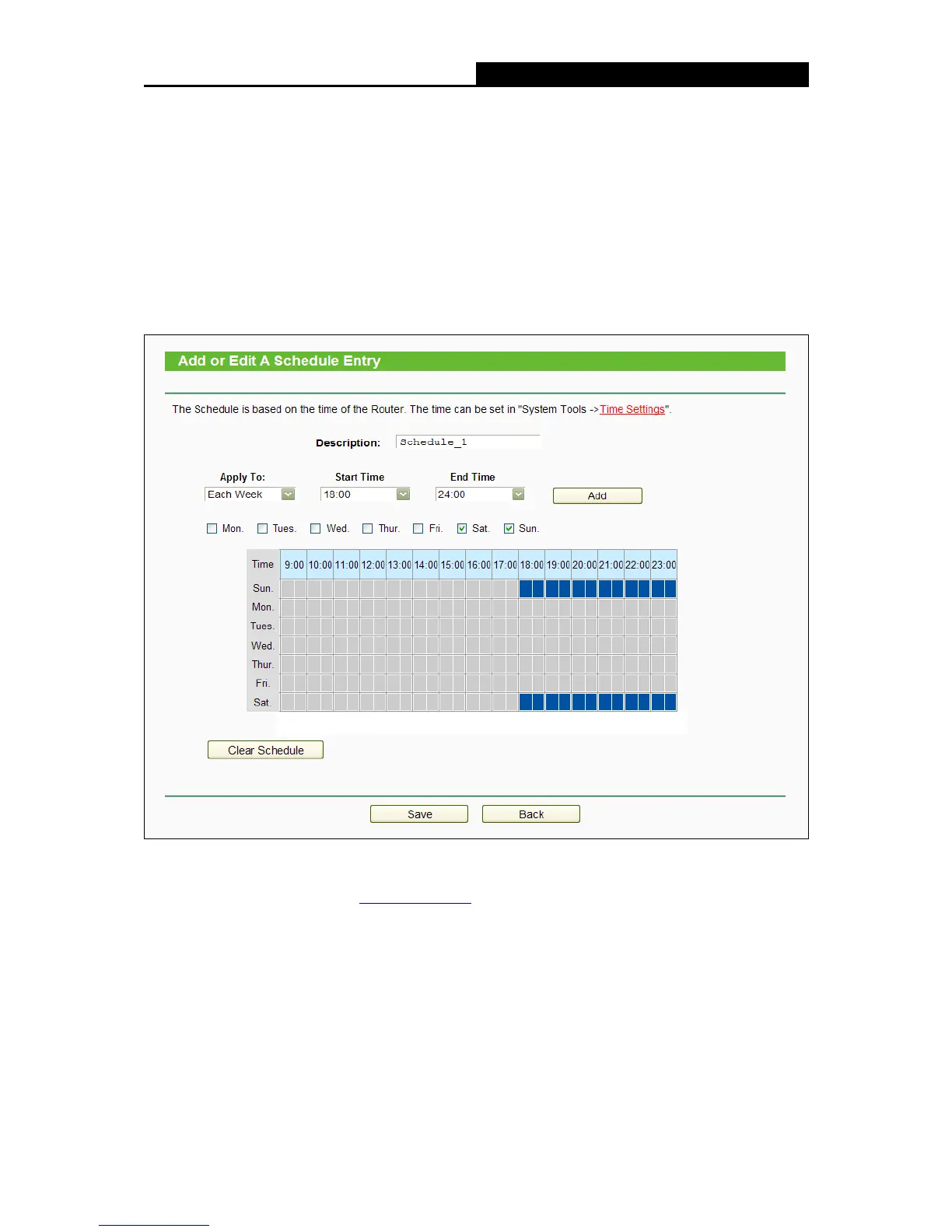
1. Click Add New button shown in the figure above and the next screen will pop-up as shown in
the following figure.
2. In Description field, create a unique description for the schedule (e.g. Schedule_1).
3. Select the Day or days from the drop-down list. And then select the Start Time and Stop
Time from the drop-down list. Click Add to save the entry.
4. Click Save to complete the settings.
Click the Delete Selected button to delete selected entries in the table.
For example: If you desire to restrict the internet activities of host with MAC address
00:11:22:33:44:AA to access www.tp-link.com
only from 18:00 to 20:00 on Saturday and
Sunday, you should first follow the settings below:
1. Click Add New button to enter the Advanced Schedule Settings page.
2. In Description field, create a unique description for the schedule (e.g. Schedule_1).
3. In Day list, select Each Week from the drop-down list and click Sat and Sun.
4. In Time list, select 1800 for Start Time field and 2000 for Stop Time. And then click the Add
button.
5. Click Save to complete the settings.











 To Next Page