14
Chapter 4
Set Up Internet Connection
3. Tap the + button and select Gaming Router > Archer GXE75. Then follow the steps to
complete the setup and connect to the internet.
4. Connect your devices to the router’s wireless network and enjoy the internet!
4. 3. Manually Set Up Your Internet Connection
In this part, you can check your current internet connection settings. You can also
modify the settings according to the service information provided by your ISP.
Follow the steps below to check or modify your internet connection settings.
1. Visit http://tplinkwifi.net, and log in with your TP-Link ID or the password you set for
the router.
2. Go to Internet.
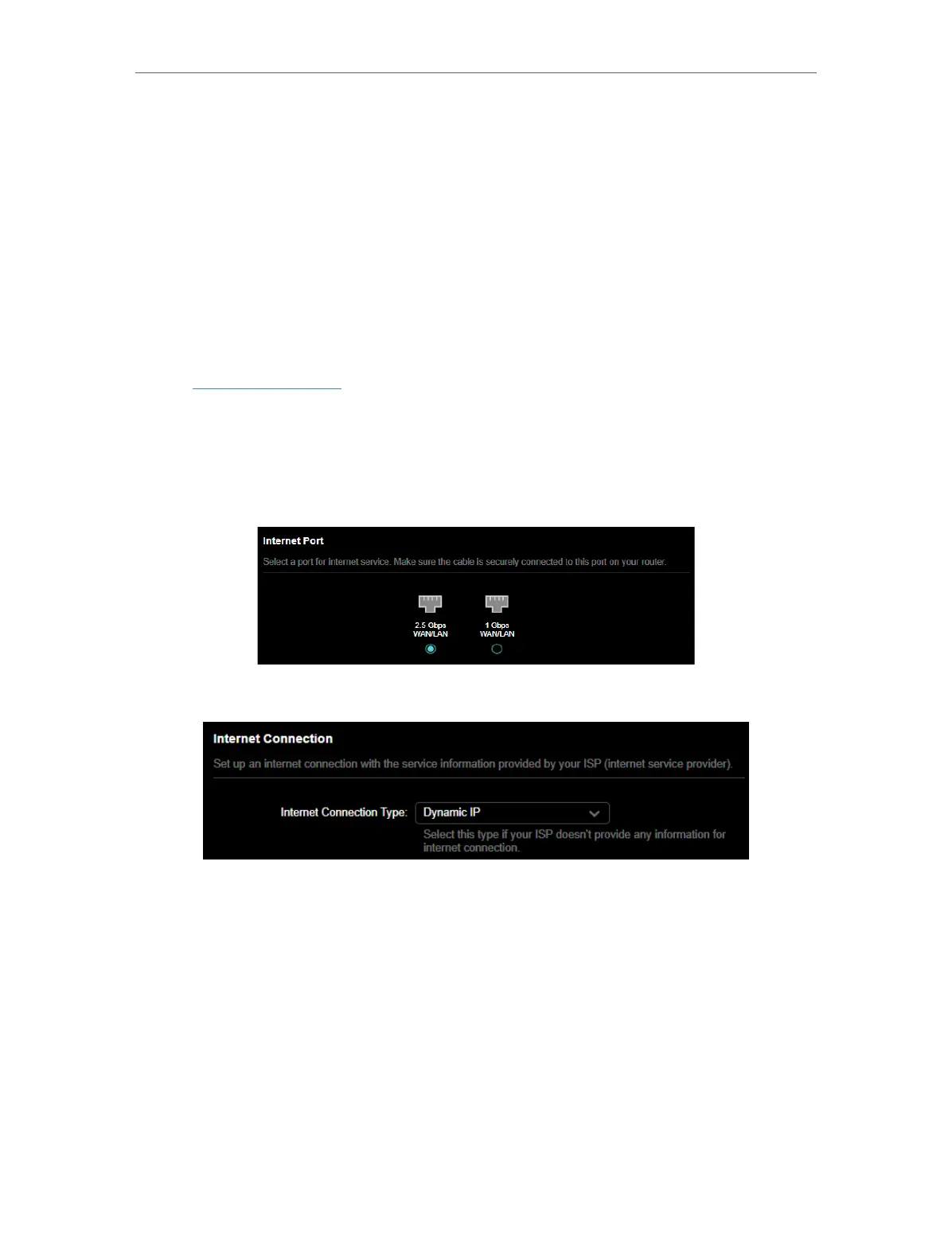
3. Select a port for internet service. Make sure the cable is securely connected to this
port of your router.
4. Select your internet connection type from the drop-down list.
5. Follow the instructions on the page to continue the configuration. Parameters on the
figures are just used for demonstration.
1 ) If you choose Dynamic IP, you need to select whether to clone the MAC address.
Dynamic IP users are usually equipped with a cable TV or fiber cable.













 To Next Page