106
Chapter 16
Customize Your Network Settings
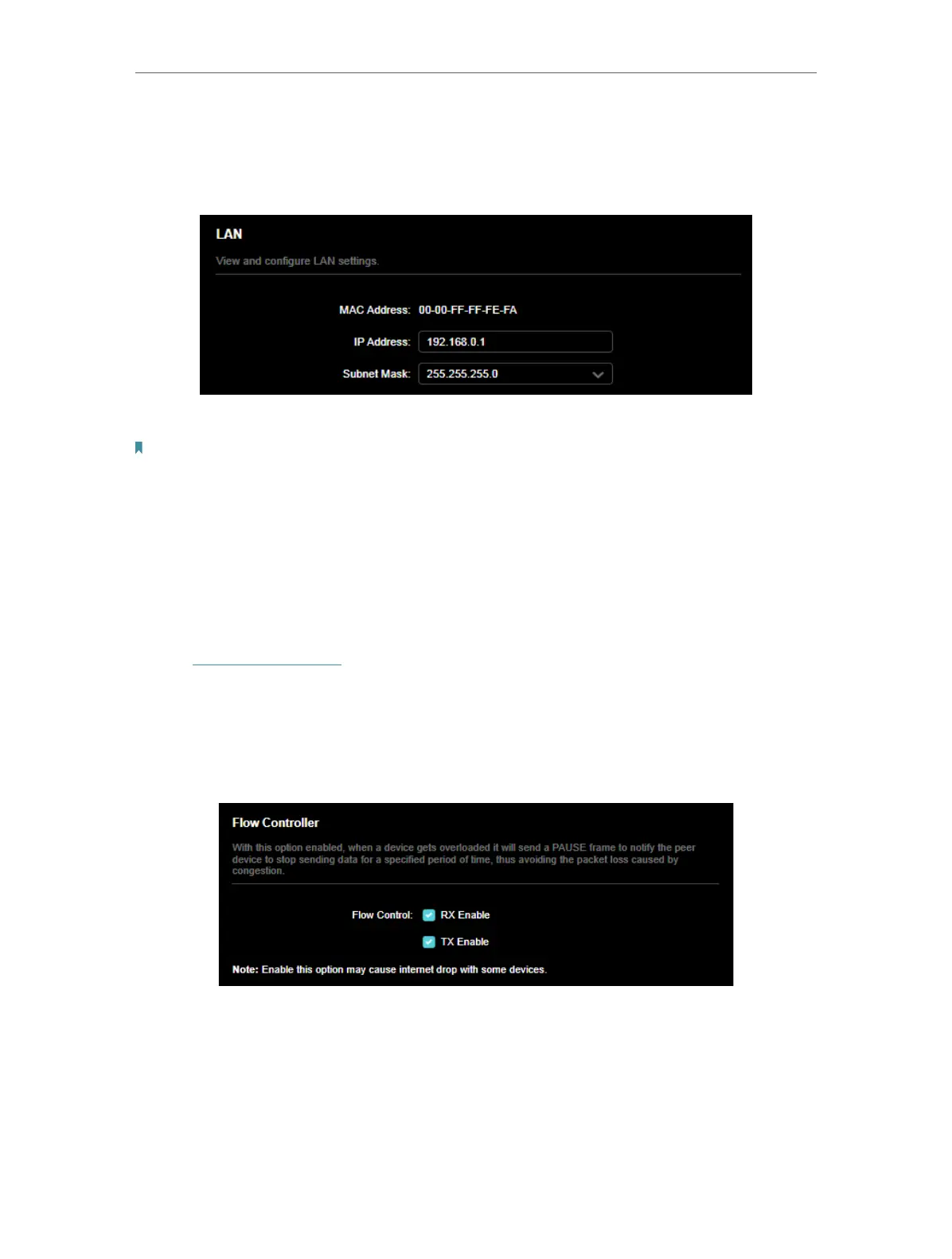
2. Go to Advanced > Network > LAN.
3. Type in a new IP Address appropriate to your needs. And leave the Subnet Mask as
the default settings.
4. Click SAVE.
Note: If you have set the Port Forwarding, DMZ or DHCP address reservation, and the new LAN IP address is not in the
same subnet with the old one, then you should reconfigure these features.
16. 3. Flow Controller
With Flow Controller enabled, when a device gets overloaded it will send a PAUSE
frame to notify the peer device to stop sending data for a specified period of time, thus
avoiding the packet loss caused by congestion.
1. Visit http://tplinkwifi.net, and log in with your TP-Link ID or the password you set for
the router.
2. Go to Advanced > Network > LAN, and locate the Flow Controller section.
3. Flow Controller is enabled by default. Please note that enable Flow Controller may
cause internet drop with some devices.
16. 4. Configure to Support IPTV Service
I want to:
Configure IPTV setup to enable Internet/IPTV/Phone service provided by my internet
service provider (ISP).













 To Next Page