96
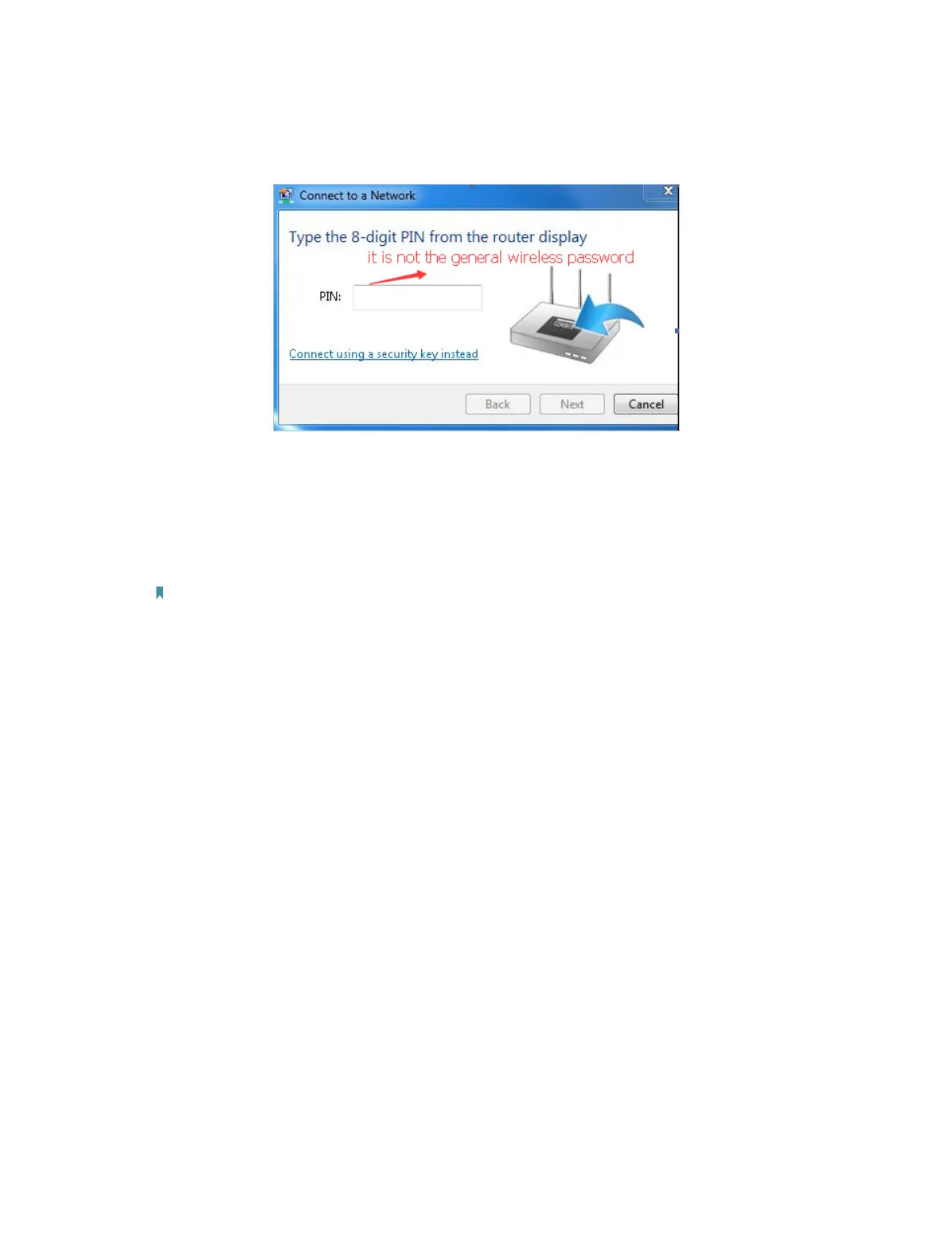
Wireless Password/Network Security Key, usually you can only find it on the
label of your router.
2 ) If you cannot find the PIN or PIN failed, you may choose Connecting using a
security key instead, and then type in the Wireless Password/Network Security
Key.
3 ) If it continues to show note of Network Security Key Mismatch, it is suggested
to confirm the wireless password of your wireless router.
Note: Wireless Password/Network Security Key is case sensitive.
• Windows unable to connect to XXXX / Can not join this network / Taking longer than
usual to connect to this network:
• Check the wireless signal strength of your network. If it is weak (1~3 bars),
please move the router closer and try again.
• Change the wireless Channel of the router to reduce interference from other
networks.
• Re-install or update the driver for your wireless adapter of the computer.
Q5. What should I do if I can’t access the internet even though the Mobile
WAN (SIM card) configuration is finished?
• Verify that your SIM card is a 5G/4G or WCDMA card.
• Verify that your SIM card is in your internet service provider’s service area.
• Verify that your SIM card has sufficient credit.
• Check the LAN connection: Open a web browser and enter http://tplinkmodem.net or
http://192.168.254.1 in the address bar. If the login page does not appear, refer to Q1
and then try again.
• Launch a web browser, log in to the web management page, and check the following:
1 ) Go to Advanced > Network > Mobile WAN to verify the parameters provided
by your ISP are correctly entered. If the parameters are incorrect, click Create


 To Next Page