- 63 -
To add a new rule, follow the steps below:
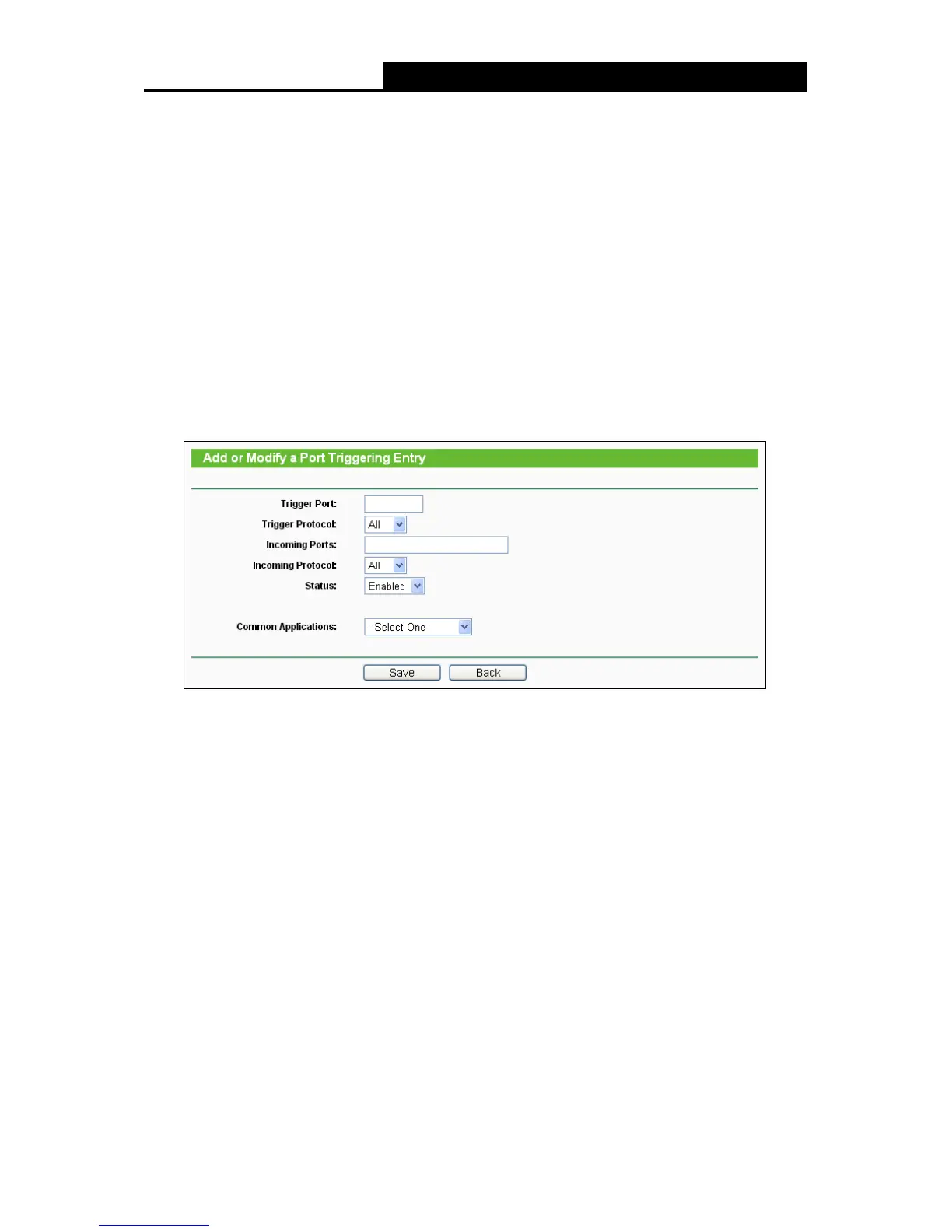
1. Click the Add New… button, the next screen will pop-up as shown in Figure 4-45.
2. Select a common application from the Common Applications drop-down list, then the
Trigger Port field and the Incoming Ports field will be automatically filled. If the Common
Applications do not have the application you need, enter the Trigger Port and the
Incoming Ports manually.
3. Select the protocol used for Trigger Port from the Trigger Protocol drop-down list, either
TCP, UDP, or All.
4. Select the protocol used for Incoming Ports from the Incoming Protocol drop-down list,
either TCP or UDP, or All.
5. Select Enabled in Status field.
6. Click the Save button to save the new rule.
Figure 4-45 Add or Modify a Port Triggering Entry
To modify or delete an existing entry:
1. Click the Modify in the entry you want to modify. If you want to delete the entry, click the
Delete.
2. Modify the information.
3. Click the Save button.
Click the Enable All button to make all entries enabled.
Click the Disable All button to make all entries disabled.
Click the Delete All button to delete all entries.
Note:
1. When the trigger connection is released, the corresponding opening ports will be closed.
2. Each rule is allowed to be used only by one host on LAN synchronously. The trigger
connection of other hosts on LAN will be refused.
3. Incoming Port Range cannot overlap each other.



 To Next Page