Port
Network > VLAN > Port
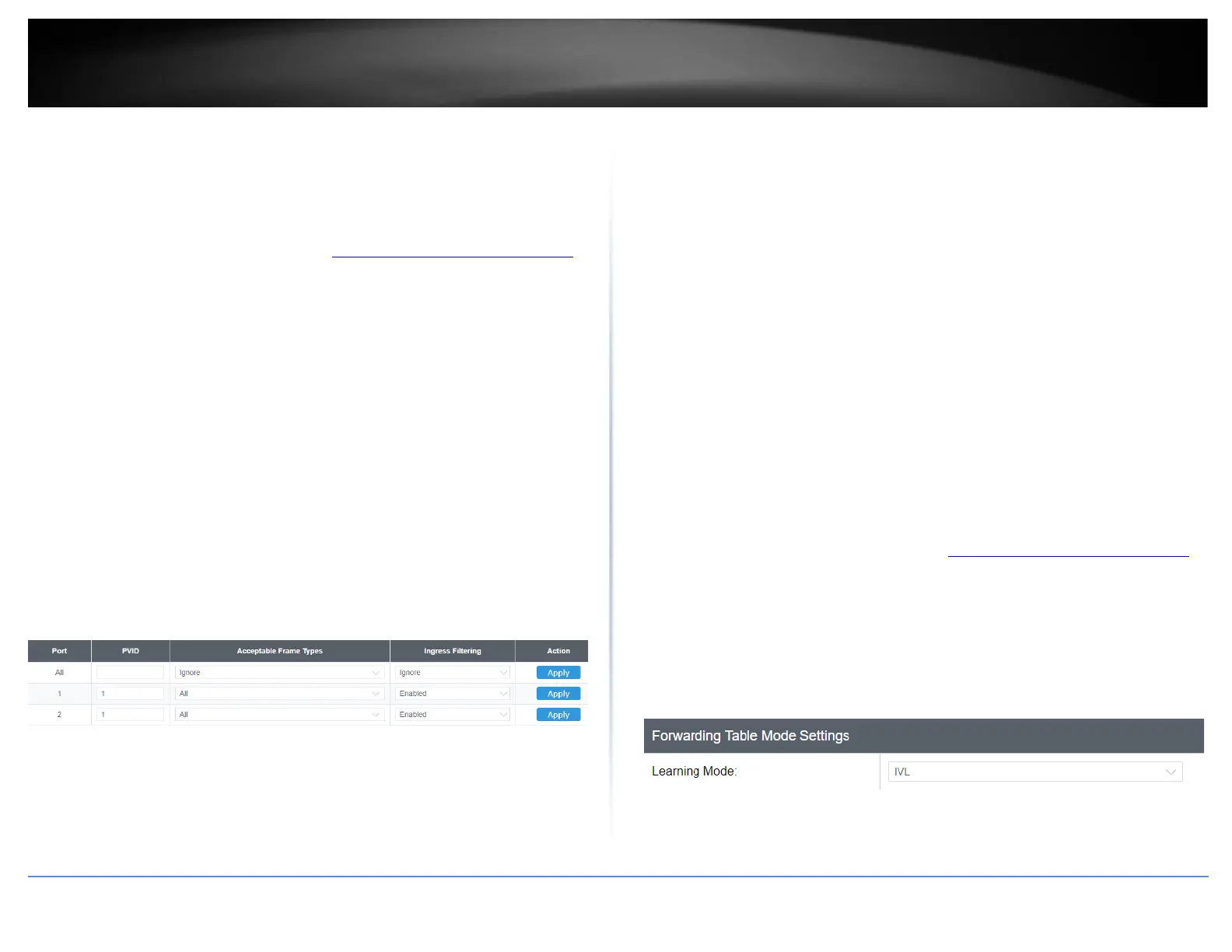
In this section, you can modify the port VID settings, acceptable frame types, and
ingress filtering.
1. Log into your switch management page (see “Access your switch management page”
on page 5).
2. Click on Bridge, click on VLAN, and click on Port Settings.
3. Review the settings for each port. Click Apply to save settings.
• PVID – Enter the port VLAN ID. Note: Required for untagged VLAN ports.
• Acceptable Frame Type – Click the drop-down list and select which type of
frames can be accepted.
o All – The port can accept all frame types.
o Tagged – The port can accept tagged frames only. Untagged frames
are discarded.
o Untagged & Priority Tagged – The port can accept untagged frames
and frames with tagged priority information only such as 802.1p.
• Ingress Filtering –Click the drop-down list and select Enabled to enable ingress
filtering or Disabled to disable ingress filtering.
Note: Modifying settings in the row marked All, will apply the settings to all
ports.
4. At the bottom of the left-hand panel, click Save.
5. Select the Config you would like to save the settings to, click Save Settings to Flash,
then click OK.
Forwarding
Network > VLAN > Forwarding
This section allows you to configure your switch to standard 802.1Q VLAN mode (IVL) or
Asymmetric VLAN mode (SVL). Asymmetric VLAN allows the configuration of
overlapping untagged VLAN ports in order to create VLAN groups. It is recommended to
use the standard 802.1Q VLAN mode when possible.
IVL – Independent VLAN Learning
SVL – Shared VLAN Learning (also known as asymmetric VLAN)
Please note the following when switching between forwarding table modes:
• FDB (Forwarding Database) will be cleared.
• Static Unicast Address entries will be cleared.
• Static Multicast Address entries will be cleared.
• 802.1X authenticated records will be cleared.
• IGMP Snooping multicast group addresses will be cleared
• When using SVL mode, Voice VLAN will not be supported.
• When using SVL mode, the VID field on 802.1Q-VLAN mode will be displayed as
"N/A".
1. Log into your switch management page (see “Access your switch management page”
on page 5).
2. Click on Network, click on VLAN, and click on Forwarding.
3. Click the learning mode drop-down list to select the forwarding table mode and click
Apply to save settings.
Note: The default mode is IVL.
4. At the bottom of the left-hand panel, click Save.
5. Select the Config you would like to save the settings to, then click Save Settings to
Flash.






 To Next Page