Page 12
1. Sending Permanent eKeys as an
A
and
AU
a. Select the lock you want to send an eKey
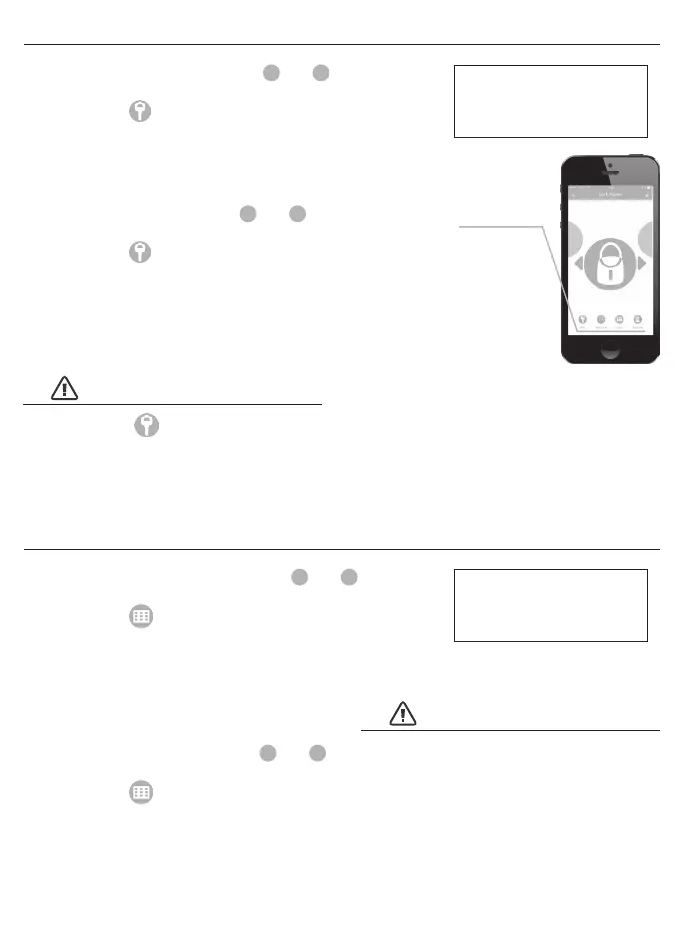
b. Select the in the bottom menu
c. Input the User account name to send the key to
d. Press send
e. You will receive a notication once the key has been received
eKeys allow registered
users to send/receive
digital keys.
1. Sending Permanent Passcodes as an
A
and
AU
a. Select the lock you want to send a Passcode for
b. Select the in the bottom menu
c. Select “Permanent” from the top tabs
d. Press “Generate” to get a new Passcode
e. Input the mobile number, or email address you would
like to send the Passcode to
f. Press “Send by email” or “Send by Msg.”
2. Sending Timed Passcodes as an
A
and
AU
a. Select the lock you want to send a Passcode for
b. Select the in the bottom menu
c. Select “Timed” from the top tabs
d. Input the time frame
e. Press “Generate” to get a new Passcode
f. Input the mobile number, or email address you would
like to send the Passcode to
g. Press “Send by email” or “Send by Msg.”
2. Sending Limited eKeys as an
A
and
AU
a. Select the lock you want to send an eKey
b. Select the in the bottom menu
c. Input the User account name you would like to send the key to
d. Input the time frame for the eKey
e. Press send
f. You will receive a notication once the key has been
received, and after it expires
To send an the Receiver must
have a My Key Mobile™ account. The
operation will fail if the Receiver is not
registered, or the wrong information is
input when sending an eKey.
All Passcodes generated, and sent
from your Smart Device must be
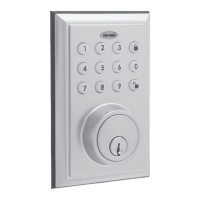
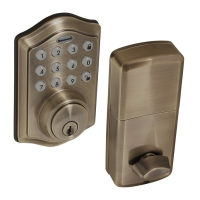
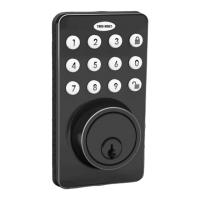
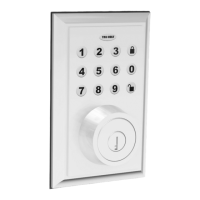
input using the physical keypad.
Checking the “Delete all
passcodes” check box will delete
all previous passcodes after the
newly generated passcode is
entered into the keypad.
Bottom Menu
Passcodes generated by
the App can be used on
the physical keypad.
SEND PHYSICAL KEYPAD PASSCODES
EKEY
When sending an eKey, ensure
that the information being input
is the same email or mobile
number the Receiver registered
their account with.
VERY IMPORTANT
VERY IMPORTANT



 To Next Page