ULEAD VIDEOSTUDIO USER GUIDE
100
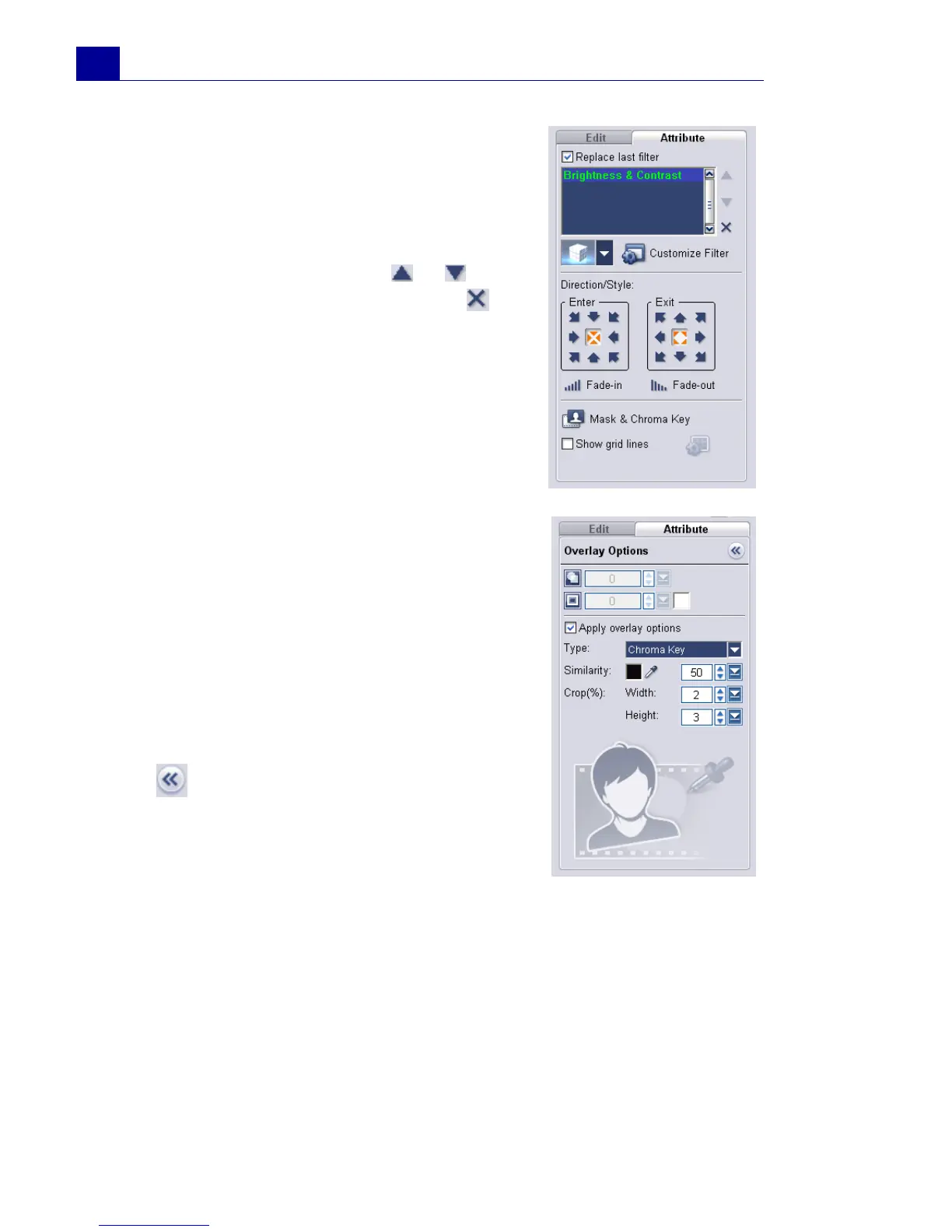
• Replace last filter: Allows the last filter
applied to a clip to be replaced when you
drag a new filter onto the clip. Clear this
option if you want to add multiple filters to
your clips.
• Applied filters: Lists the video filters that
were applied to a clip. Click or to
arrange the order of the filters; click to
remove a filter.
• Delete selected filter: Removes the
selected filter from the overlay clip.
• Presets: Opens a menu where you can
select a preset for the selected filter to
apply to the overlay clip.
• Customize Filter: Opens a dialog box
where you can define settings and options
for the selected filter.
• Direction/Style: Determines the type of
movement to be applied to the overlay clip.
Enter/Exit: Set the directions in which the
clip will enter and leave the screen.
Fade-in/Fade-out: Select to gradually
increase or decrease the transparency of
the clip when it enters or leaves the screen.
• Mask & Chroma Key: Opens the Overlay
Options Panel where you can specify the
transparency and overlay options to be
applied to the overlay clip.
: Goes back to the previous Options
Panel.
Transparency: Sets the opacity of the clip.
Drag the slider or enter a value to adjust
the transparency.
Border: Enter a value to set the thickness
of the border. Click the Color Box to select the border color.
Apply overlay options: Select to specify how transparent section of the
overlay clip will be rendered.
Type: Select whether to apply preset masks on an overlay clip or specify
a color to be rendered as transparent.
Similarity: Specify the color range of a selected color’s pixels that will
be rendered as transparent. Click the Color Box then select the color



 To Next Page