ULEAD VIDEOSTUDIO USER GUIDE
157
• Batch Convert List: Displays the video files to be converted.
The size, type, date modified and path of the video files are
also displayed.
• Add: Opens the Batch Convert dialog box where you can
select the files you want to convert.
• Remove: Deletes the selected file from the Batch Convert
List.
• Remove All: Deletes all the files in the Batch Convert List.
• Save in folder: Click Browse to select a folder where to save
the converted video files.
• Save as type: Select to what file format to convert the video
files.
• Convert: Starts the conversion process.
• Cancel: Closes the dialog box without converting the video
files.
• Options: Opens the Video Save Options dialog box where
you can define save and compression settings for the selected
file format. (See “Video Save Options” on page 176).
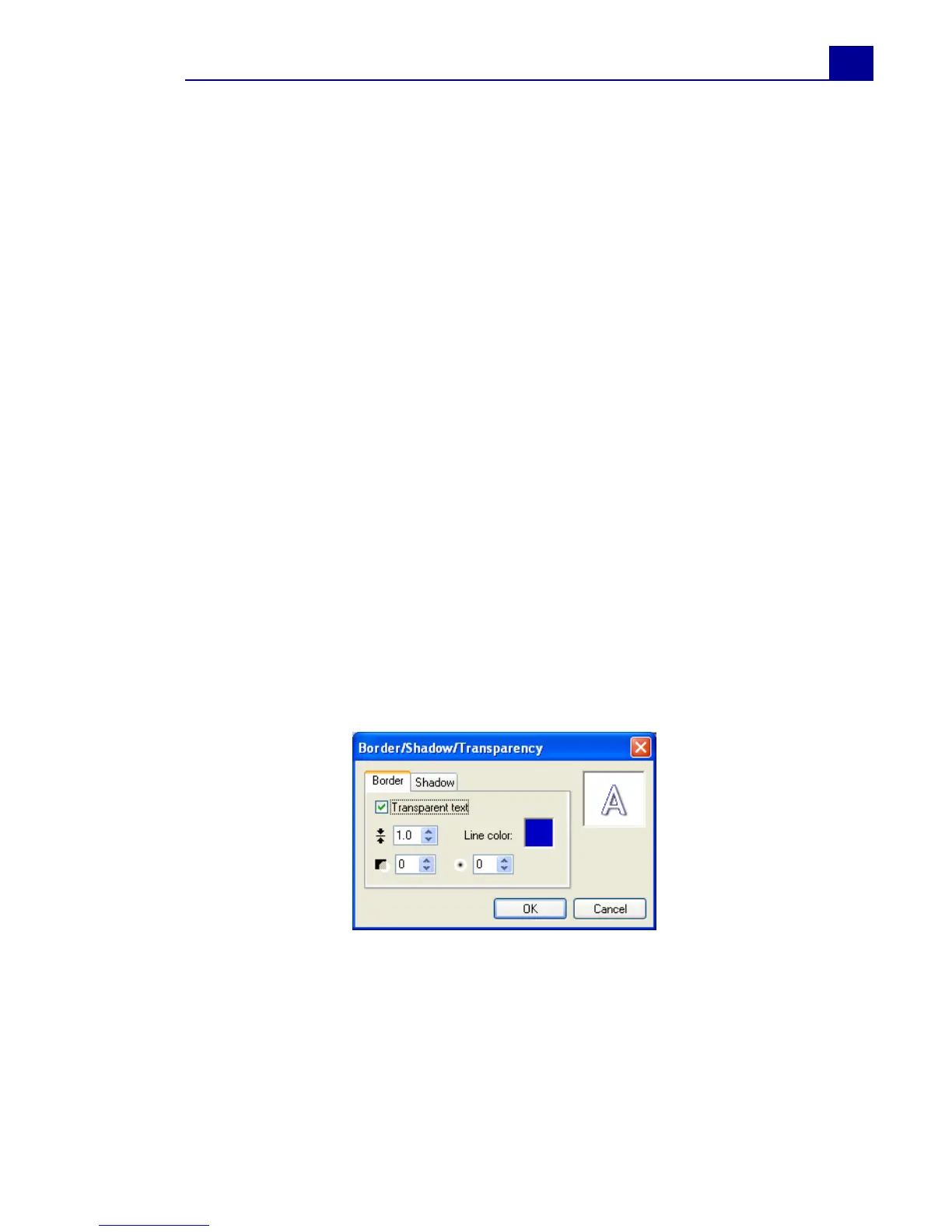
Border/Shadow/Transparency
Border tab
• Outline: Select to create an outline effect for your text.
• Border width: Specify the thickness of the border.
• Line color: Click to select a color for the border.
• Text transparency: Set the transparency of the text. The
higher the value the more transparent the text.



 To Next Page