ULEAD VIDEOSTUDIO USER GUIDE
94
Overlay
The Overlay Step allows you to add overlay clips to combine with
your videos in the Video Track. Use an overlay clip to create a
picture-in-picture effect or add a lower-third graphic to create more
professional-looking movie productions.
Adding clips to the Overlay Track
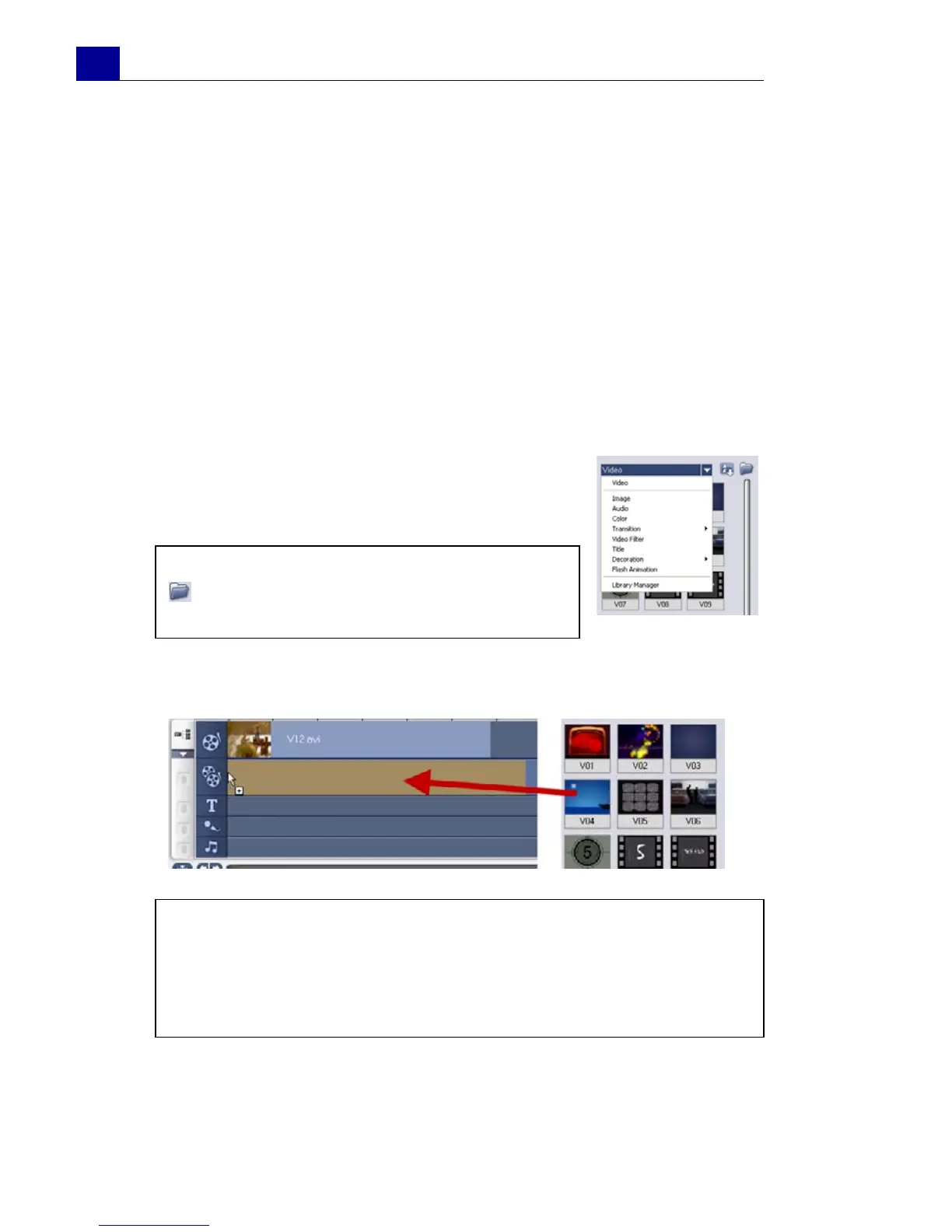
Drag media files to the Overlay Track on the Timeline to add them
as overlay clips for your project.
To add a clip to the Overlay Track:
1. In the Library, select the media folder that
contains the overlay clip that you want to add
to your project.
2. Drag the media file from the Library to the Overlay Track on
the Timeline.
3. Customize the overlay clip using the options available in the Edit
tab. (See “Edit tab” on page 99).
Tip: To load media files into the Library, click
. In the dialog box that opens, locate the
media file and click Open.
Tips:
• To insert a media file directly to the Overlay Track, right-click the
Overlay Track and select the type of file you want to add. The
file will not be added into the Library.
• You can also use color clips as overlay clips.



 To Next Page