ULEAD VIDEOSTUDIO USER GUIDE
132
3. Drag the Jog Slider to move to a scene to set it as a chapter
then click Add.
4. Repeat Step 3 to add more chapter points. You can also use
Remove or Remove All to delete unwanted chapters.
5. Click OK.
Creating selection menus
In this step, you can create the main menu and submenus. These
menus provide an interactive screen for your movie viewer to
choose which video to watch. Ulead VideoStudio includes a set of
menu templates for you to create your menus and submenus.
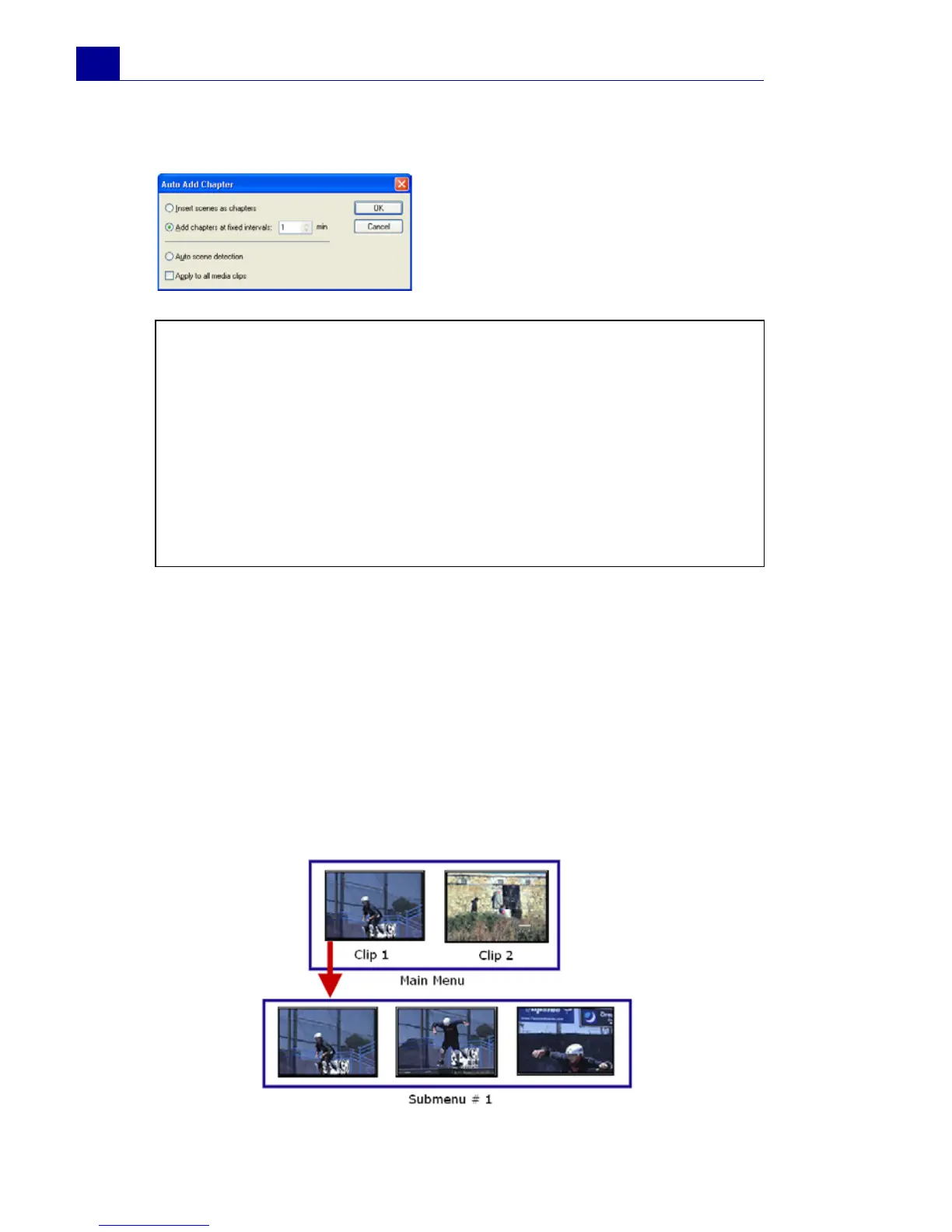
Or, click Auto to let
VideoStudio automatically
select chapters.
Tips:
• If you want to use Auto, your video must be at least one minute
long or the video has scene change information.
• If you click Auto and your video is a DV-formatted AVI file
captured from a DV camcorder, Ulead VideoStudio can
automatically detect scene changes and add chapters
accordingly.
• If the selected video is an MPEG-2 file with scene change
information, Ulead VideoStudio automatically generates these
chapters for you when you click Auto.



 To Next Page