ULEAD VIDEOSTUDIO USER GUIDE
19
USB cameras may require installation of a device driver, depending
on the Windows version you are using. For information on how to
install your USB camera, refer to its accompanying manual.
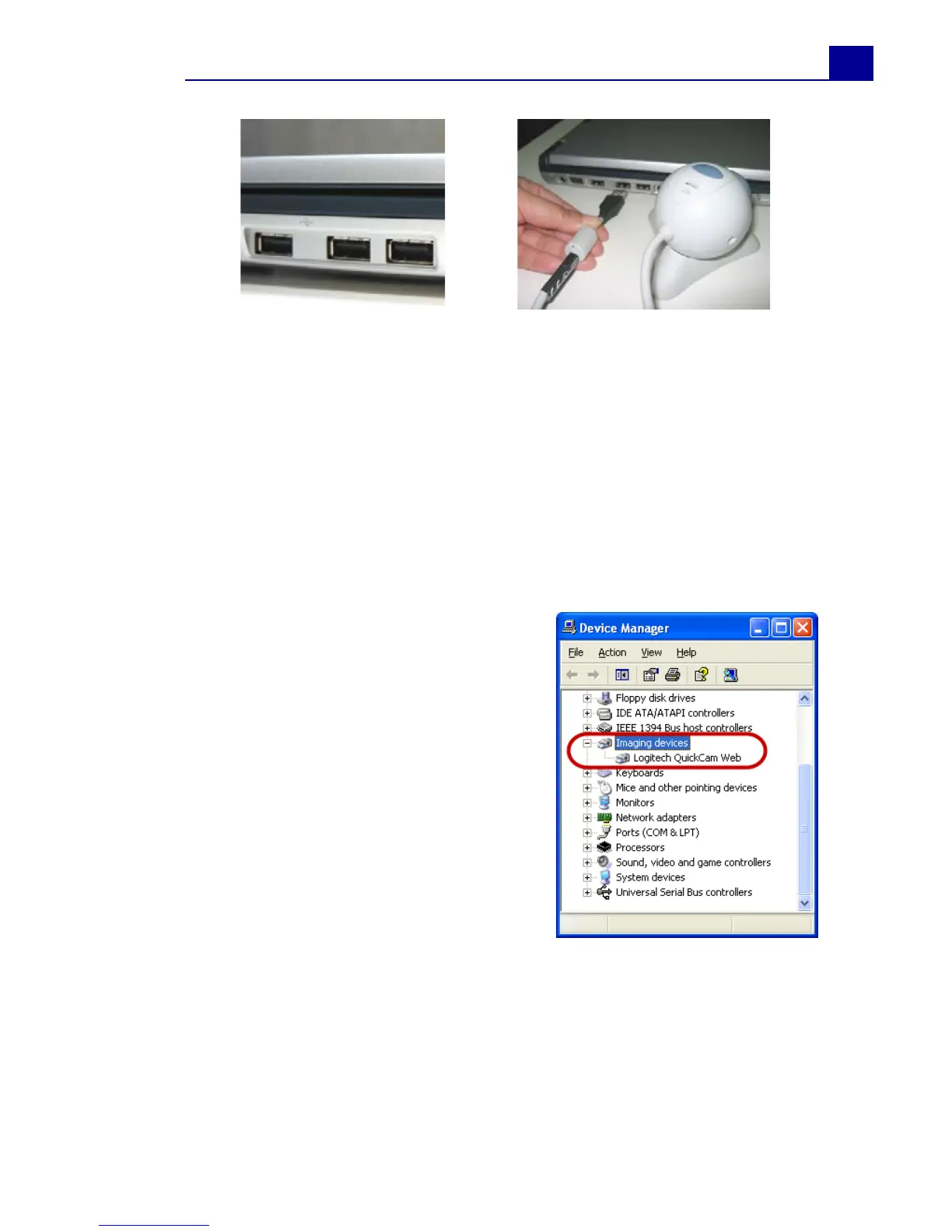
After properly installing your USB camera, check if it is detected by
your Windows system.
To check if the USB camera is detected:
1. Open the Control Panel, then
open System: Hardware -
Device Manager.
2. In the Device Manager,
double-click Imaging devices.
Check if your USB camera is
listed in this folder.
3. If your USB camera has been
detected properly, it will be
listed as a source device in
VideoStudio's Options Panel.
In VideoStudio, select the
Capture Step and check if your
USB camera is displayed under
the Source list in the Options
Panel.
USB ports
Connecting a USB camera



 To Next Page