ULEAD VIDEOSTUDIO USER GUIDE
76
A color clip is inserted before the original clip and all clips where Ripple
Editing is applied shift accordingly.
To insert clips in Ripple Editing mode:
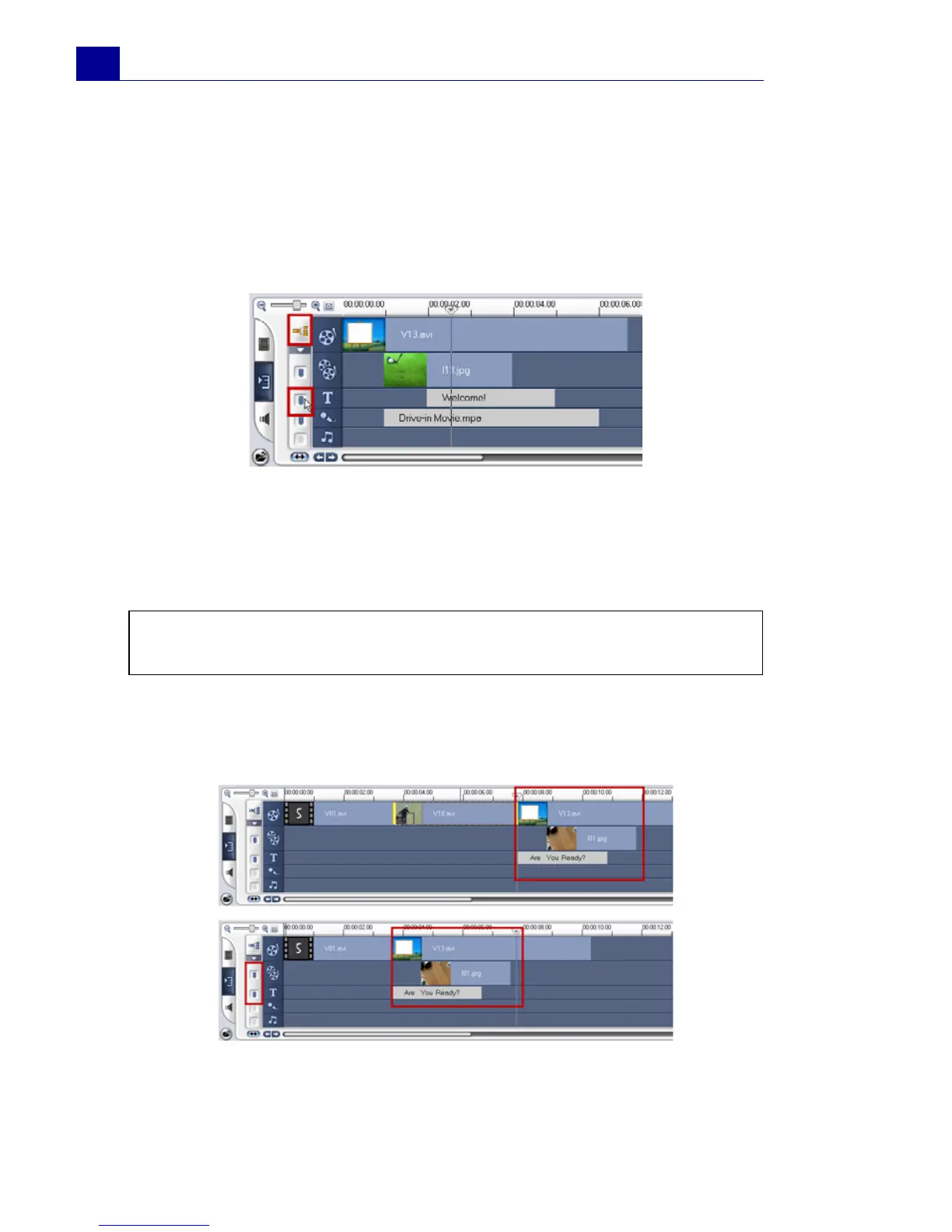
7. Click Ripple Editing to activate the panel, then select the
corresponding box for each track where you want to apply Ripple
Editing.
8. Drag the clip to insert from the Library to the desired position
on the Timeline. As soon as the new clip is in place, all clips
where Ripple Editing is applied will shift accordingly while
maintaining their track positions relative to one another.
Ripple Editing also works when removing clips. In the example below,
Overlay and Title tracks maintain their position relative to the video after
the clip in the middle has been removed.
Note: Ripple Editing can be applied from any of the three project
views.



 To Next Page