EN UltiMaker S7 Installation and user manual 17
Material Station
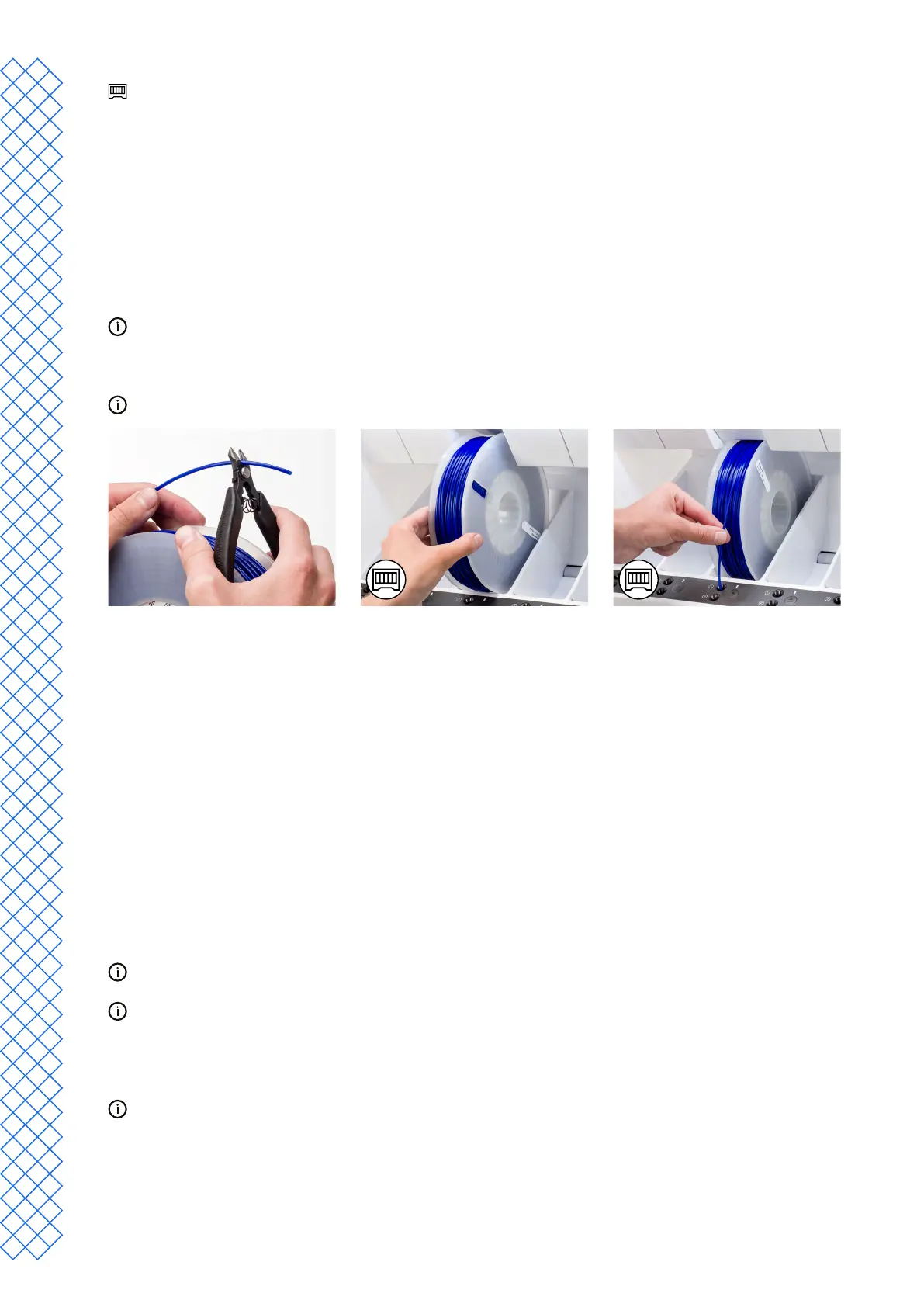
If the UltiMaker S7 is used in combination with a Material Station, loading materials is quick and simple, and
can be done from the front. The materials will be pre-loaded into the Material Station and will be automatically
forwarded to the print head when a print is started.
1. Unpackthematerialandcutotheend,ensuringashort,sharptip.
2. Open the Material Station door.
3. PlacethespooloflamentintooneofthematerialbaysoftheMaterialStationwiththeNFC
tag on the left side.
4. Insertthetipofthematerialintolamententryport1untiltheprefeedergrabsthematerial
5. Wait for the Material Station to detect the material and select Conrm to continue.
When using a third-party material, you can manually select the material type.
6. RepeatthestepsaboveforUltiMakerPVANatural,butinsertitintolamententryport2.
You can load more materials in the Material Station at this point or do so later at any time.
Network installation
The UltiMaker S7 can connect to a local area network, using either Wi-Fi or Ethernet. To connect to a network, select
Network setup from the welcome setup list. If you want to set up a wireless network connection, select Wi-Fi setup. If
you want to use Ethernet, or don’t want to set up network connectivity, select Skip.
Set up Wi-Fi
To connect your UltiMaker S7 to a wireless network, you will need a computer or a smartphone. Start the Wi-Fi
setup and follow the steps on the touchscreen:
1. Wait until your printer has created a Wi-Fi hotspot. This may take a minute.
2. Use a computer or smartphone to connect to the printer. The name of the Wi-Fi network is shown on the
touchscreen of the printer.
3. A pop-up will appear on the display of your computer or smartphone. Follow the steps to connect the printer to
your local Wi-Fi network. The pop-up will disappear when you have completed these steps.
If the pop-up does not appear, open a browser and go to a website that is not yet known by your browser.
WithinsomenetworkenvironmentstheUltiMakerS7mayexperiencedicultiesconnectingwirelessly.When
this happens, repeat the Wi-Fi setup from another computer or smartphone.
4. GobacktotheUltiMakerprinterandwaituntiltheWi-Fisetupisnished.
If you skip the Wi-Fi setup during the welcome setup, you can start it again from the Preferences menu, by
selection the Network option.


 To Next Page