EasyManua.ls Logo

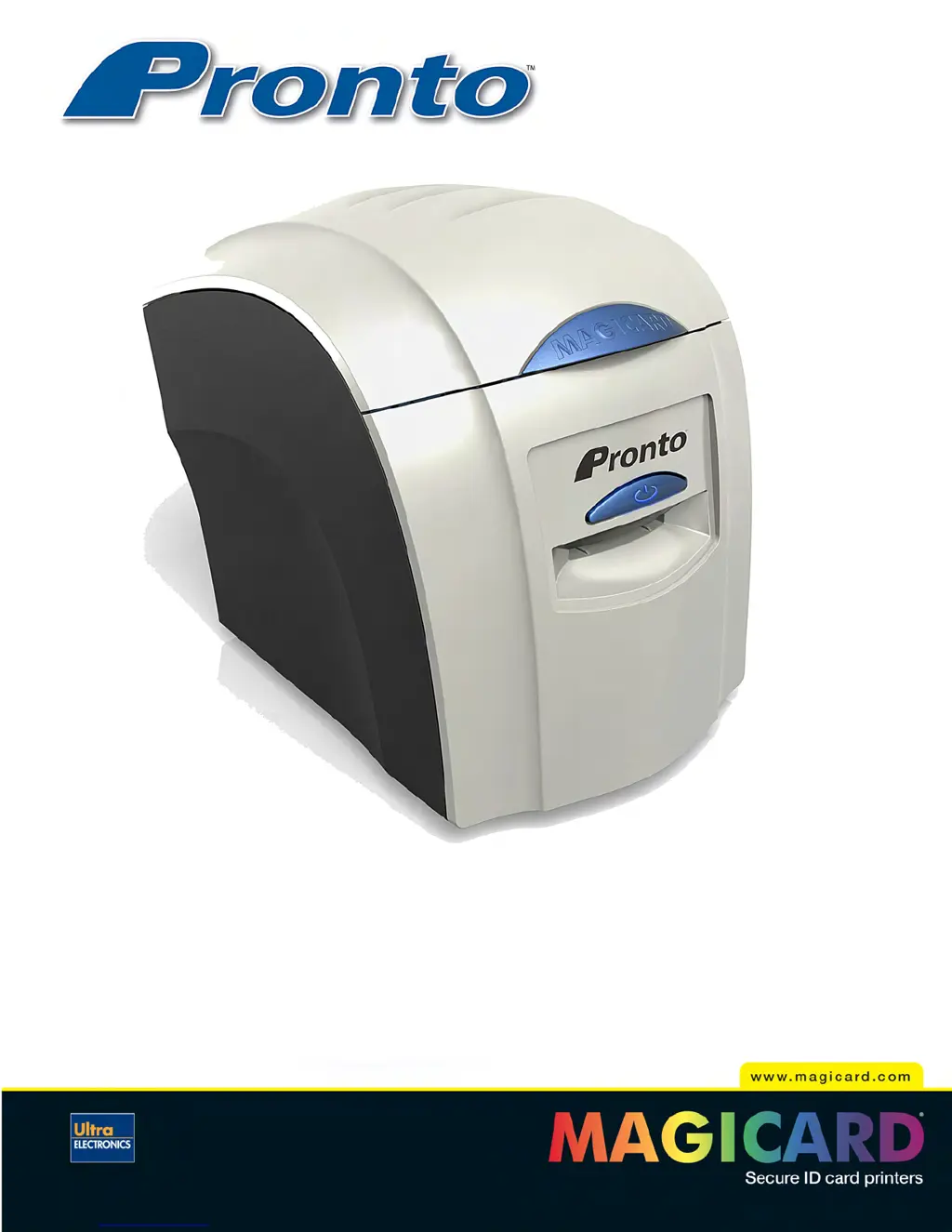
Ultra electronics Magicard Pronto - User Manual

Ultra electronics Magicard Pronto
33 pages
Print Icon
To Next Page IconTo Next Page
Loading...
User Manual
Document No: 689 Issue 2.02 - 06/2009

Questions and Answers

  • D
    Devin WoodSep 23, 2025
    What does 'No film detected' mean on Ultra electronics Magicard Pronto?
    • E
      Elizabeth NorrisSep 23, 2025
      If your Ultra electronics Printer displays 'No film detected', it means the printer detects an invalid RFID film tag. Make sure you are using genuine Magicard film and install a new roll of film.
  • D
    Deanna LopezAug 23, 2025
    Why does my Ultra electronics Magicard Pronto Printer say 'Out of dye film'?
    • A
      Alexis WattsAug 23, 2025
      If your Ultra electronics Printer shows an 'Out of dye film' error, follow these steps: * Ensure you're using genuine Magicard film. * Check if dye film is installed; if not, install a roll. * If the dye film is completely used, install a new roll. * Confirm the dye film gear is properly meshing with the film teeth. * Verify the correct power supply is connected to the printer. * As a last resort, try installing a new roll of ribbon.
  • C
    Cameron PierceAug 25, 2025
    How to fix too dark images from Ultra electronics Printer?
    • L
      Laura GambleAug 25, 2025
      If your Ultra electronics Printer is printing images too dark, it's likely due to high Print Head Power settings in your printer driver. To fix this, reduce the Print Head Power settings in the driver to 50. Also, ensure that the correct Magicard power supply is connected.
  • J
    Jack HowardAug 26, 2025
    What causes a hand feed error on Ultra electronics Printer?
    • M
      margaret80Aug 26, 2025
      A 'Hand feed error' on your Ultra electronics Printer means the printer isn't detecting the card in the front slot. Make sure you're feeding the card into the front slot when the multi-colored button flashes YELLOW. Ensure the card is inserted far enough for the printer's rollers to grab it, and avoid pre-staging the card in the printer before printing.
  • M
    Michael LopezAug 27, 2025
    How to resolve 'Clean Required' message on Ultra electronics Magicard Pronto Printer?
    • M
      Michael JohnsonAug 27, 2025
      The 'Clean Required' message on your Ultra electronics Printer indicates that the printer has printed over 700 cards since the last cleaning. To prevent print quality deterioration, clean the print rollers.
  • D
    Daniel SnyderSep 17, 2025
    Why are magnetic encoding results inconsistent on Ultra electronics Magicard Pronto?
    • J
      Jessica MorrowSep 17, 2025
      Inconsistent magnetic encoding results with your Ultra electronics Printer can be caused by the card slipping when moving over the magnetic head or using incorrect cards (HI-CO / LO-CO). Clean all rollers and ensure the correct type of magnetic cards are being used.
  • C
    Carrie HenrySep 14, 2025
    Why is the image printed outside the color panels on my Ultra electronics Printer?
    • J
      Jordan SilvaSep 14, 2025
      If the image is printed outside the color panels, resulting in a colored band across one end of the card with your Ultra electronics Printer, it could be due to a used roll of dye-film or a loosely wound take-up spool. Fit a new roll of dye-film and remove any loose dye-film.
  • J
    Jonathon DelgadoSep 15, 2025
    Why are cards printed incorrectly after switching films on Ultra electronics Magicard Pronto Printer?
    • P
      Patrick BakerSep 15, 2025
      If cards are printed incorrectly after switching between YMCK and black film on your Ultra electronics Printer, it could be due to a failure to reset driver settings or using a used roll of dye-film. Set the correct driver settings for color format and replace the dye-film with a new roll.
  • J
    Jessica White PhDSep 6, 2025
    Why does my Ultra electronics Magicard Pronto say 'RFID PCB Missing'?
    • R
      Rhonda SantosSep 6, 2025
      If your Ultra electronics Printer shows 'RFID PCB Missing', the printer isn't detecting the RFID PCB. Ensure you have the correct power supply plugged into the printer and try installing a new roll of ribbon.
  • S
    sraySep 3, 2025
    How to resolve 'Wrong film type' error on Ultra electronics Magicard Pronto?
    • E
      Eric WilsonSep 3, 2025
      The 'Wrong film type' error on your Ultra electronics Printer can occur if you're sending a color or overcoat print job to a single color (monochrome) film. Ensure you have the correct film type fitted in your printer, check that your driver settings are correct, and try reinstalling the printer driver.

Summary

Safety and Compliance

General Safety Precautions

Essential safety precautions for operating and handling the Magicard Pronto printer.

Printer Installation

Pre-Installation Requirements

Crucial instruction not to connect USB before driver installation and environmental setup.

Install Printer Driver Software

Guide to loading the driver CD, installing the printer driver, and connecting the printer.

Using Your Pronto Printer

Choosing the Right Cards

Using Specific Card Types

Printer Driver Software (UltraDriver)

Installing the UltraDriver Software

Step-by-step instructions for installing the Magicard printer driver software on a PC.

Caring for Your Printer

Importance of Printer Cleaning

Emphasizes the importance of regular cleaning for printer longevity and print quality.

Troubleshooting

Printer Error Messages

Lists common printer error messages, their probable causes, and recommended solutions.

Additional Printer Error Messages

Continues the list of printer error messages, probable causes, and solutions.

Card Feed and Other Error Messages

Covers card feed issues and further printer error messages with their solutions.

Image Quality and Encoding Problems

Addresses issues related to print image quality and magnetic encoding failures.

Dye-Film and Driver Related Issues

Solves problems related to dye-film usage and driver software conflicts or issues.

Ultra electronics Magicard Pronto Specifications

General IconGeneral
TypeCard Printer
Print TechnologyDye Sublimation
Print MethodSingle-sided
Print Resolution300 dpi
ConnectivityUSB
InterfaceUSB
Card Sizes85.6mm x 54mm
Operating System CompatibilityWindows, Mac, Linux

Related product manuals