Checking Beam Alignment
As a final step in the installation process you need to check your beam alignment. You do this using the red
pointer beam.
1. Open the top door.
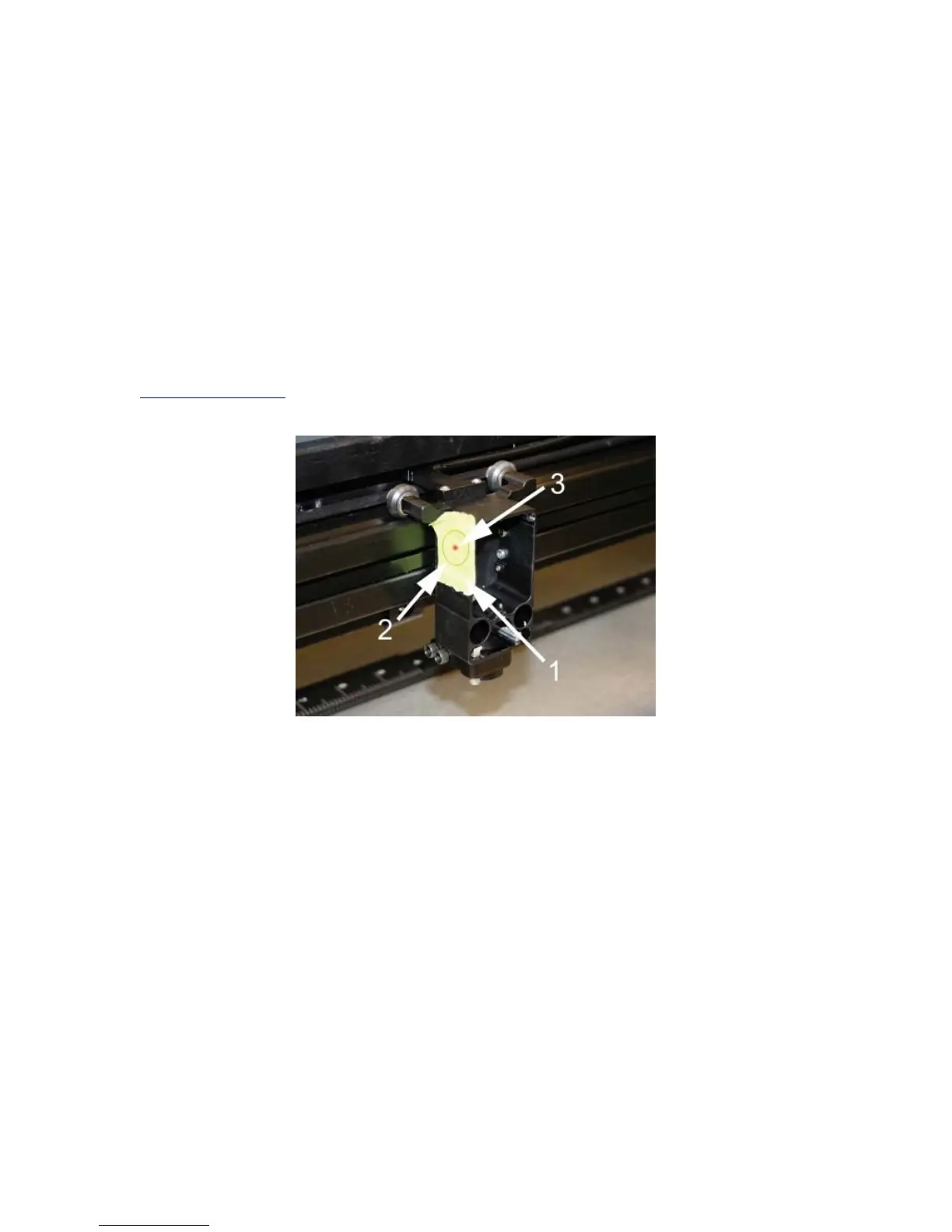
2. Place a small piece of masking tape across the 3/4” (19 mm) hole in the focus carriage (1). Gently rub the
tape around the edge of the hole so that you can see the outline of the hole through the tape (2).
3. Power on your computer and verify that the Universal Control Panel (UCP) icon is present in the taskbar.
If not, activate it by selecting the “Universal Control Panel” icon on your desktop.
4. Power on the laser system by pressing the Power switch on the side of the laser system.
5. With the top door open, a red dot will appear on the masking tape (3). The red dot should appear
centered, within 1/8 inch (3 mm). If not, turn off the laser system, remove and re-install the laser cartridge
and try again. If the red dot still does not appear centered, please contact our Customer Service Team at
480-609-0297 (USA), +43 1 402 22 50 (Austria), +81 (45) 224-2270 (Japan) or e-mail us at
support@ulsinc.com.
6. Once you have completed laser beam alignment verification, remove the masking tape.
Focus Carriage Beam Alignment
Accessories
Your laser system includes various accessories such as a cutting table for cutting applications and ULS computer
Controlled Compressed Air Unit, along with cone and backsweep for air assisted material processing. The
accessories section of the manual details how to install and use these accessories.
44



 To Next Page