- 33 -
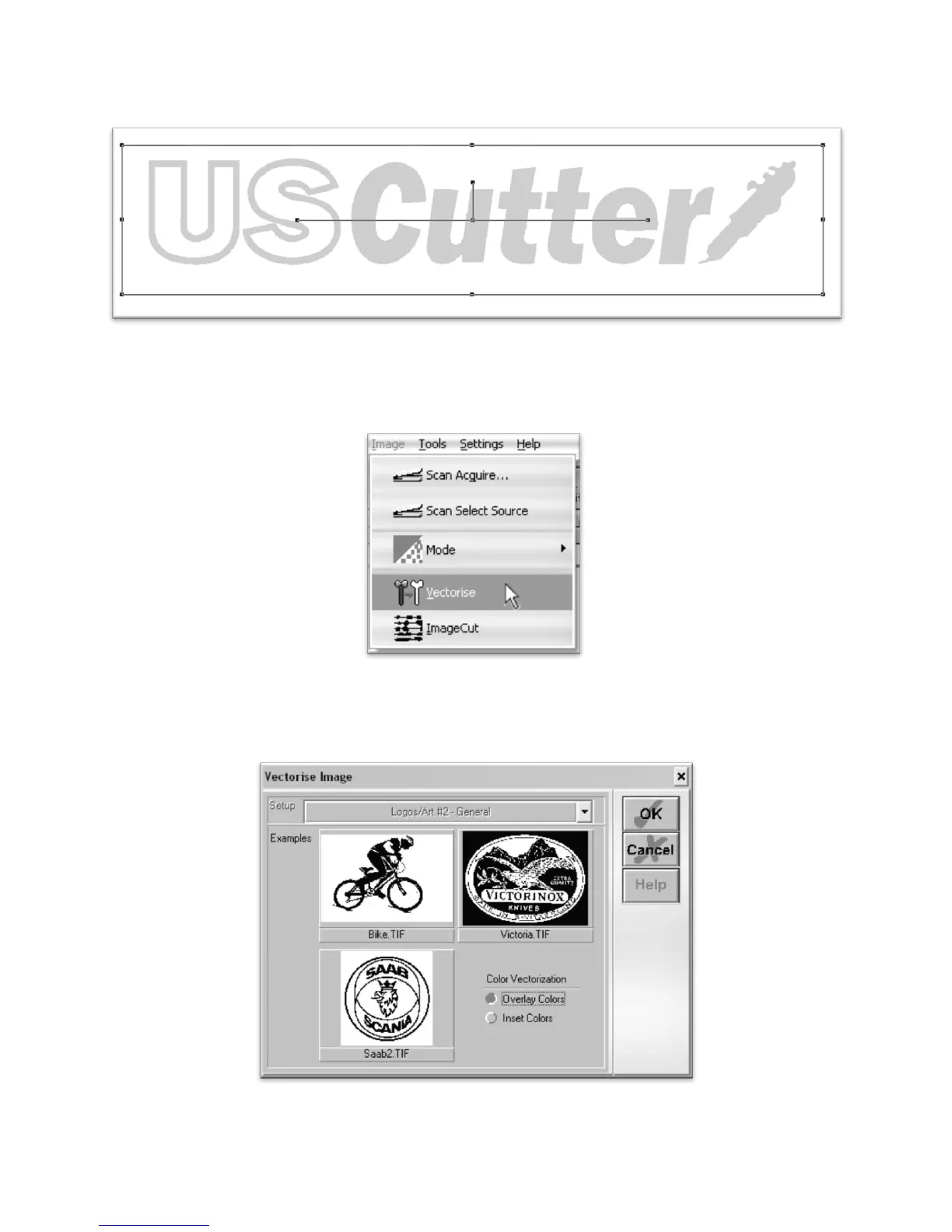
Since we chose an image with good contrast and separation for our example this process will be easy. We
simply check that our image to be cut shows up in light grey or black and that there is no areas of the
background or other parts of the image that are unnecessarily included.
Now press the OK button on the “Convert Image to monochrome” window.
Now to convert a monochrome image to a vector, select “Vectorise” from the Image drop down menu.
And press the OK button on the Vectorise Image window.



 To Next Page