- 43 -
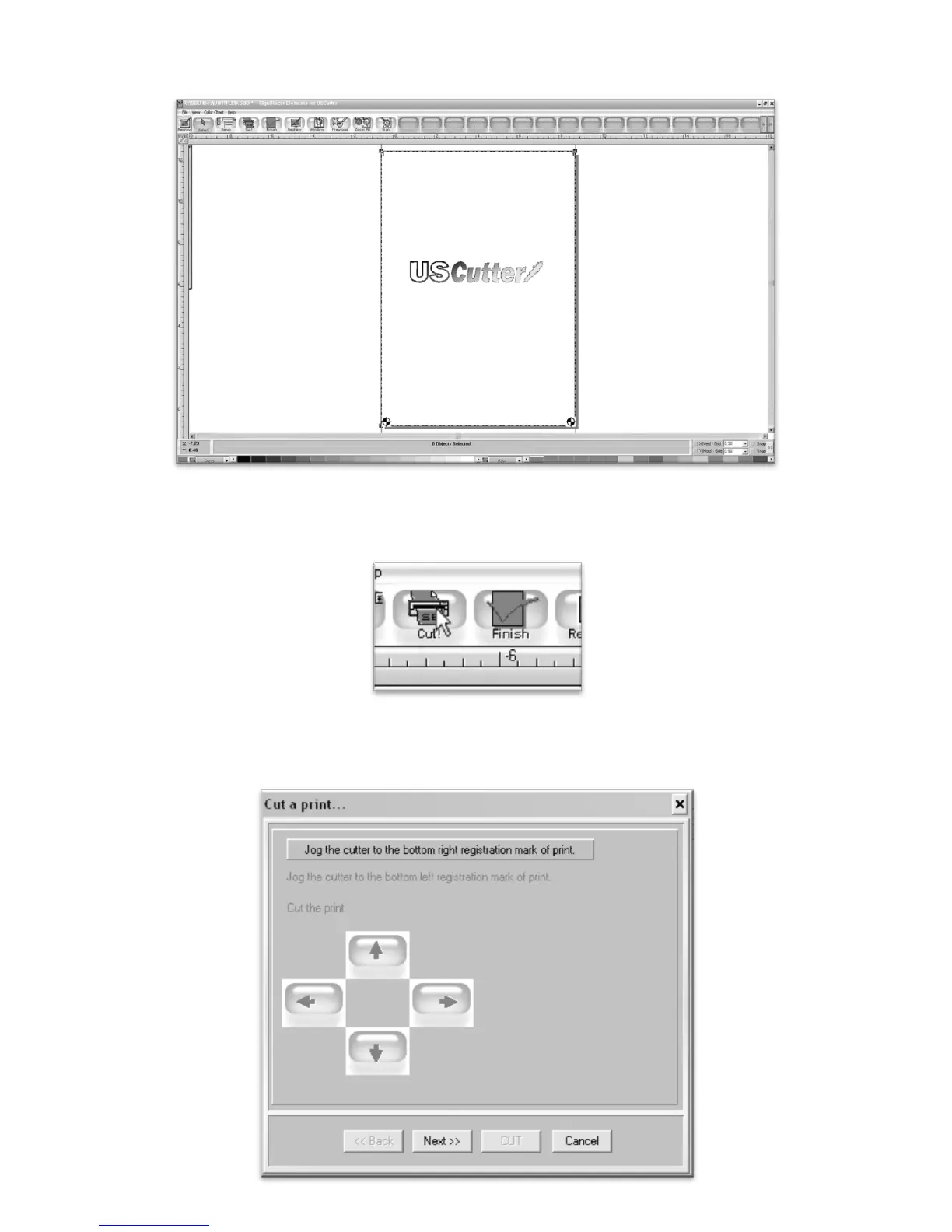
The Cut A Print screen will look very similar to the main screen of the SignBlazer software, but will have a
few different menus and options.
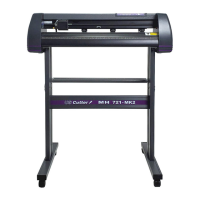
No changes need to be made here, so we will go directly to the Cut window by pressing the Cut button
from the top menu boxes.
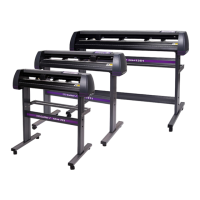
Now, you will follow the on screen instructions to get your image properly aligned so that the cutter can
make a precise cut in relation to where the printed image is.



 To Next Page