EasyManua.ls Logo

Vaisala AP10 - User Manual

Vaisala AP10
48 pages
Print Icon
To Next Page IconTo Next Page
Loading...
M211860EN-A
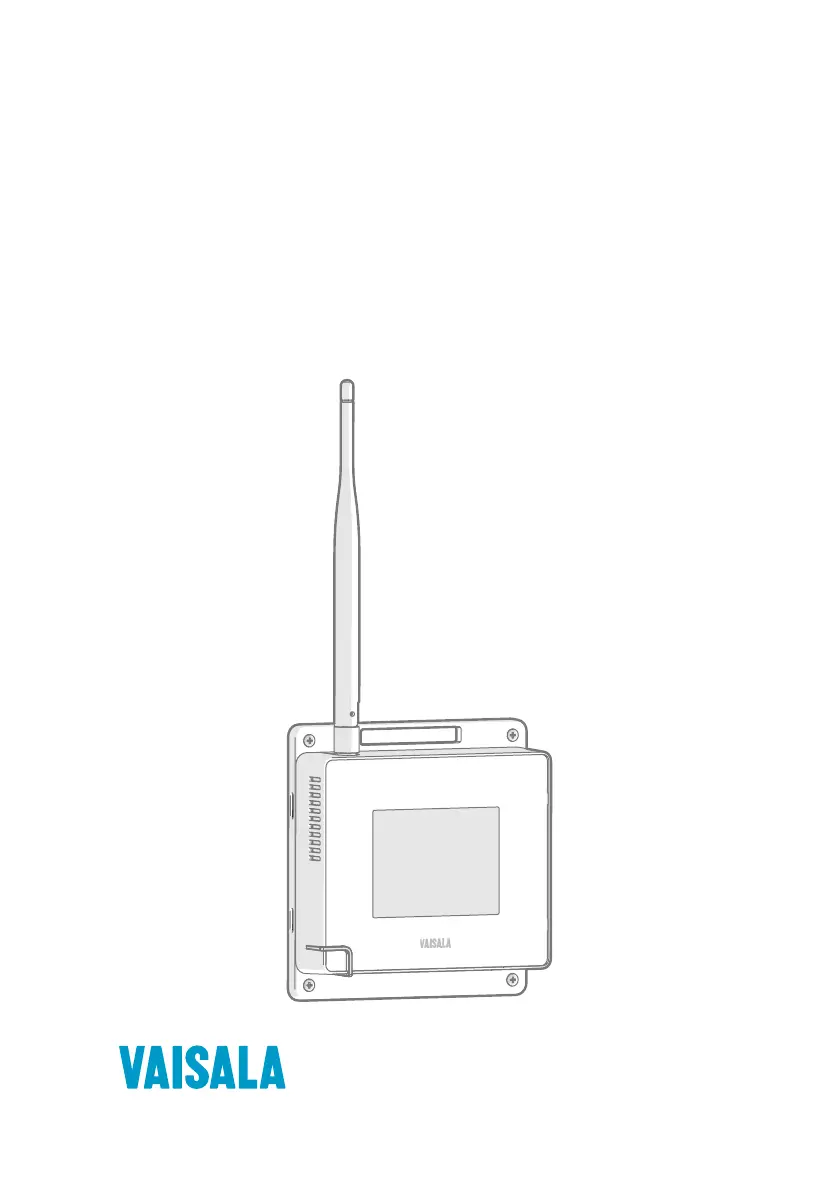
User Guide
Vaisala VaiNet Access Point
AP10

Table of Contents

Other manuals for Vaisala AP10

Questions and Answers

  • T
    traciechapmanAug 15, 2025
    How to fix Vaisala Wireless Access Point AP10 not connected to viewLinc?
    • J
      Jessica SmithAug 15, 2025
      If your Vaisala Wireless Access Point AP10 displays 'Not connected to viewLinc', the issue could stem from several causes. First, verify and correct the AP10's network settings to ensure it can join the network. Second, check and correct the AP10's viewLinc settings to ensure it has the correct address for the viewLinc Enterprise Server. Also, confirm that your firewall isn't blocking the viewLinc communication port (the default port is 12600). Finally, ensure the Ethernet cable is properly connected to the AP10, the activity LEDs on the Ethernet connector are flashing, and contact your local IT support to rule out any network outage.
  • S
    Samuel KirkAug 18, 2025
    What to do if I can't log in to Vaisala Wireless Access Point web interface?
    • O
      olindseyAug 18, 2025
      If you're unable to log in to the web interface of your Vaisala Wireless Access Point, it's likely due to an incorrect username or password. Ensure you're entering the correct credentials. The username is 'apadmin' and the default password is 'ap123456'.
  • T
    Teresa MerrittAug 21, 2025
    Why Vaisala Wireless Access Point AP10 data loggers are not connecting in installation mode?
    • A
      Alexandra HarperAug 21, 2025
      If your Vaisala Wireless Access Point AP10 is in installation mode but data loggers aren't connecting, it could be because the data loggers have temporarily turned off their radio to conserve battery. In this case, you should wait patiently, as connections can take several minutes. If a data logger has been out of contact for a long time, it may keep its radio off for up to eight hours. Another reason could be that the AP10 cannot start its radio communication because it does not have accurate time from a network time protocol (NTP) server. Verify that the AP10 is configured to connect to the correct NTP server and that the NTP server is accessible from the network. Note that internet access is required to reach the default NTP servers.
  • D
    Daniel MeltonAug 25, 2025
    What to do if Vaisala AP10 Wireless Access Point displays 'Not connected to NTP'?
    • Z
      zrobbinsAug 25, 2025
      If your Vaisala Wireless Access Point displays 'Not connected to NTP', it could be for one of two reasons. If the AP10 has just started up and lost accurate time during a power off, wait for it to synchronize with the NTP servers. If the AP10 has been unable to synchronize for more than three weeks, check the NTP settings and take corrective action to ensure at least one of the listed NTP servers is reachable by the AP10.
  • S
    samantha19Aug 27, 2025
    How to stop Vaisala Wireless Access Point AP10 display from turning off?
    • R
      Robert LeAug 28, 2025
      If your Vaisala Wireless Access Point AP10 display turns off by itself, it's likely because the display has been configured to turn off automatically. Check the display and LED settings of AP10 and configure them as desired.
  • J
    Jermaine JordanAug 30, 2025
    What causes Vaisala Wireless Access Point AP10 'Persistent storage failure'?
    • M
      mary58Aug 31, 2025
      If your Vaisala Wireless Access Point AP10 displays 'Persistent storage failure' and doesn't start up properly, it indicates that the filesystem of the AP10 has been corrupted. Perform a factory reset.
  • P
    Patrick Bradley IIISep 2, 2025
    What to do if my Vaisala Wireless Access Point AP10 is not connected to viewLinc?
    • D
      Duane HenrySep 2, 2025
      If your Vaisala Wireless Access Point AP10 displays 'Not connected to viewLinc', it could be due to several reasons. First, the AP10 network settings might be incorrect, so verify that the device can join the network and correct any errors. Second, the AP10 might not have the correct address for the viewLinc Enterprise Server; check and correct the viewLinc settings on the AP10. Third, a firewall could be blocking the necessary communication port; ensure that connections between the AP10 and the viewLinc Enterprise Server are allowed on port 12600 (the default port). Finally, there might be a network outage; check the Ethernet connection cable, ensure the activity LEDs on the Ethernet connector are flashing, and contact your local IT support.
  • N
    Natalie BondSep 5, 2025
    Why are data loggers not connecting to my Vaisala Wireless Access Point AP10 in installation mode?
    • K
      Kimberly NelsonSep 5, 2025
      If your Vaisala Wireless Access Point AP10 is in installation mode but data loggers are not connecting, the data loggers may have temporarily turned off their radio to conserve battery. Please wait patiently, as connections can take several minutes. If a data logger has been out of contact with an access point for a long time, it may keep its radio off for up to eight hours. Alternatively, the AP10 might not have accurate time from a network time protocol (NTP) server, preventing radio communication. Verify that the AP10 is configured to connect to the correct NTP server and that the NTP server is accessible from the network. Note that internet access is required to reach the default NTP servers.
  • J
    jameshawkinsSep 8, 2025
    What to do if my Vaisala Wireless Access Point AP10 is not connected to NTP?
    • M
      Michael BlairSep 9, 2025
      If your Vaisala Wireless Access Point AP10 displays 'Not connected to NTP', it could be because the AP10 has just started up and lost accurate time during a power outage. Wait for the AP10 to synchronize time with the NTP (Network Time Protocol) servers. Alternatively, the AP10 may have been unable to synchronize time with any of the NTP servers on its list for more than three weeks. Check the NTP settings and take corrective action to ensure that at least one of the listed NTP servers is reachable by the AP10.
  • S
    steven61Sep 12, 2025
    What to do if Vaisala Wireless Access Point AP10 shows persistent storage failure?
    • A
      Alexis BarkerSep 12, 2025
      If your Vaisala Wireless Access Point AP10 displays 'Persistent storage failure' and does not start up properly, it indicates that the filesystem of the AP10 has been corrupted. Perform a factory reset.

Summary

About This Document

Version Information

Details of document versions and their release dates.

Related Manuals

List of other manuals relevant to the product.

Documentation Conventions

Explanation of symbols, warnings, and formatting used in the manual.

Trademarks

Information about product and company trademarks.

Product Overview

Overview of AP10 Access Point

General introduction to the AP10 wireless access point and its function.

AP10 Parts

Identification and description of physical components of the AP10.

VaiNet Devices in viewLinc Monitoring System

How AP10 connects VaiNet devices to the viewLinc system.

VaiNet Protocol

Technical details about the proprietary Vaisala VaiNet wireless protocol.

Delays in a VaiNet Network

Explanation of potential delays in the VaiNet wireless communication.

Time Synchronization

How the AP10 synchronizes its clock using NTP servers.

Network Security

Guidelines and recommendations for securing the AP10 on a network.

Using a Third Party Power Supply

Specifications and instructions for using non-Vaisala power supplies.

Remote Management

How to remotely manage the AP10 using viewLinc Enterprise Server.

Regulatory Compliance

Information regarding compliance with various regulatory standards.

FCC Compliance Statement

Statement of compliance with Federal Communications Commission (FCC) rules.

ISED Compliance Statement

Statement of compliance with Industry Canada (ISED) regulations.

EU Declaration of Conformity

Declaration of conformity with European Union directives.

Safety

Important safety precautions and warnings for using the AP10.

Symbols Used in AP10 Product Markings

Explanation of symbols found on the AP10 product markings.

ESD Protection

Information on protecting the AP10 from electrostatic discharge damage.

Installation

AP10 Installation Location and Range

Recommendations for installing the AP10 for optimal wireless coverage.

Mounting in Plenum Space

Guidance on mounting the AP10 in plenum spaces.

Setting Up AP10

Step-by-step instructions for initial setup and configuration of the AP10.

Mounting AP10

Methods and considerations for physically mounting the AP10 unit.

Touchscreen Interface

Accessing the Touchscreen Interface

How to interact with and access the AP10's on-device touchscreen.

Overview of Touchscreen Interface

Description of the AP10's touchscreen interface and its features.

Web Interface

Accessing the Web Interface

Instructions for connecting to and logging into the AP10's web interface.

Overview of Web Interface

Description of the AP10's web interface and its various sections.

Maintenance

Cleaning AP10

Instructions on how to clean the AP10 unit safely and effectively.

Updating AP10 Firmware

Procedures for updating the AP10's firmware to the latest version.

Troubleshooting

Problem Situations

Common problems and their solutions for the AP10 access point.

Verifying Operation of AP10

Steps to check if the AP10 is functioning correctly.

Performing a Factory Reset

Instructions for resetting the AP10 to its default factory settings.

Technical Data

AP10 Technical Specification

Detailed technical specifications for the AP10 access point.

AP10 Spare Parts and Accessories

List of available spare parts and optional accessories for the AP10.

AP10 Dimensions

Physical dimensions and measurement details of the AP10 unit.

Vaisala AP10 Specifications

General IconGeneral
BrandVaisala
ModelAP10
CategoryWireless Access Point
LanguageEnglish