6.7 Map Updating
Occasionally, VEMCO releases a new coded map. Updating the map in the VR2Tx
is as simple as starting a new study with the new map selected. Follow the basic
steps below to start a study with the new map. More details on how to initialize the
receiver is found in section 3.8.1.
1. Download the latest VUE software from www.vemco.com/downloads/.
2. Communicate with the VR2Tx receiver (sections 3.3 and 3.4).
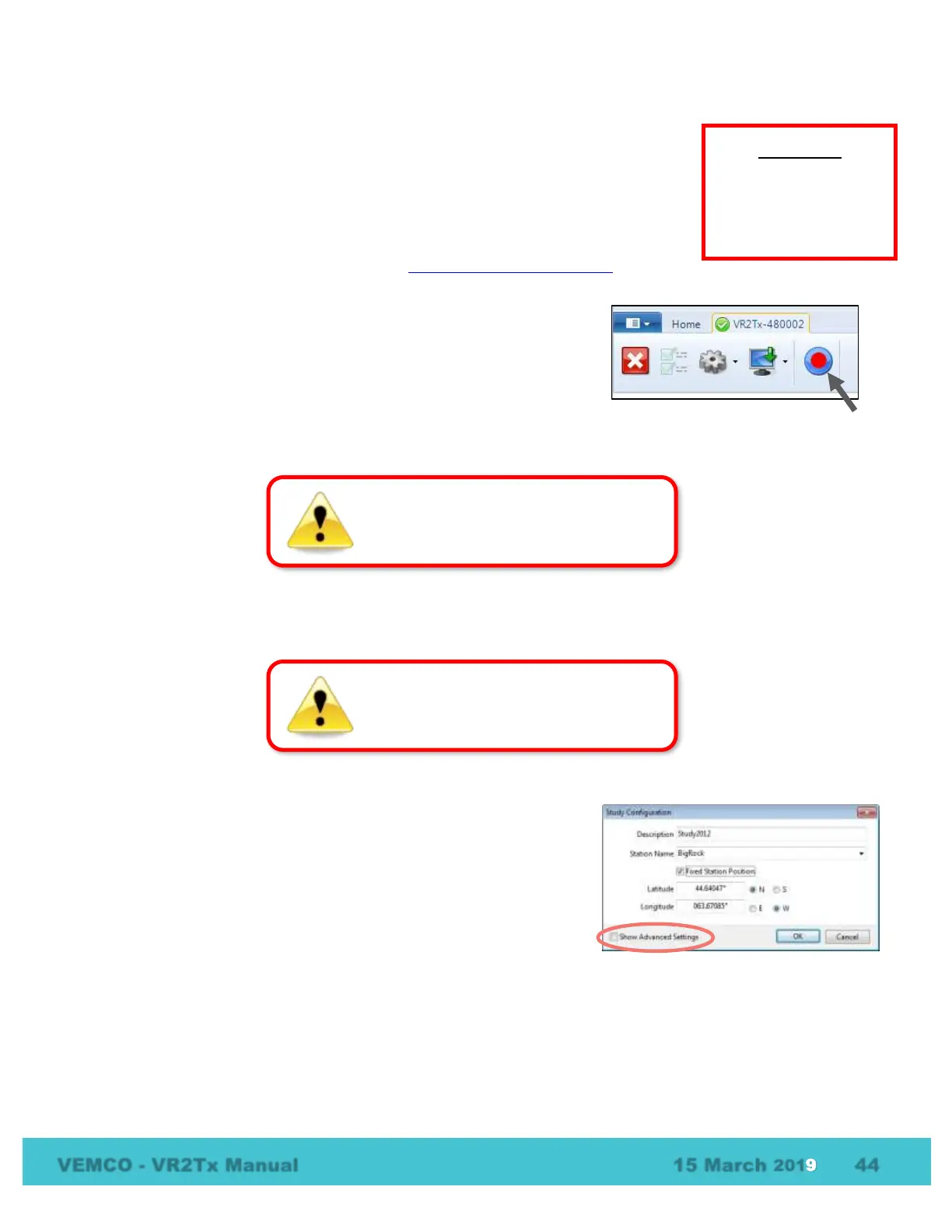
3. Click the red and blue “Start Recording” button found in the
receiver tab’s ribbon. If you have more than one receiver connected
to VUE, then make sure you have the tab of the desired receiver
selected.
4. Verify that the PC clock is correct. The receiver will be set to UTC time based on the current time of the
PC. The PC time and the UTC offset must be correct.
5. Select to erase the old data and begin the study – only select this option if the data has already been
offloaded to the computer.
6. Select “Show Advanced Settings” in the Study Configuration
window.
It is vital that the PC clock be correctly
set to your local time, including time
zone, before the VR2Tx is initialized.


 To Next Page