LabQuest
®
2 – User Manual
11
Open
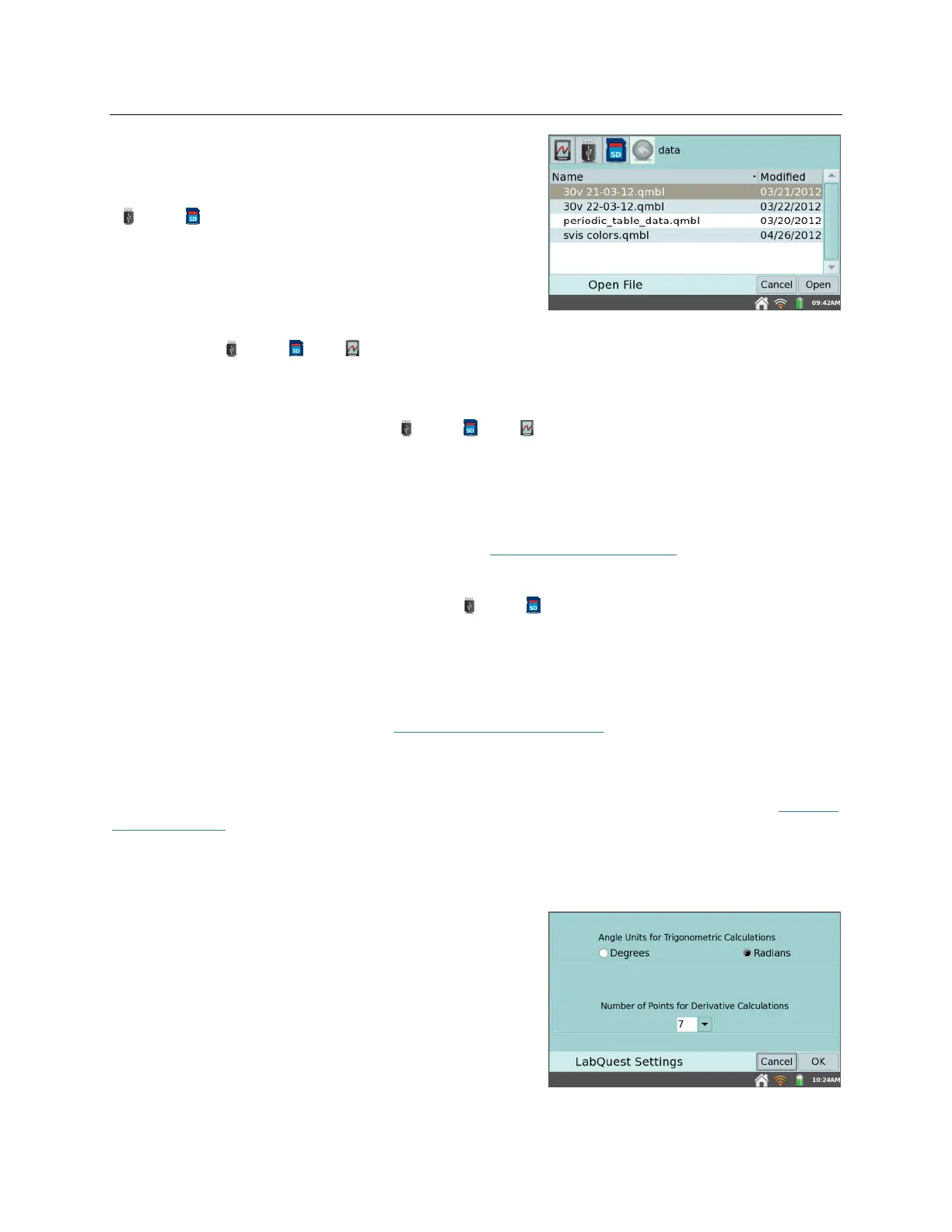
– Choose Open from the File menu to display a
list of files that you have saved on LabQuest. To open a
file, tap the file name, then tap Open. To open a file
from an external storage source, tap the source icon
( USB, SD) to display the files available on that
source, then tap on the file name, and tap Open.
Save
– Choose Save from the File menu to display the Save As dialog box where you can tap on
a source icon ( USB, SD, LabQuest) to select a destination. Tap in the File name field to
assign a name to the file.
Delete
– Choose Delete from the File menu to display a file list similar to that accessible by
choosing open. Tap on a source icon ( USB, SD, LabQuest) to select the source where
the file is located, tap the desired file name, then tap Delete. You can delete only one file at a
time.
Email
– Choose Email from the File menu to email the Data File, Graph, Text File, or screenshot
from the current file when LabQuest is connected to a wireless network with Internet. For
detailed instructions on setting up this feature, see Emailing from LabQuest.
Export
– Choose Export from the File menu to export the current data file in a text format for use
with other applications. Tap on a source icon ( USB, SD) to select a destination, then tap
OK to complete the export.
A typical use of this feature is to export a text file to an SD card or a USB flash drive for further
data manipulation on a computer with a spreadsheet program. The exported file contains all
column values from all runs in the current session, delimited by tabs. For more detailed
instructions on using this feature, see Storing LabQuest App Files.
Print
– Choose Print from the File menu to print the Graph, Table, Lab Instructions, Notes, or
Screen from the current file to a USB or Wi-Fi-enabled printer. You can also save a PDF file on
a USB flash drive or SD card using the Print to File option. For detailed instructions, see Printing
from LabQuest.
Settings
– Choose Settings from the File menu to adjust file settings for the current session.
These settings are specific to and saved within the LabQuest file. These settings return to default
upon choosing New from the File menu.
Angle Units for Trigonometric Calculcations
Calculated columns, curve fits, and modeled
functions may use trigonometric calculations;
choose Degrees or Radians here.
The default is set to radians.



 To Next Page