32
IV. DATA SHARING: USING LABQUEST
®
2
As part of the Connected Science System
®
, LabQuest 2 serves as a Data Sharing source that can
wirelessly stream sensor data to Graphical Analysis™ 4 running on computers, Chromebook™
notebooks, or mobile devices such as iOS and Android™ tablets and phones.
How Data Sharing Works
Students in a lab group set up an experiment with Vernier sensors and LabQuest 2.
Students use Graphical Analysis 4 app to wirelessly connect to the LabQuest 2 using Wi-Fi.
Experiment data are streamed from LabQuest 2 to each student’s device.
Each lab group member performs an individual analysis of the shared data on their device.
Students can take their data and analysis home for further analysis and lab reports.
Set Up Data Sharing on LabQuest
To set up LabQuest as a Data Sharing source, you will need to connect LabQuest to a Wi-Fi
Network and enable Data Sharing.
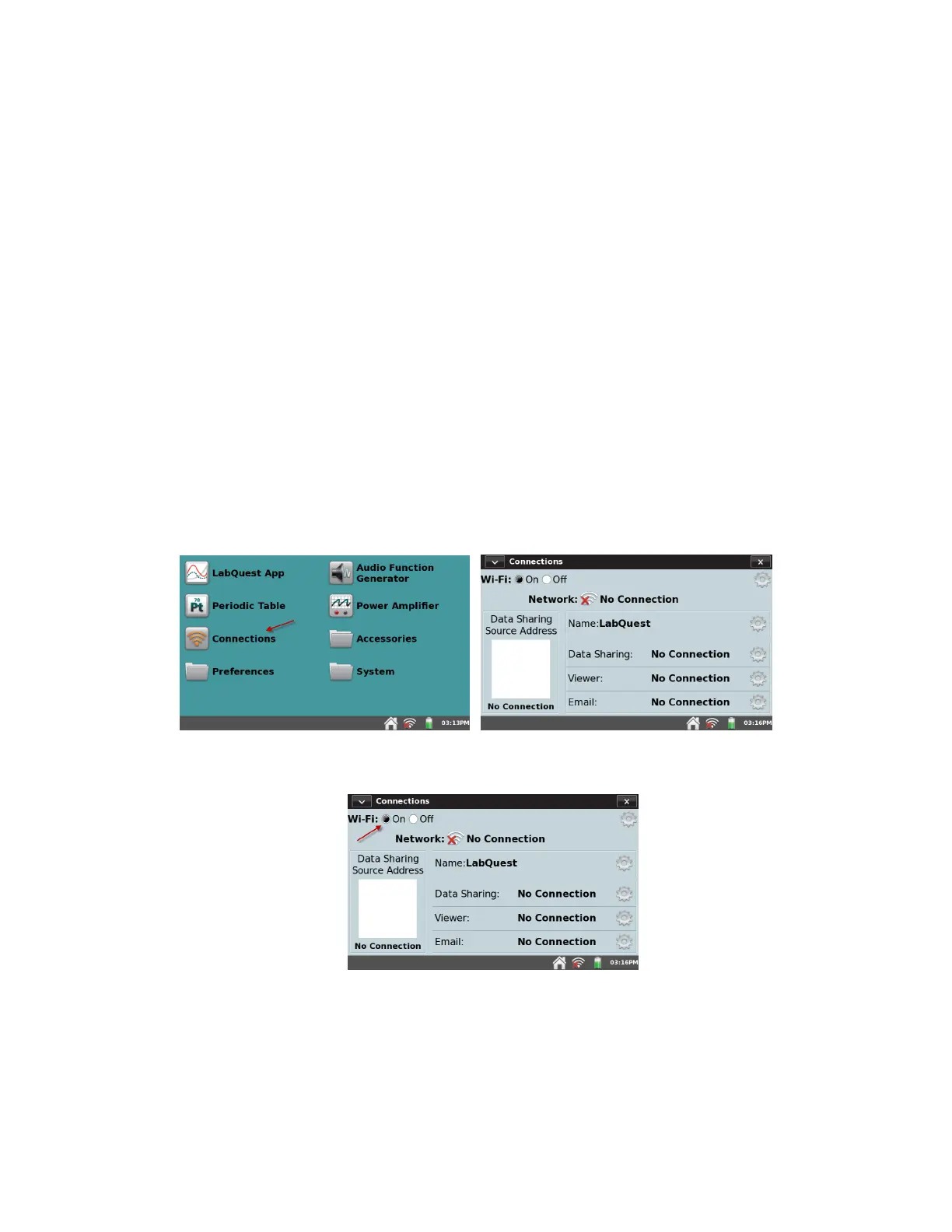
Connect LabQuest to a Wi-Fi Network
1. Launch the Connections app from the Home screen.
2. Verify Wi-Fi is enabled (On).



 To Next Page