42
VII. PRINTING FROM LABQUEST
®
2
You can print a graph, data table, lab instructions, your own notes, or the screen as it is currently
displayed in LabQuest App. LabQuest can print to a compatible printer via a USB cable or via a
Wi-Fi network. In addition, if a printer is not available, you can use the Print to File option to
save a PDF file on a USB drive or microSD card to print at a later time. For a list of compatible
printers, see www.vernier.com/til/1659
To print to a compatible printer for the first time, follow the Printer Setup instructions below.
This setup is only required for the first time you use a particular printer. Once a printer has been
installed, LabQuest will store the drivers.
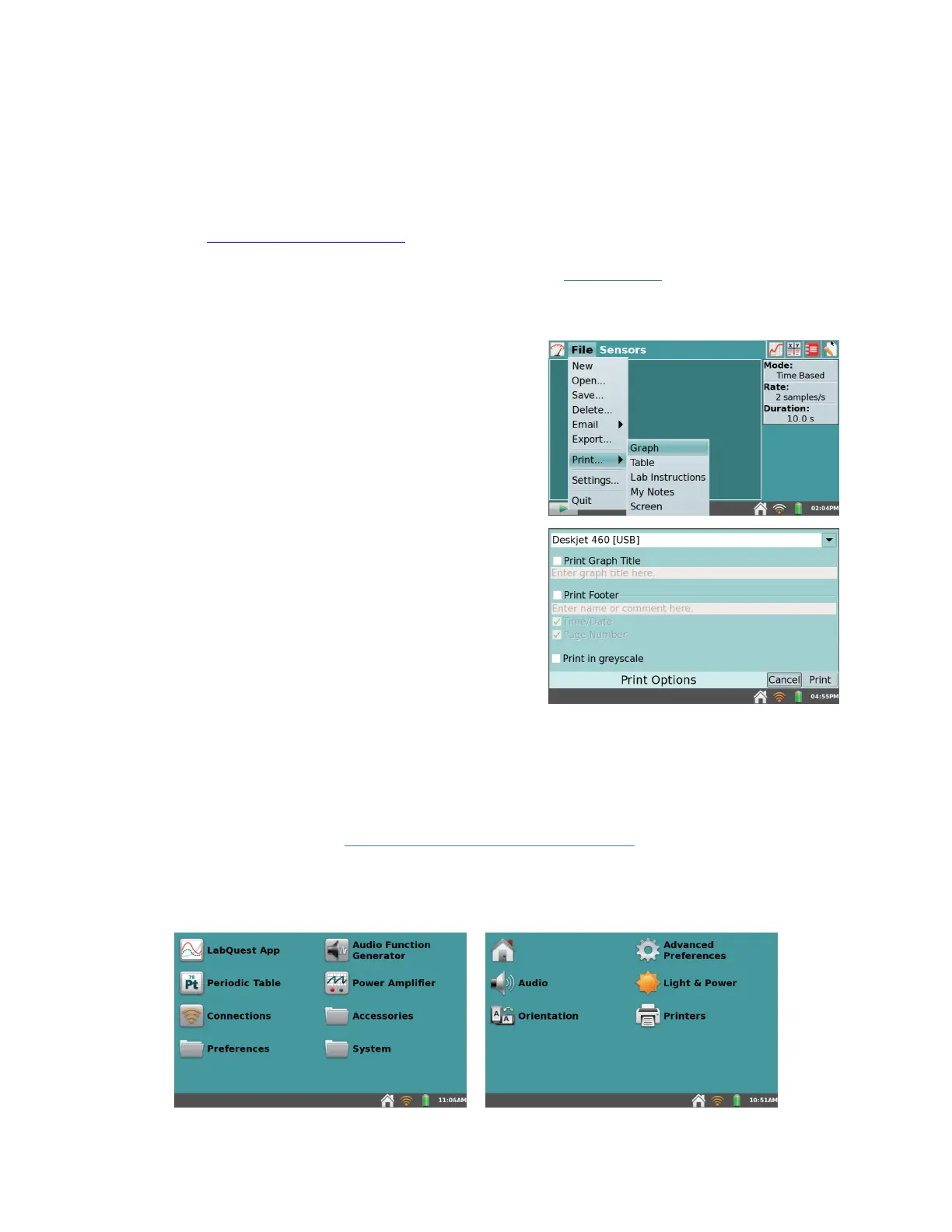
To print from LabQuest App to an installed printer,
choose Print from the File menu. Then choose the item
that you want to print (Graph, Table, Lab Instructions,
My Notes, or Screen).
TIP! Options for printing Table, Lab Instructions, and
My Notes are not available when those items have no
data to print.
The Print Options dialog box appears where you can
choose the installed printer or Print to File option from
the dropdown list and set additional print settings (add
a title, footer, or print in grayscale).
Printer Setup
1. If printing to a USB printer, connect the printer to the full-size USB port on LabQuest and
turn on the printer.
If printing to a Wi-Fi-enabled printer, verify that LabQuest is connected to the same Wi-Fi
network as the printer. See Connect LabQuest to a Wi-Fi Network
for more information, if
needed.
2. Tap Preferences from the Home screen, and then tap Printers to open the Printer
Configuration dialog box.



 To Next Page