LabQuest
®
App
12
Number of Points for Derivative Calculations
Calculated columns, curve fits, modeled functions, and even the automatic setup for sensors
(e.g., Motion Detectors) may use numerical derivatives. The algorithm for such derivatives
utilizes a user-defined number of points. The default value of seven points is good for many
experiments, but you may want to choose a larger number for human-scale Motion Detector
experiments (e.g., our Motion Match lab), or a smaller number for cart-based Motion
Detector experiments (e.g., our Impulse and Momentum experiment).
Quit – Choose Quit from the File menu to exit LabQuest App. Since other applications can run
simultaneously with LabQuest App, there is typically no need to quit LabQuest App during
standard use.
Data Collection
Data collection with LabQuest starts from the Meter screen, which is the default screen for
LabQuest App. From this screen, you can view sensor readings updated in real time as well as a
summary of the data-collection settings. Additionally, you can access updated tools to modify
and customize these settings for your particular experiment.
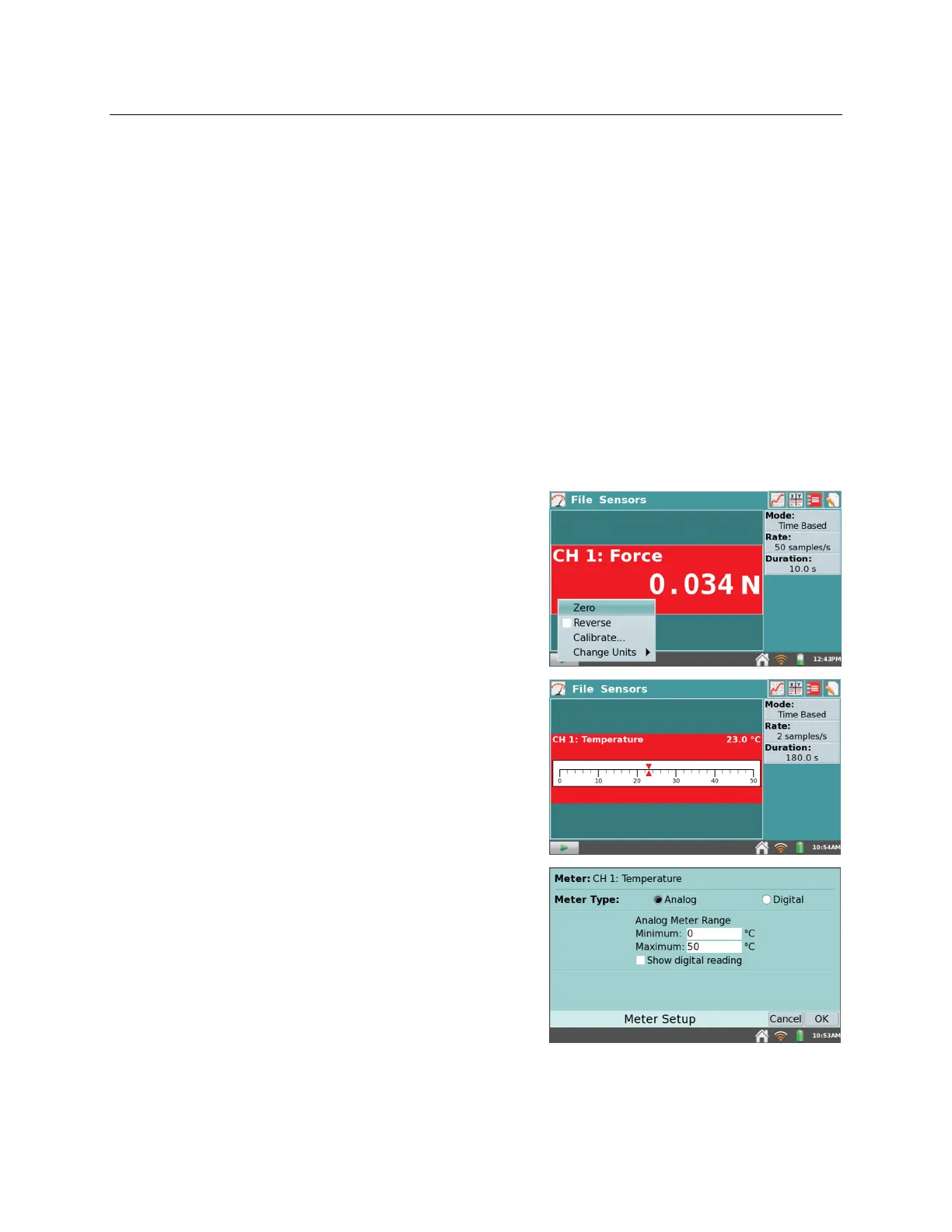
Digital Meters
A digital meter for each connected sensor is shown on
this screen. Tap on a meter to change sensor settings.
The available options will depend on the sensor and
may include options to change units, calibrate, zero,
and reverse the sensor. These options can also be
accessed from the Sensors menu.
Analog Meters
To display an analog meter, choose Meter Setup from
the Sensors menu, or as a shortcut, tap the digital meter
on the Meter screen.
Within the Meter Setup dialog box, enter the minimum
and maximum values for the meter range. If you want
to view both the analog and digital readings for a
sensor, select the Show digital reading check box.



 To Next Page