LabQuest
®
App
10
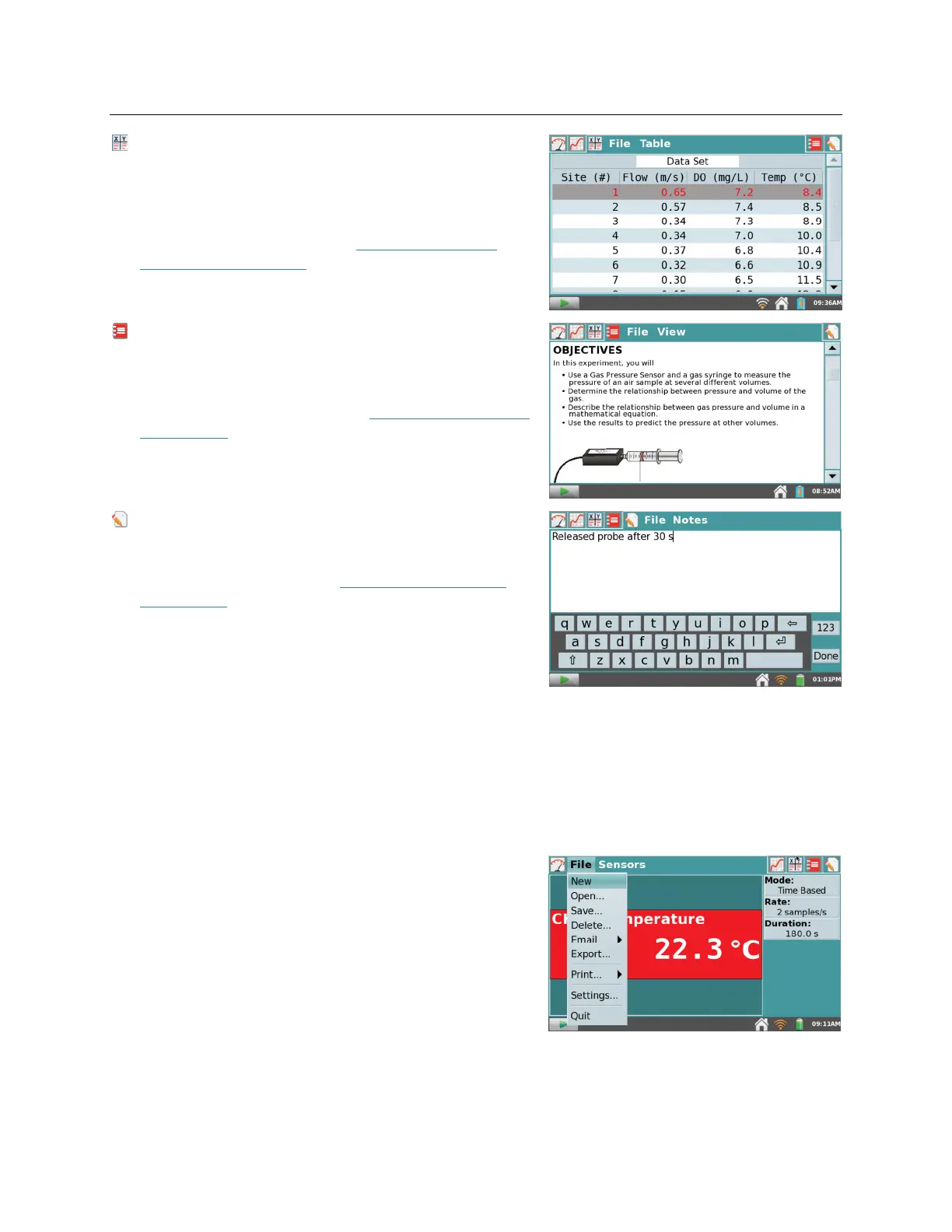
Table screen – See a tabular representation of your
data, create calculated columns, and manually enter
data.
For a detailed description of how the Table screen
is used for data analysis, see Manipulating Data
from the Table Screen.
Lab Instructions screen – Access one of over 100
preloaded experiments for paperless instructions.
For detailed instructions on accessing the preloaded
experiments on LabQuest, see Viewing Vernier Lab
Instructions.
Notes screen – Record observations about your
experiment.
For more information, see Adding Notes to Your
Experiment.
File Menu
A LabQuest App file can contain dat
-collection settings, graphs, data tables, analyses, and even
notes. These files have a .qmbl extension and can be saved to the internal storage space on
LabQuest or to an external storage device such as a USB flash drive or microSD card.
LabQuest App files can also be opened and manipulated on a computer with Logger Pro
®
3 and
Logger Lite software.
All five tabs within LabQuest App share the same File
menu, which is similar to the File menu on a computer.
From the File menu, you can perform a number of
tasks related to LabQuest App files, such as opening,
saving, and closing files, adjusting file settings,
printing, and more. These are described in more detail
as follows.
New – Choose New from the File menu to reset all
data-collection parameters and sensor calibrations back
to default values. If you have unsaved data, you will be
prompted to either save or discard the data before
continuing.



 To Next Page