LabQuest
®
App
30
Adding Notes to Your Experiment
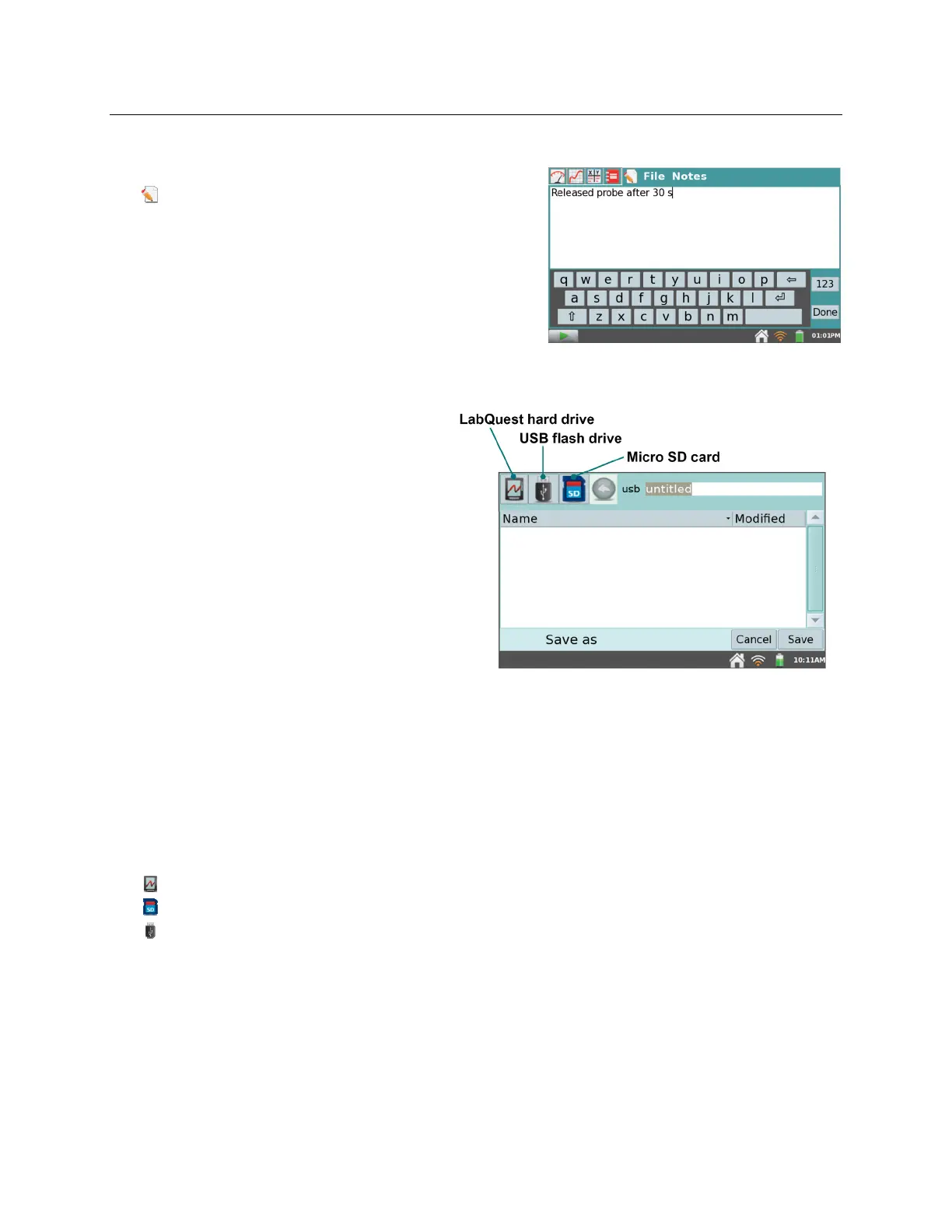
From the Notes screen, selectable by tapping the Notes
tab , students can enter notes as they perform an
experiment. The menu provides access to standard edit
commands of Cut, Copy, Paste, and Clear All.
Storing LabQuest App Files
LabQuest files have a .qmbl extension
and can be saved to the internal storage
space on LabQuest, or to an external
storage device such as a USB flash drive
or microSD card. LabQuest App files
can also be opened and manipulated on a
computer with Vernier Logger Lite or
Logger Pro
®
3 software.
LabQuest can recognize additional
storage space in a connected microSD
card or a USB flash drive. The drive or
card may be formatted in FAT16 or
FAT32 (the most common Windows
®
and macOS
®
formats) for reading and
writing. LabQuest cannot read NTFS or
HFS+ formatted drives.
To save a LabQuest App file, follow these instructions:
1. If saving to an SD card or USB flash drive, make sure the drive is inserted in the appropriate
port on LabQuest. It can take several seconds for LabQuest to recognize the drive.
2. Choose Save from the File menu. This opens a Save As dialog box.
3. Tap on the appropriate icon to select your storage destination.
- LabQuest internal hard drive
- microSD card
- USB flash drive
4. After selecting your destination, tap on the name field and enter the file name. Tap OK.
5. Tap Save to save the file.
TIP! You cannot create directories within LabQuest App, but you can use directories that
already exist on the microSD card or USB drive. We recommend creating any needed folders on
a flash drive or SD card using a computer before you use the drive or card with LabQuest.



 To Next Page