39
V. USING LABQUEST
®
2 WITH A COMPUTER OR CHROMEBOOK™
VIA USB
LabQuest 2 can be used via USB connection with the following software:
Logger Lite – www.vernier.com/logger-lite
Logger Pro
®
3 – www.vernier.com/lp
Graphical Analysis™ 4 – www.vernier.com/ga4
Collecting Data with Logger Lite, Logger Pro 3, or
Graphical Analysis™ 4
LabQuest 2 can be used as a sensor interface with a computer or Chromebook. To collect data,
follow these steps:
1. Connect a sensor to LabQuest.
2. Connect LabQuest to your computer or Chromebook using the included USB cable. The mini
end of the cable connects to LabQuest and the full-sized end connects to an available USB
port on your computer or Chromebook.
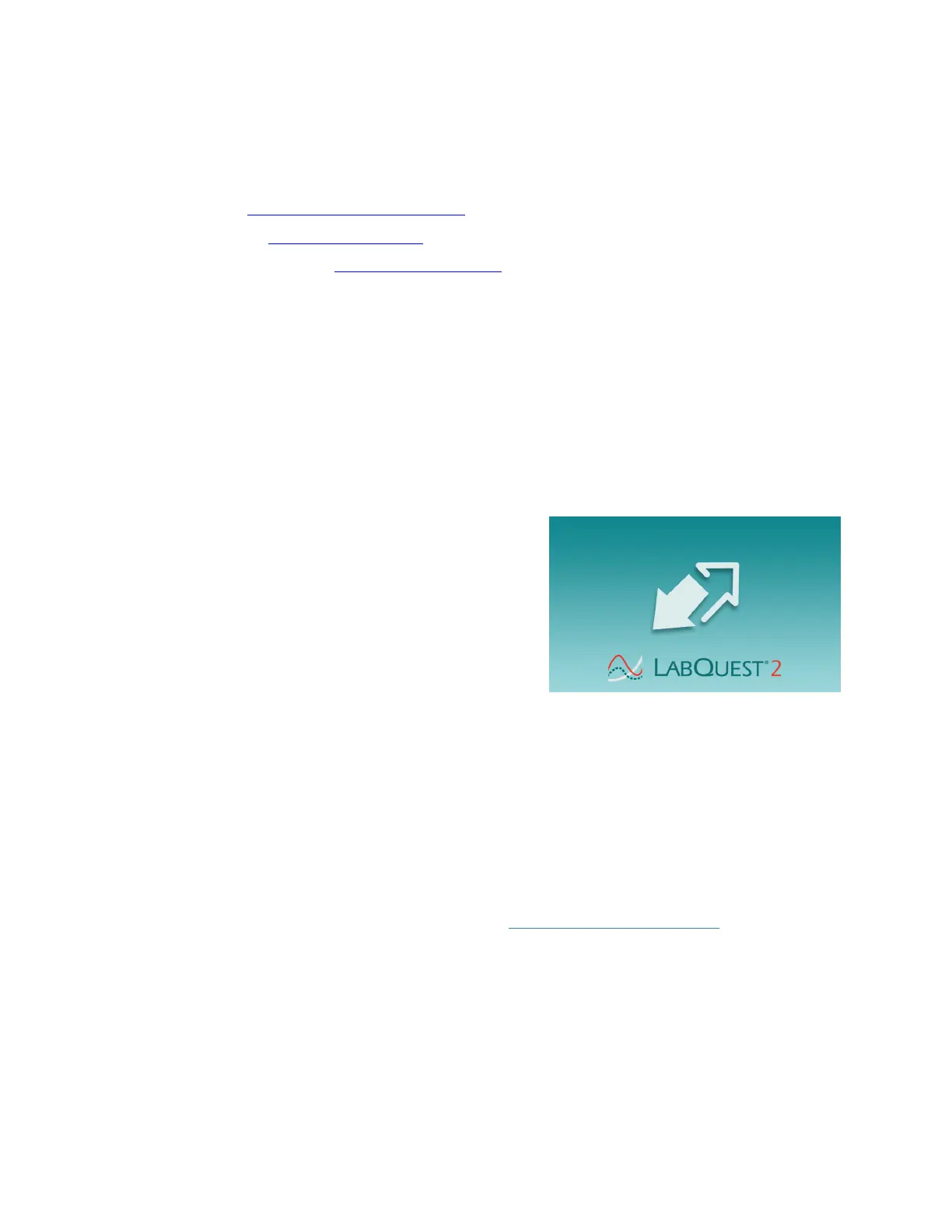
3. Open the data-collection software on your
computer or Chromebook. The software will detect
LabQuest and the attached sensor, and display a
graph ready for data collection. LabQuest will
display a screen with two arrows indicating it is
connected to the computer or Chromebook.
4. Click the Collect button in the computer or
Chromebook to start data collection.
Transferring Data from LabQuest to Logger Pro 3 or Logger Lite
Automatically Transferring Data
If you collect data in LabQuest App and subsequently connect LabQuest to a computer, then
Logger Lite or Logger Pro 3 will automatically detect the presence of the remote data and
display a message indicating the data can be retrieved from LabQuest. Follow the onscreen
instructions to download data to the computer.
Manually Transferring Data
To manually transfer saved data from LabQuest (see Storing LabQuest App Files), open Logger
Lite or Logger Pro 3 on your computer, choose LabQuest Browser from the File menu, and then
choose Open. Choose the desired LabQuest file from the displayed list and click Open. Note that
only one LabQuest file can be opened at a time. Once opened on the computer, you may then
choose to save the file as a Logger Lite (.gmbl) or Logger Pro 3 (.cmbl) file by choosing Save As
from the computer software File menu.
TIP! If sensors are still connected when a LabQuest file is opened using Logger Pro 3 or
Logger Lite, the sensors will be ignored. To enable the sensors, choose New from the File menu
in Logger Lite or Logger Pro 3.



 To Next Page