LabQuest
®
2 – User Manual
29
Edit
– Use this tool to copy and paste values from one location to another. In particular, you
might copy a range of values from the table and paste them into notes on the Notes screen.
Advanced Table Option
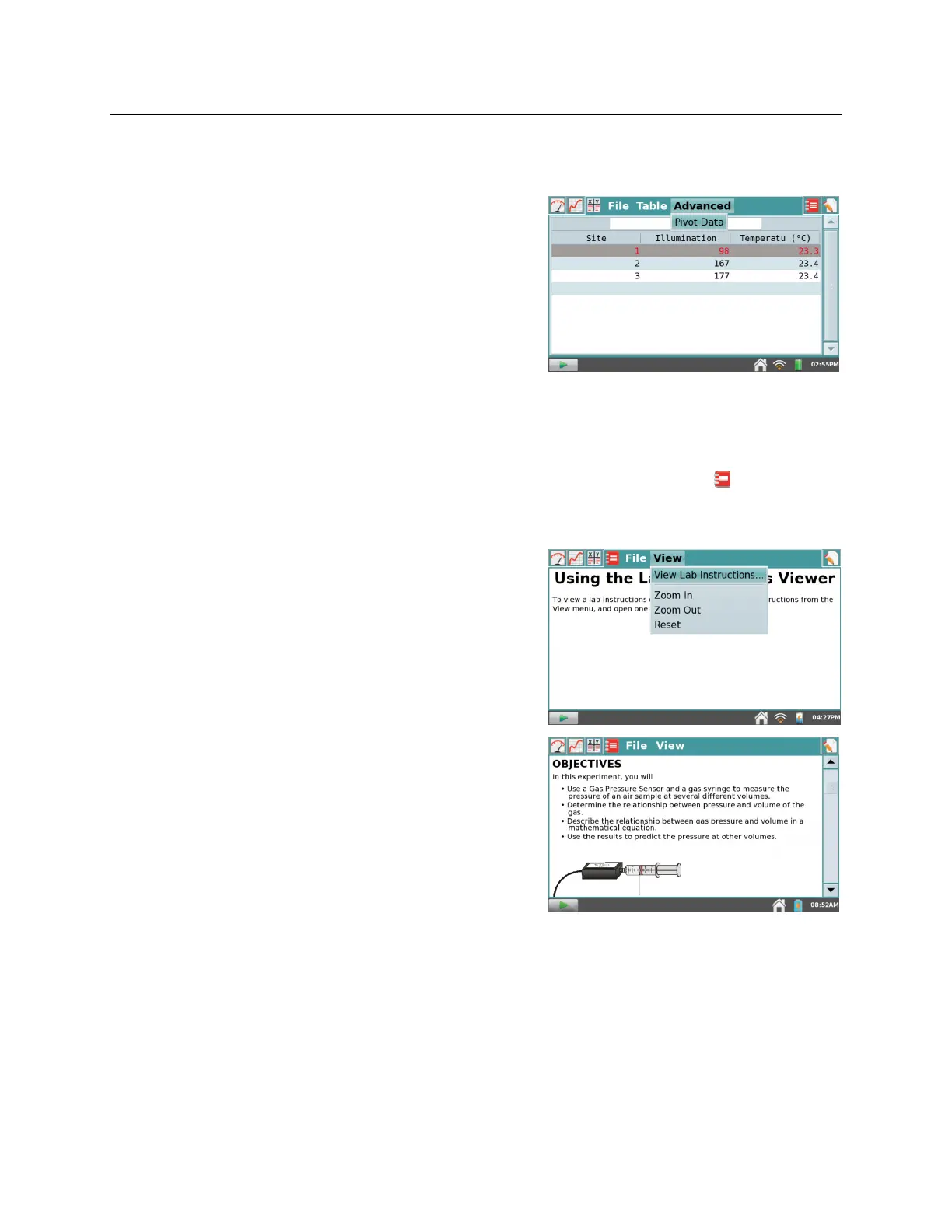
When LabQuest is in the Data Matrix mode, an
Advanced Menu option is displayed adjacent to the
Table menu. Choose
Pivot Data
from the Advanced
menu to transpose the rows (usually graphed as the
x-axis and representing the sampling site) with the runs
(usually selected by tapping on the button to the left of
the Filing Cabinet and representing the sampling day).
You can view field data as the location changes or as it
is pivoted to be viewed as the day changes.
Viewing Vernier Lab Instructions
From the Lab Instructions screen, selectable by tapping the Lab Instructions tab , students can
view select experiment instructions from Vernier lab books. LabQuest comes preloaded with
over 100 experiments.
Opening Vernier Lab Instructions
From the Lab Instructions screen, choose View Lab
Instructions from the View menu. This displays a list
of the lab books with select experiments preloaded on
LabQuest. Select the desired book and experiment, and
then tap OK.
In addition to scrolling through the instructions using
the scrollbar at right, you can also zoom in on a
particular portion of the instructions by choosing Zoom
In from the View menu. Choose Zoom Out from the
View menu to restore the previous view. Choose Reset
from the View menu to restore the original view.
To stop viewing a particular experiment instruction,
choose View Lab Instructions from the View menu,
select the file named default.html, and then tap OK.



 To Next Page