46
IX. ADDITIONAL APPS ON LABQUEST
®
2
Several accessory applications can be launched from the Home menu. It is not necessary to quit
LabQuest App to use these accessories; to return to LabQuest App, either close the accessory
using the close button in the upper right corner of the screen, or switch to the LabQuest App by
tapping LabQuest App on the Home screen.
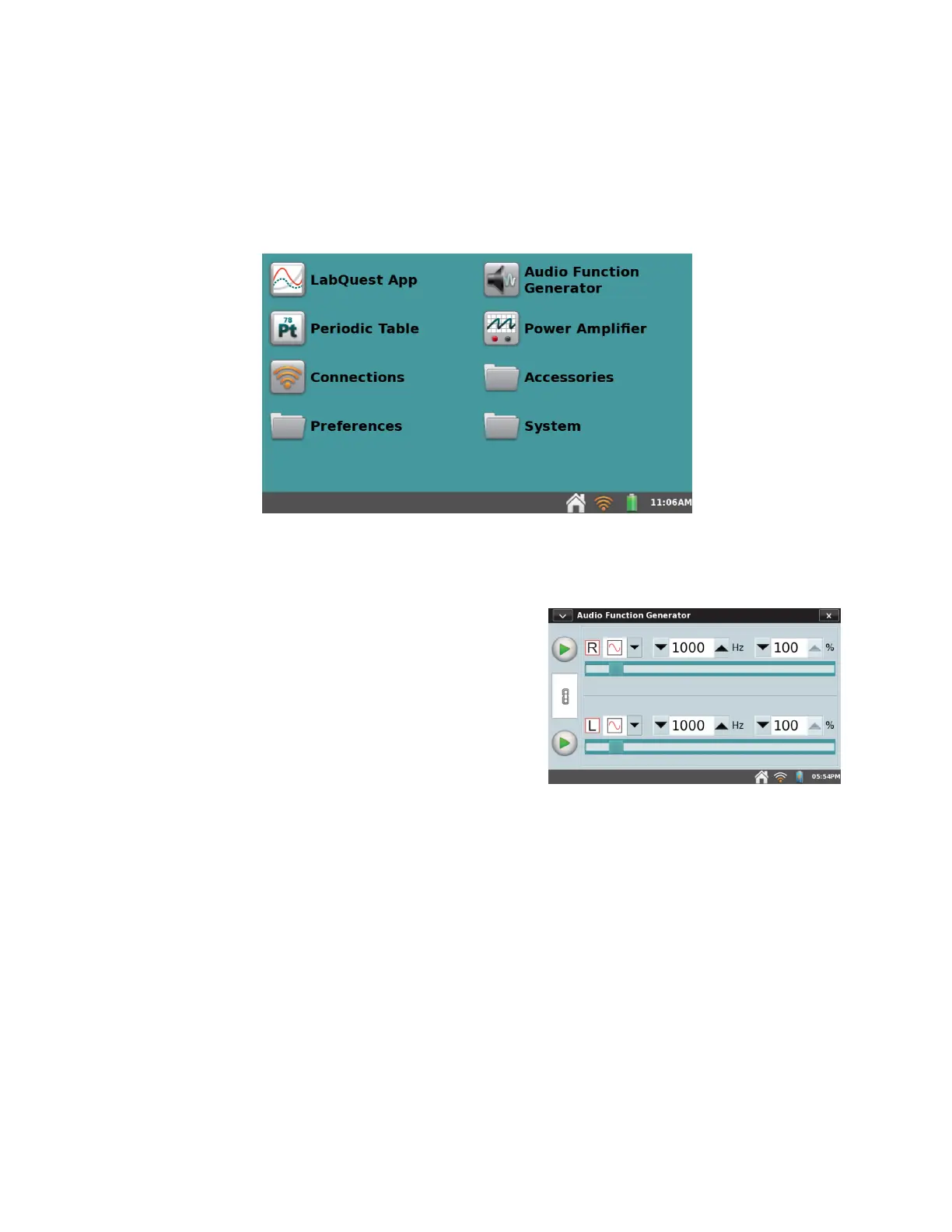
Access additional apps and accessories from the Home screen.
Audio Function Generator
From the Home screen, tap Audio Function Generator
to launch this app. The function generator is used to
create waveforms in the audio frequency range. Select
a waveform, frequency, and volume for each channel.
Start and stop using the buttons at left. The link
between left and right channels is on by default so that
both channels start and stop together. Tap the link icon
to control the channels independently.
Use the sliders to also control frequency. Tapping left
or right of the slider will halve or double the frequency.
A common use of the Audio Function Generator is to create tones and beats for waveform study
using a microphone. For the best waveform quality, connect a powered computer speaker to the
LabQuest audio output jack.



 To Next Page