LabQuest
®
App
18
Wireless Device Setup – Use Wireless Device Setup
to connect to wireless sensors and interfaces, such
as our Go Direct
®
sensors, Go Wireless
®
Heart
Rate, Go Wireless Link, or Wireless Dynamics
Sensor System.
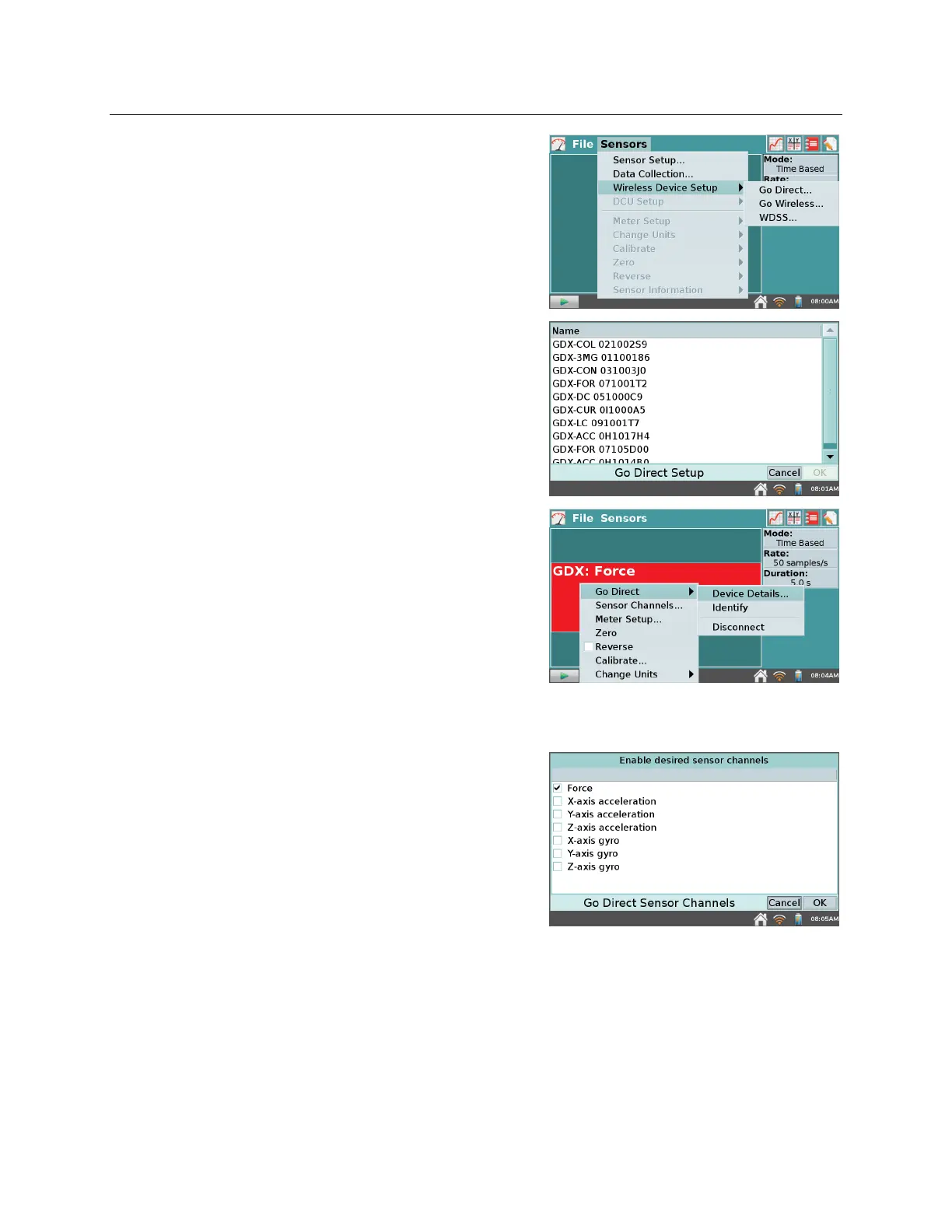
o Go Direct… – Choose Wireless Device Setup ►
Go Direct from the Sensors menu to scan for
and select Go Direct senors such as Go Direct
Temperature, Go Direct Force and Accleration,
or Go Direct pH. Select the serial number of
your device from the list, and tap OK. Repeat as
needed to connect up to three Go Direct sensors.
Once connected to a Go Direct device, tap on its
meter and choose Go Direct ► to access
additional setup options.
Choose Device Details to determine the
battery level or to view hardware and
firmware details.
Choose Identify to flash the LED on the
Go Direct sensor to ensure you are
connected with the desired sensor.
Choose Disconnect to end connection to the
sensor.
Some Go Direct sensors have multiple sensor
channels. These sensors have a default
configuration that may not show all available
channels. Choose Sensor Channels to modify
the Go Direct sensor channel configuration as
needed for your experiment.



 To Next Page