LabQuest
®
App
20
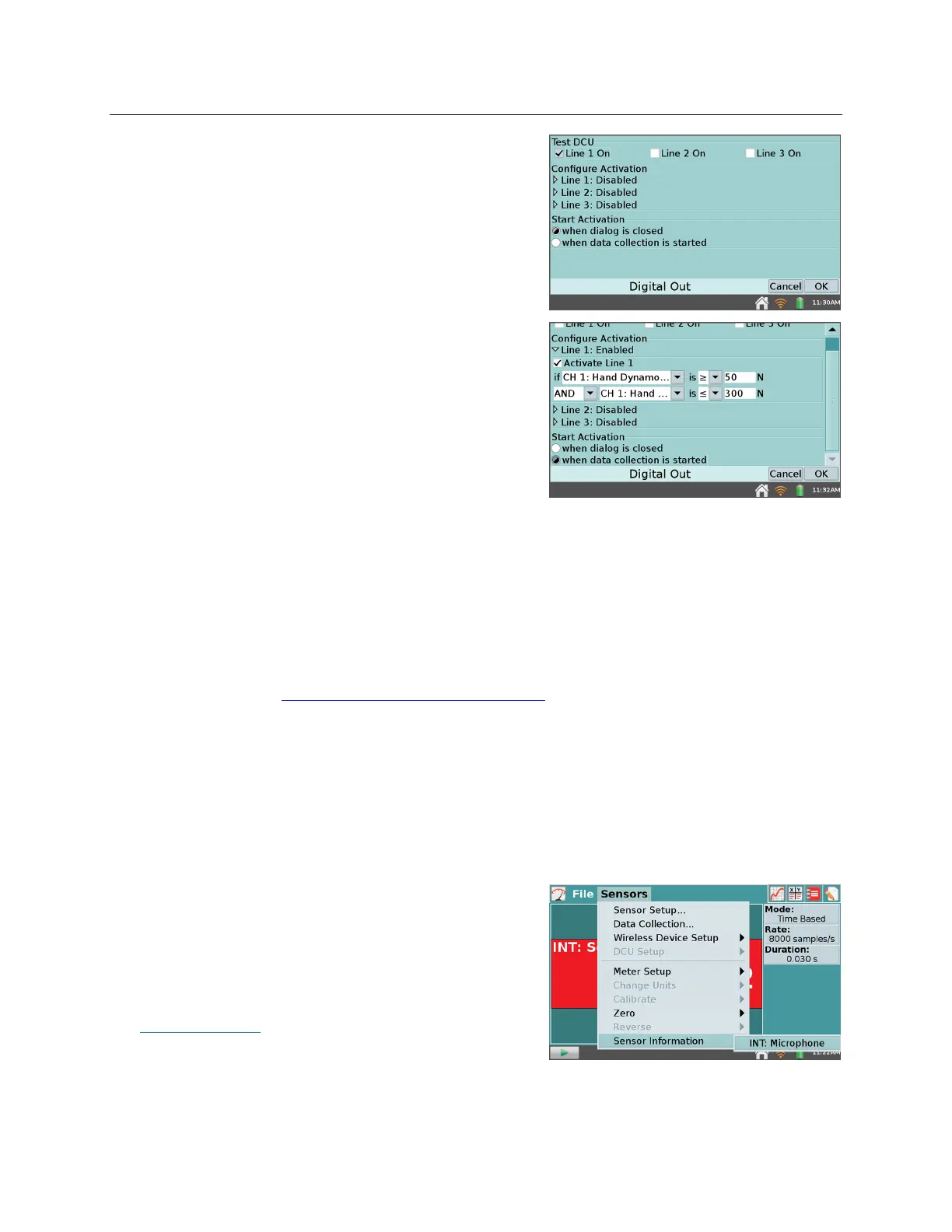
DCU Setup – Connect a Digital Control Unit (DCU)
to one of the LabQuest digital ports. Choose DCU
Setup from the Sensors menu and select the DCU
for setup.
o Test DCU – Manually turn on and off the
digital lines.
o Configure Activation – Use logic statements to
activate digital lines based on sensor readings.
o Start Activation – Apply digital output logic
immediately or only while collecting data.
TIP! Once digital output has been activated,
automatic identification of sensors is disabled
for the port used by the DCU. The LabQuest
App will not detect the removal of the DCU or
the addition of any other digital sensor in that
port. To turn off the digital output and enable
auto-ID, tap File ► New.
Change Units – In some cases, you may have the option to display the sensor data in another
set of units. Choose Change Units from the Sensors menu to select a different set of units.
Choosing a new unit will change all existing data for that sensor to the new unit, as well as
any subsequent data. If this feature is grayed-out in the menu, then the data for that
particular sensor cannot be displayed in another set of units.
Calibrate – Most sensors use a custom factory calibration identified by LabQuest. However,
some sensors do require calibration, and you will use the Calibrate tool accessible from the
Sensors menu. Follow the detailed calibration instructions provided in the sensor booklet
available online at www.vernier.com/support/manuals
Zero – Choose Zero from the Sensors menu to set the current sensor reading to zero. This
adds an offset to the current reading. Not all sensors can be zeroed.
Reverse – Some sensors read both positive and negative values. For example, the Dual-
Range Force Sensor reads positive values when pulled, and negative values when
compressed, by default. Choose Reverse from the Sensors menu to swap the sign of the
readings with respect to the default settings. Not all sensors can be reversed.
Sensor Information – Choose Sensor Information
and select an internal sensor to view sensor detailed
specifications. Sensor Information is only available
when an internal sensor has been set up for data
collection.
For mor information on internal sensors, see
Internal Sensors



 To Next Page