Chapter 3 Web Interface of RDU501
RDU501 Intelligent Monitoring Unit User Manual
3)
Click the Modify button to modify the device information;
4)
Click the Save Configuration button to make the device-modification take effect, the same as adding a new device.
Note
1.
The “Save Configuration” button can be clicked to save all operation results at once.
2.
After adding, modifying, or deleting in the device management page, if you leave the page without clicking the Save
Configuration button, a prompt box as shown in Figure 3-41 will pop up asking if you want to confirm leaving the page.
Clicking the Cancel button will stay the current page, and clicking the OK button will leave the page and ignore the modification
information.
2. Device Type Management
Click the Power and Environment Device Management submenu under the Configuration Management menu,
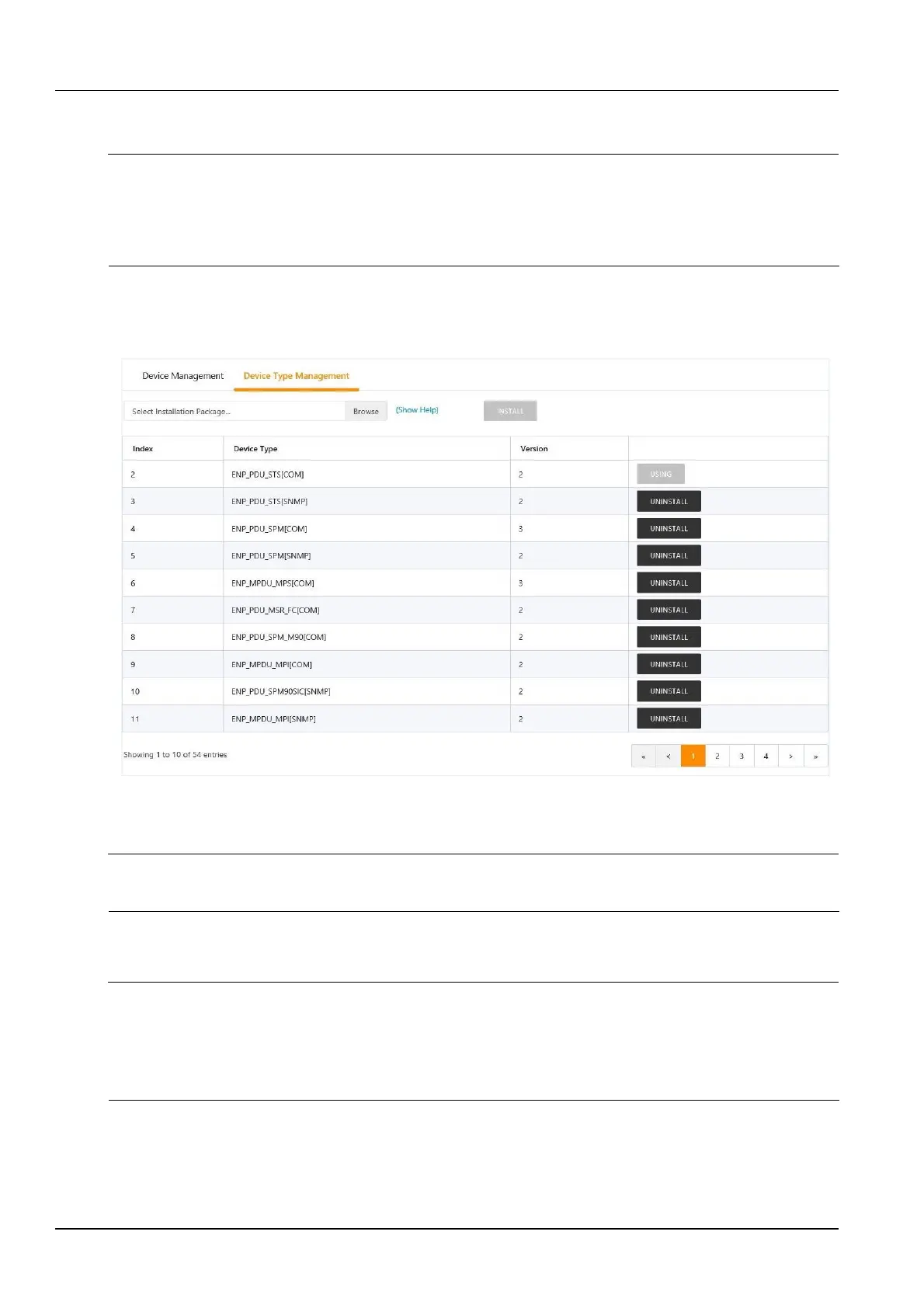
and then click the Device Type Management tab. The page shown in Figure 3-111 is displayed.
Figure 3-111 Device type management
Click the Browse button to upload the driver configuration package (.iru file format) from the local directory and click
the Install button to install the new device type.
Note
The number of device types supported by the system depends on the remaining space of the system and the size of the driver
configuration package itself, but no more than 64.
The page displays the device type information of the installed device. Click the Uninstall button to pop up the
Confirm Uninstall dialog box and click the OK button to uninstall the corresponding device type.
Note
1.
During installation, if the device type exists and the device driver version is higher than the driver to be installed, the device
type cannot be installed repeatedly.
2.
If the installation package does not have version information or the version information does not match the software version,
the device type cannot be installed.
3.
If a device uses this device type, the Uninstall button will be grayed out, indicating that it is in use and cannot be uninstalled.
Batch configuration
Click the Batch Configuration submenu under the Configuration Management menu to open the page shown in
Figure 3-112.



 To Next Page