move,continue to adjust clockwise,spindle will run more and more quickly.
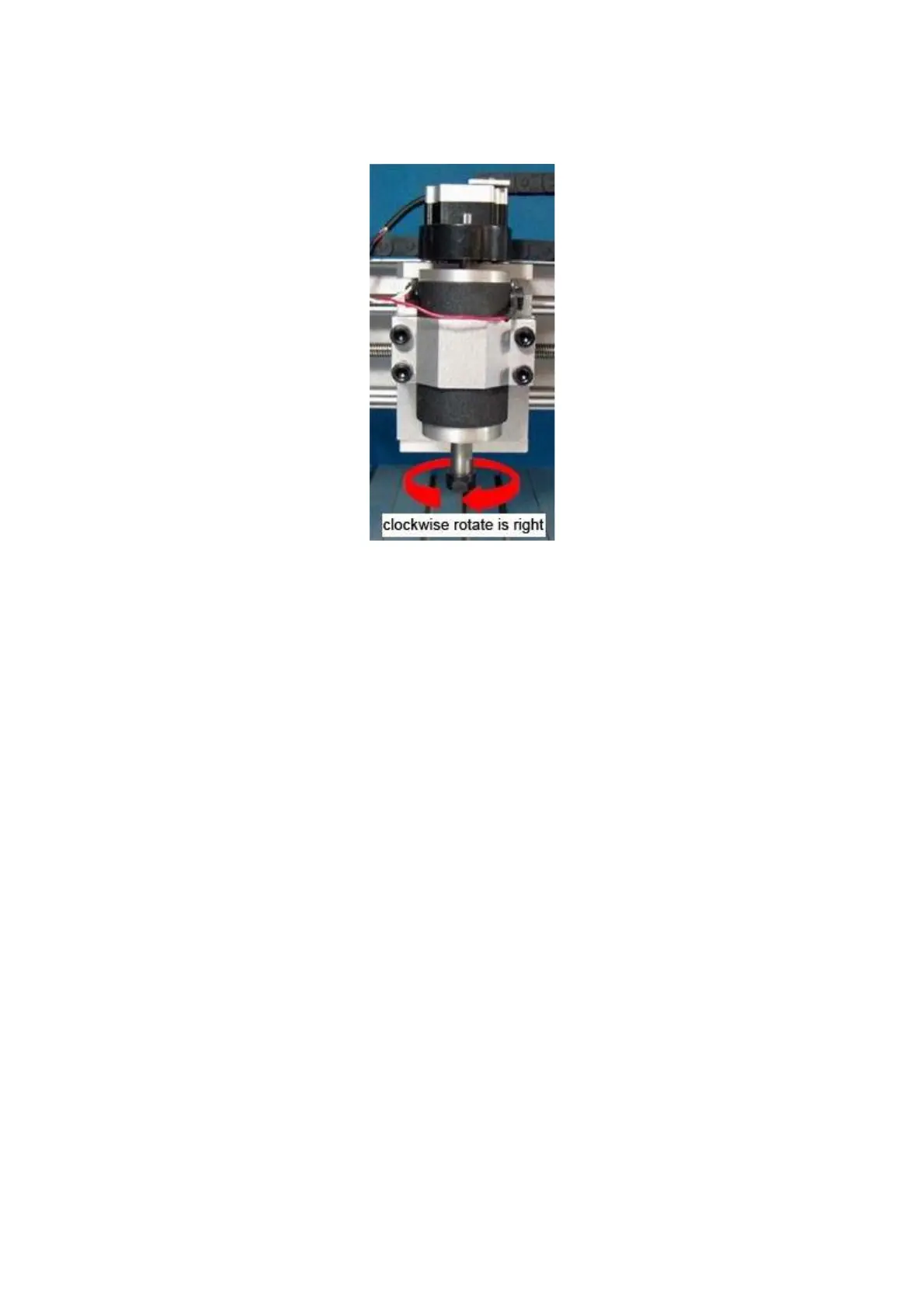
Remark: If you face the spindle, the clockwise direction is the right direction. If you find the direction is
anticlockwise, please power off the spindle and exchange the two connectors will be fine.
Notice:
(1).When the spindle is power-on, the voltage between the two connectors of the spindle is
90VDC, when the spindle is running, please do not touch the cutters and wear the glasses and
mask. please keep the children away from the machine.
(2) Before powering on the spindle, please make sure the spindle speed regulator is in the safe
position and then power on the spindle and speed up slowly. When power off the spindle, you can
turn off the spindle power supply switch directly and regulate the speed regulator to the safe
position. If the speed regulator is in the high-speed position, it will cause the burnt of the fuse and
over current, this will do damage to the speed regulating board in the control box.
3.Test by PC
(1)In the power off, use the parallel cable to connect the control box and the PC parallel port.
(2) Start the PC, open the “MACH 3 mill”and the drive power, and make sure the 3 axis are self-locked
automatically. Check the Mach 3 interface, the E-stop button is twinkling, if so, click it to stop it (if you click
it, and the E-stop button on the interface is still twinling, please check the E-stop button on the control box
is pressed, if it is pressed, please move it clockwise to make it unpressed,if the driver is power off the E-
stop button is twinkling and can’t stop).
(
3
)
After stopping twinkling E-stop on MACH 3 interface, you can type the direction key of the PC
keyboard, to check whether the X, Y, Z axis can move.
If it can not move:A-check the X, Y, Z data on the Mach 3 is changed or not when typing the direction
key on the keyboard, if the data changes but the X, Y, Z axis do not move, please
follow the step as below:
B-check the setup of the pin.
C-check the connection of parallel cable
D-check the manual control button “JOG ON/OFF”whether is green. Refer the image
below



 To Next Page