OSSC Pro Quick Start Guide VideoGamePerfection.com
Changing modes
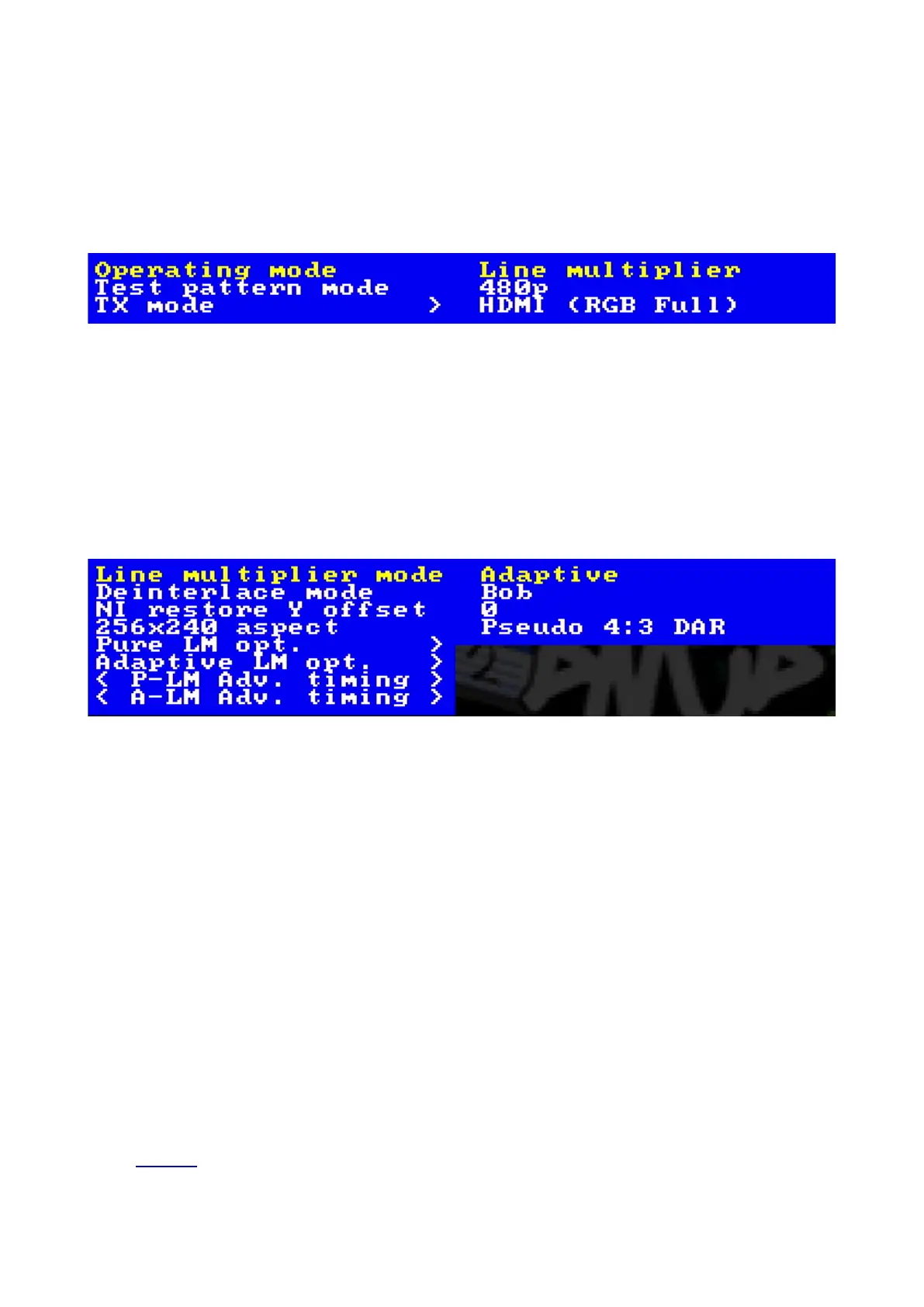
To change between line multiplier and scaler mode, navigate to the top level menu and then select
“Output opt.” and press “OK”. you should now see the options shown below.
Use the left and right navigation buttons on the remote to change between “Line multiplier” and
“Scaler”.
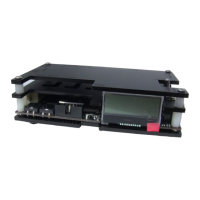
To change between adaptive and pure line multiplier mode, first choose Line multiplier mode by
following the steps above, then use the Return button on the remote, if necessary, to get back to the
top level menu.
Now, navigate to “Line multiplier opt” and press “OK”.
You can now use the remote to choose “Pure” or “Adaptive” mode. Adaptive mode is recommended
for most users.
Connecting consoles, PCBs or other hardware
Power your OSSC Pro off before you connect or disconnect external hardware. For the best results,
always use the best quality connection from your source device to your OSSC Pro.
For most vintage or retro systems, using a properly wired RGB SCART cable connected to the AV1
input is the best and easiest option. If RGB is not available, component video (YPbPr) can be used
instead and will produce equally good results.
For any systems that output digital video (including systems with after-market modifications), use a
digital cable with the AV4 input. Systems with after market modifications may require you to put
them into “pass through” or “direct mode”, so that OSSC can handle any upscaling.
Systems which output only composite video or S-Video will require a converter or transcoder, such
as the Koryuu.
Page 12


 To Next Page