OSSC Pro Quick Start Guide VideoGamePerfection.com
Overview
OSSC Pro is a next generation video processor and scaler. The device is designed to take video
signals from a range of older computers and video games consoles and convert and process these
signals so they are usable on modern, fixed resolution displays. While these modern displays are the
primary target of OSSC Pro, it also has the capability to convert newer video signals into formats
that are more suitable for older displays, such as CRTs.
Connectors and external controls (front)
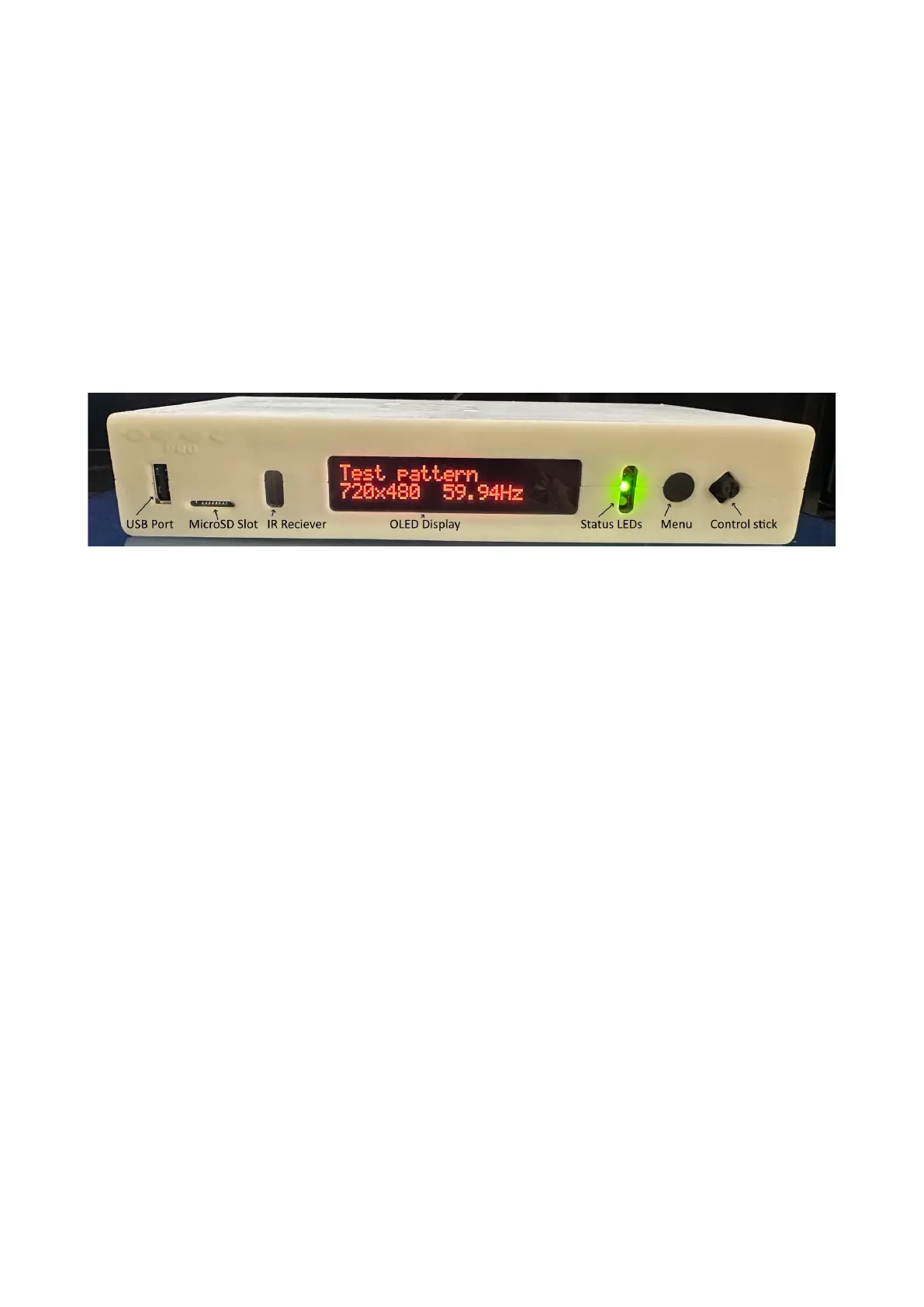
In the front view picture you can see the following features on your OSSC Pro.
USB Port – For connecting and controlling external devices such as video switching hardware, or
connecting accessories (note, these features are not currently available but may be added in future
firmware updates).
MicroSD Card Slot – For updating the devices firmware and storing display profiles. See
“Firmware Updates” on page 17 for more information.
IR Receiver – Receives commands from the remote control unit. Line of sight is required.
OLED Display – Two line character display enables the user to navigate the OSSC Pro’s menus.
The display is particularly useful if the user accidentally selects an incompatible output mode and
therefore cannot see the OSSC Pro’s on-screen menu.
Status LEDs – Indicate various functions of the OSSC Pro. The top most LED will illuminate Red
when the OSSC Pro is in standby (all other LEDs will be off). A Red and Green LED illuminated
together indicates an error condition with the current input. The middle LED will also blink when
an IR command is received.
Finally, the blue LED at the bottom illuminates when frame lock is active. Frame lock is discussed
on page 15.
Menu Button – Press this button to enter or exit the OSSC Pro’s menu. Press and hold this button
to toggle the OSSC between On and Standby.
Control Stick – Use the control stick to navigate through the OSSC Pro’s menus. Move the control
stick up, down, left or right to navigate the menus. Click the control stick in to choose a menu
option. Press the Menu button to cancel your selection or exit the menus.
Page 4


 To Next Page